6 - Using Your Invision MX450 Ergonomic Monitor Arm
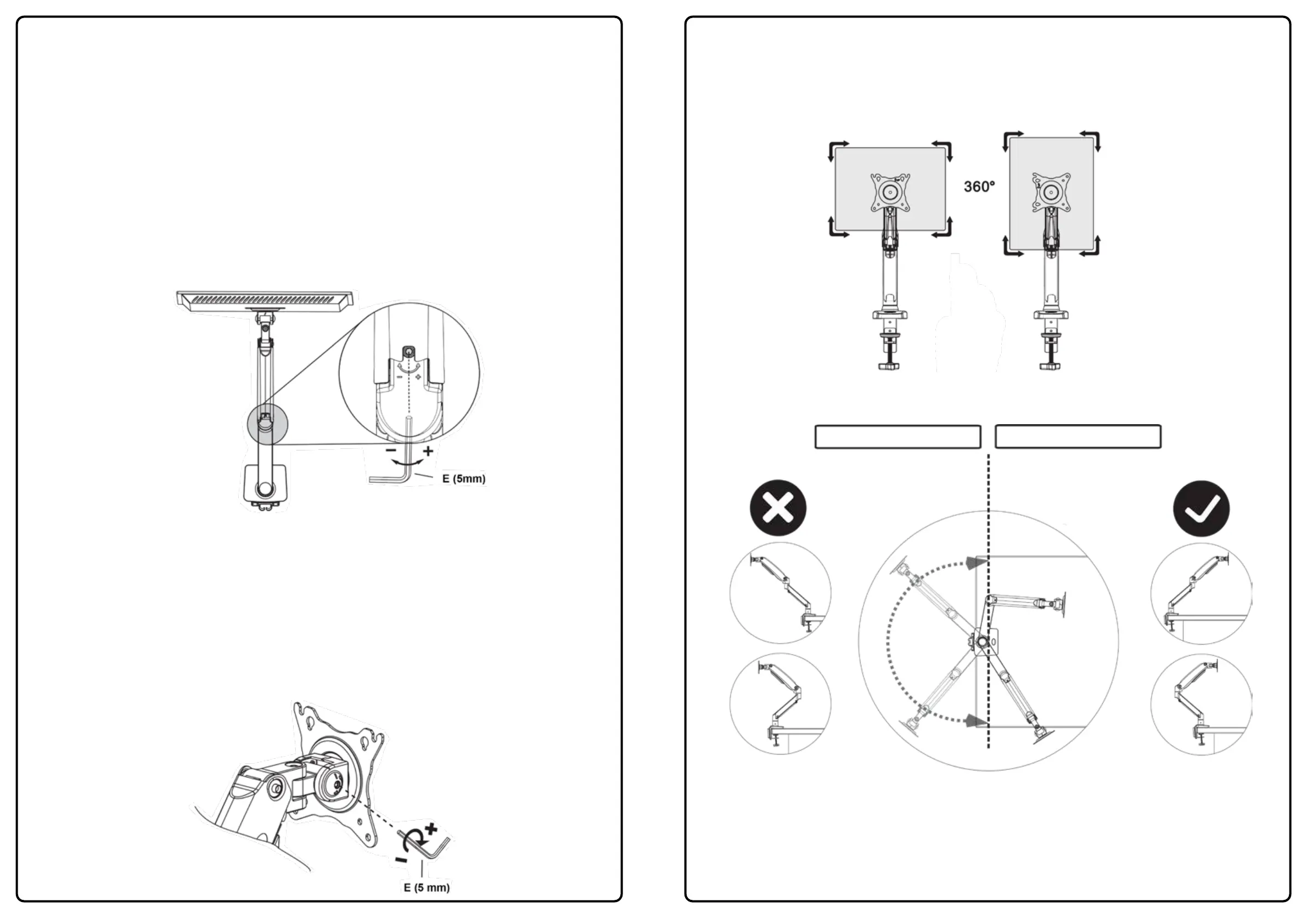
Setting the tension of the monitor arm to balance the weight of the monitor
Once fitted the screen may raise or lower depending on the monitors weight. From minimum
tension to maximum tension there are 22x full rotations. When adjusting make one full turn of the
Allen key and check by depressing the upper arm to see if the monitor is balanced evenly.
1. If the screen moves upwards of its own accord then adjust the tension using the 5mm Allen key (E) and
wind the set screw in the minus direction (clockwise).
2. If the screen moves downwards of its own accord then adjust the tension using the 5mm Allen key (E)
and wind the set screw in the plus direction (anti-clockwise).
Continue to adjust until the monitor weight feels equal to the tension of the monitor arm. It should
hold in place when positioning the monitor and not raise or lower of its own accord.
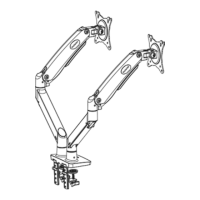
Diagram ‘W’
7 - Adjusting the Tilt Angle
The tilt can be set to your desired viewing angle by simply moving the screen backwards and forwards by
hand. If the screen moves freely you need to adjust the tension, follow the steps below.
1. To tighten the tilt adjustment use the 5mm Allen key (E) and turn the adjustment bolt in the plus direction
- see diagram ‘X’.
For heavier screens (9 - 12kg) the adjustment screw needs to be tightened to the maximum.
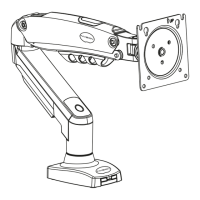
Diagram ‘X’
7
To activate your 2 year warranty please email your Name, Order Number
and Product Reference MX450 to warranty@InvisionTechnology.co.uk
Your installation is now complete - Sit back & enjoy!
Troubleshooting:
Don’t panic! In case of any issues with compatibility or for any advice on fitting, please contact
our team at help@InvisionTechnology.co.uk and we will help you overcome any problems.
All of our products carry our Compatibility Promise.
Incorrect usage directions Correct usage directions
IMPORTANT: Please make sure you use this product as displayed in the directions below.
Failing to do so could cause injury or damage to your desktop/work-surface.
8. Rotational Features
1. Your monitor arm allows you to rotate your screen through 360 degrees to view in portrait mode or
landscape mode providing the VESA mount on your screen is central.
Please Note: Beware of trapping or breaking cables when rotating monitor.
DO NOT ROTATE MORE THAN 90 DEGREES IN EACH MOTION.
8


 To Previous Page
 Loading...