3 - Attaching Face Plate to Monitor Arm
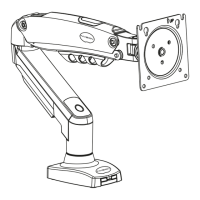
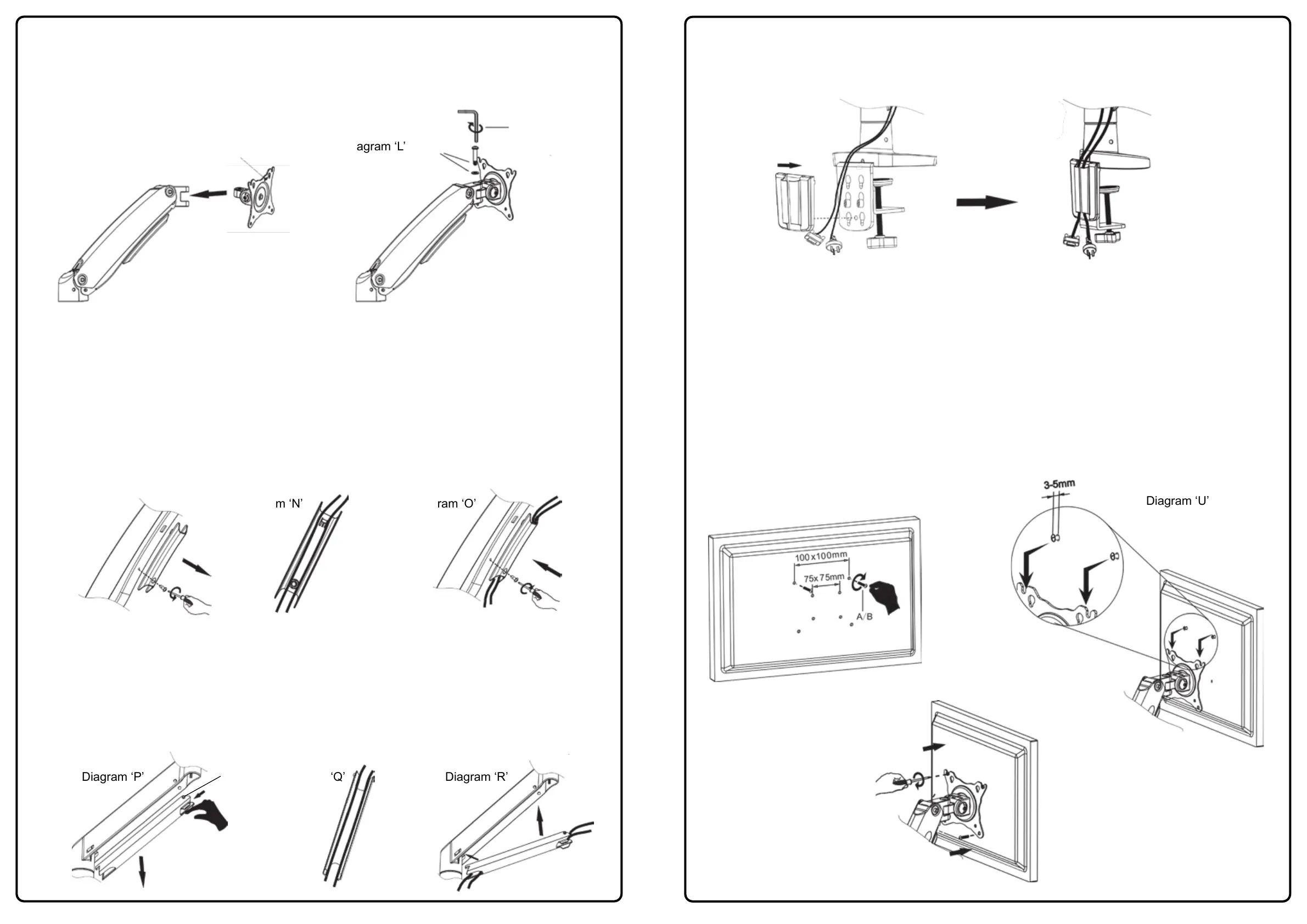
1. Take the face plate (6) and slot the face plate connector between the prongs located on the upper arm
making sure the holes are aligned - see Diagram ‘K’.
2. Use bolt and washer (G) to secure face plate to upper arm and use 5mm Allen key (E) to tighten -
see Diagram ‘L’.
Diagram ‘K’
Face Plate
Diagram ‘L’
G
E (5mm)
4 - Adding Cables to the Monitor Arms Cable Management
If you are using cables to connect your monitor to your PC please ensure you have enough cable
length to travel the distance between your equipment before installation.
1. Remove the bolt from the upper arm cable management tray using a Philips screwdriver and slide the tray
downwards from the notch to release it - see Diagram ‘M’.
2. Add cables as shown in Diagram ‘N’ ensuring there is enough slack to connect the cables to your monitor.
3. Replace the cable management tray into the notch and push it upwards. Locate the bolt into the screw
hole and tighten with a Philips screwdriver - see Diagram ‘O’.
Diagram ‘M’
Diagram ‘N’ Diagram ‘O’
4. Put your finger into the top hole of the lower cable management tray - see Diagram ‘P’. With gentle
pressure push down to release the pins from the two holes on the top of the lower arm.
5. Add cables as shown in Diagram ‘Q’ ensuring there is enough slack between the upper and lower arms
and your equipment.
6. Replace the cable management tray into the lower notches first. Then with gentle pressure press on the
upper pins to locate the tray into the top holes on the lower arm - see Diagram ‘R’.
Diagram ‘P’
Pins
A
B
Diagram ‘Q’ Diagram ‘R’
A
B
5
7. If you have clamped the monitor arm to your desk/work-surface add the clamp cover plate (4) to tidy up
the remaining cables - see Diagram ‘S’.
Diagram ‘S’
5 - Mounting the Monitor
1. Check the monitors VESA by measuring the distance between the mounting holes on the back of the
screen - this is where bolts A or B will fit - see diagram ‘T’.
2. Screw 2 bolts into the top two holes on the back of the monitor using bolts A or B and tighten in 3 turns
leaving room between the bolt head and rear of screen for hanging the monitor - see Diagram ‘U’.
Please note: Recessed monitors may require a combination of bolts, washers and spacers.
3. Carefully lift monitor and hang onto the face plate.
4. Fit the bottom 2 bolts into the face plate and tighten all the bolts see Diagram ‘V’.
Please Note: Set the torque of arm if screen moves down too easily (see Step 6).
Diagram ‘T’
Diagram ‘U’
Diagram ‘V’
6


 To Next Page
 Loading...