22
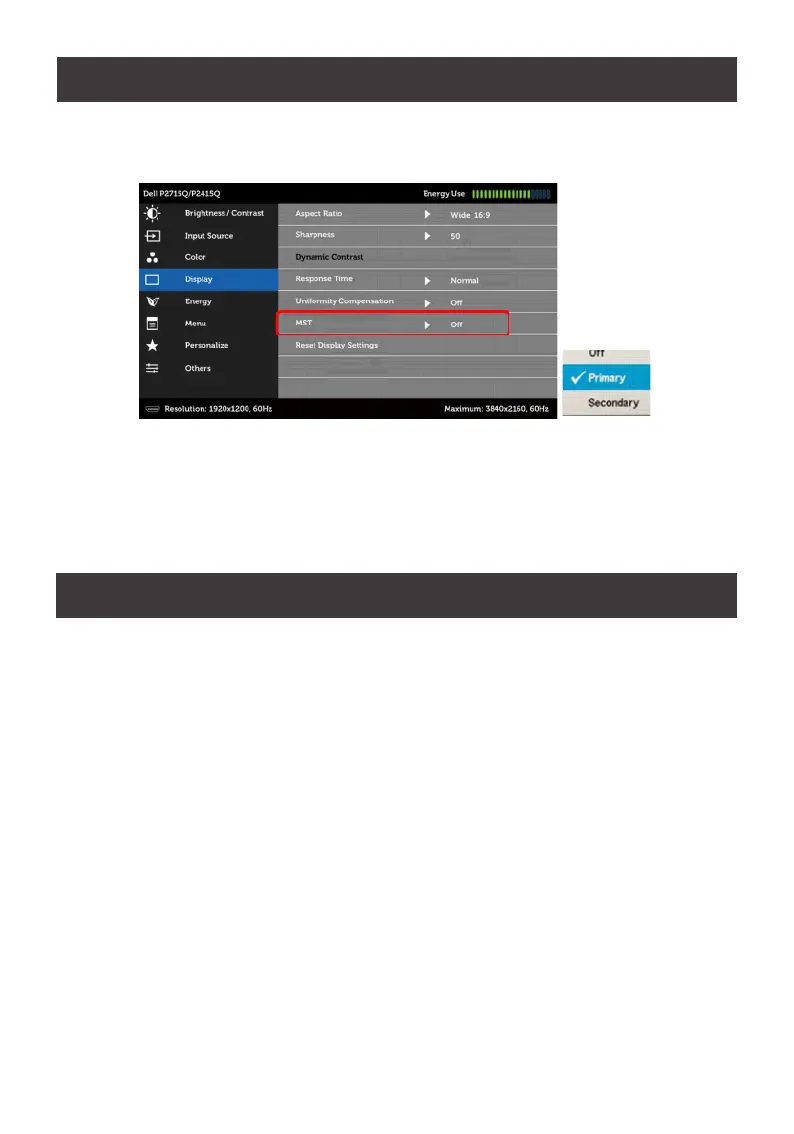
Before connecting your secondary monitor, you must enable MST function on your monitor’s
OSD menu.
MST Default Mode is O – 4K2K 60Hz with MST function disabled
Primary Monitor – Set as primary mode at 4K2K 30Hz with MST (DP out) enabled
Secondary Monitor – Set as secondary mode at 4K2K 30Hz with MST (DP out) disabled
Firmware Upgrade Utility
MST Functionality
Firmware Upgrade Conguration
GCS1932/1934 Windows based Firmware Upgrade Utility (FWUpgrade.exe) provides a
smooth-automated process for upgrading GCS1932/1934’s rmware.
The Utility comes as part of a Firmware Upgrade Package that is specic for each device.
New rmware upgrade packages are posted on our IOGEAR.COM website, as new
rmware revisions become available. Please check the website regularly to nd latest
packages and information relating to rmware revisions and upgrades.
Before Starting Firmware Upgrade
In order to perform a rmware upgrade, need to use a computer that is not connected to the
GCS1932/1934. To set GCS1932/1934 to Firmware Upgrade Mode:
1. From a computer that is not part of the KVM installation, go to www.iogear.com/product
GCS1932 or www.iogear.com/product/GCS1934 to get a list of available Firmware
Upgrade Packages.


 To Next Page