24
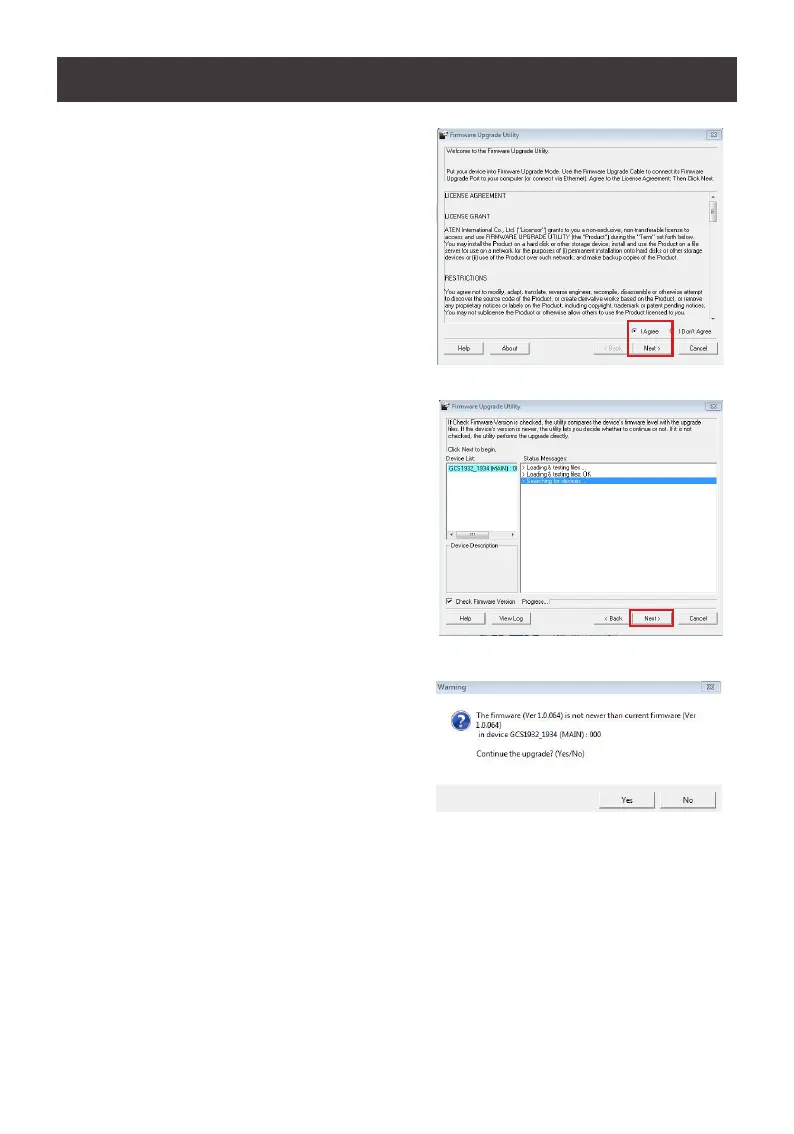
3. Read the License Agreement and click
“I Agree” button and click “Next” .
4. The Firmware Upgrade Utility main screen
appears. The Utility inspects your
installation. All the devices capable of
being upgraded by the package are listed
in the Device List panel.
5. As you select a device from the list, the
device’s description appears in the Device
Description panel. After you have made your
device selection(s), Click “Next” to perform
the upgrade.
6. If you enabled Check Firmware Version,
the Utility compares the device’s rmware
level with that of the upgrade les. If the
device’s version is higher than the upgrade
version, a dialog box below will give you the
option to Continue or Cancel.
7. If you did not enable Check Firmware Version, the Utility installs the upgrade les
without checking whether they are of higher level, or not.


 To Next Page