TIGER
LT
MANUAL Ion Science Ltd
Page 22 of 41
Tiger PC
LT
software
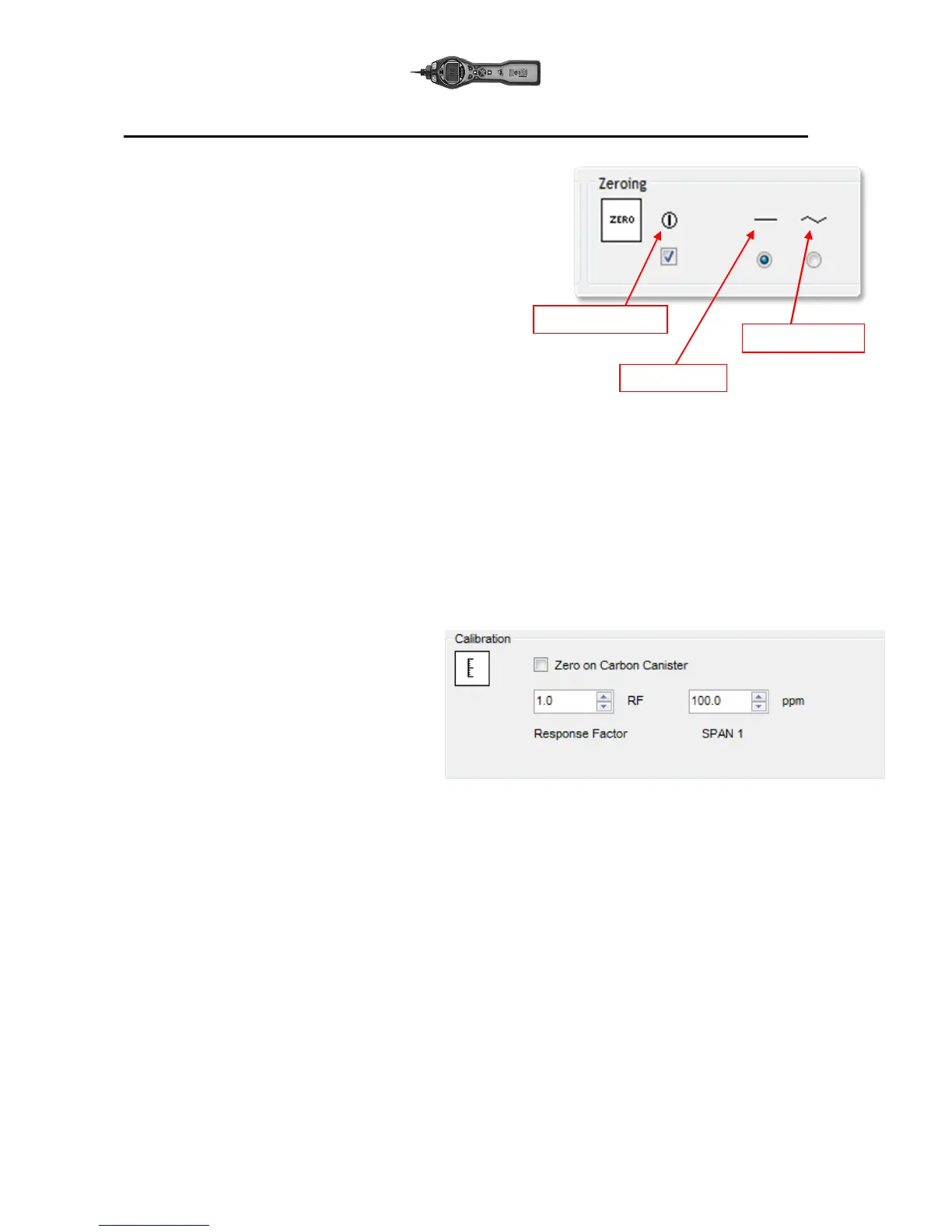
Zero at switch on
When selected, the TIGER
LT
will automatically set its zero reading
based on ambient air. When deselected the
Fixed zero
When selected, TIGER
LT
uses the fixed calibration Zero. If used in
conjunction with the ‘Zero at switch on’ feature the instrument will
zero at switch on and then remain at that level. instrument will use
its calibration zero.
Zero tracking
When selected, the Zero level will move negative if a cleaner
ambient air is detected. This ensures 0.0 ppm is displayed in
clean air and ensures sub ppb levels are always detected.
Log Full
If you select the bell symbol your TIGER
LT
will alarm when the memory log is full. Alternatively, if you wish
new data to overwrite the oldest stored data in the memory and continue to store new data during data-
logging, select the recycle symbol.
Vibrate
To set your TIGER
LT
to vibrate under alarm conditions select the ‘vibrate’ symbol.
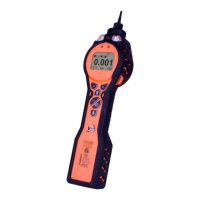
Calibration
Use this area to define your Custom Calibration parameters.
First connect TIGER
LT
to your PC as detailed above under ‘Connecting your TIGER to a PC’.
TIGER PC
LT
offers a two-point calibration
(zero + span). Send this information to your
TIGER
LT
. The calibration procedure is
detailed under the ‘Maintenance’ section of
this manual.
Startup Text
Enter the text you wish to appear on the
startup screen of your TIGER
LT
.
Send to Instrument
When you have configured your instrument or completed your changes, send them to your TIGER
LT
by
clicking the ‘Send to Instrument’ box. If the message ‘There was a problem sending to the instrument’
appears, click OK and return to the Home screen. Repeat the procedure under ‘Connecting your TIGER
LT
to
a PC’ above. If the ‘Summary’ screen for your TIGER
LT
appears, visit the configuration screen again. If not,
repeat the entire procedure. If your PC still fails to read or write to your TIGER
LT
seek advice from your
distributor or from Ion Science Ltd.



 To Next Page