Select Video Device
Select the video device Presenter should use. If properly connected, your
device's name should appear here.
Special note for iZiggi-HD users – As a wireless document camera, iZiggi-HD
connects to your computer via Wi-Fi. First-time connections can take a minute
or two to be reflected in the Select Video Device box, so please allow for this
delay before selecting iZiggi-HD as your video device.
Adjust
Pressing Adjust will take you to a Video Control menu with several camera
settings you can adjust by dragging the corresponding sliders.
Snapshot
Take a snapshot of the current image. The snapshot will be saved on your
hard drive as a JPG file and can be managed in Review mode.
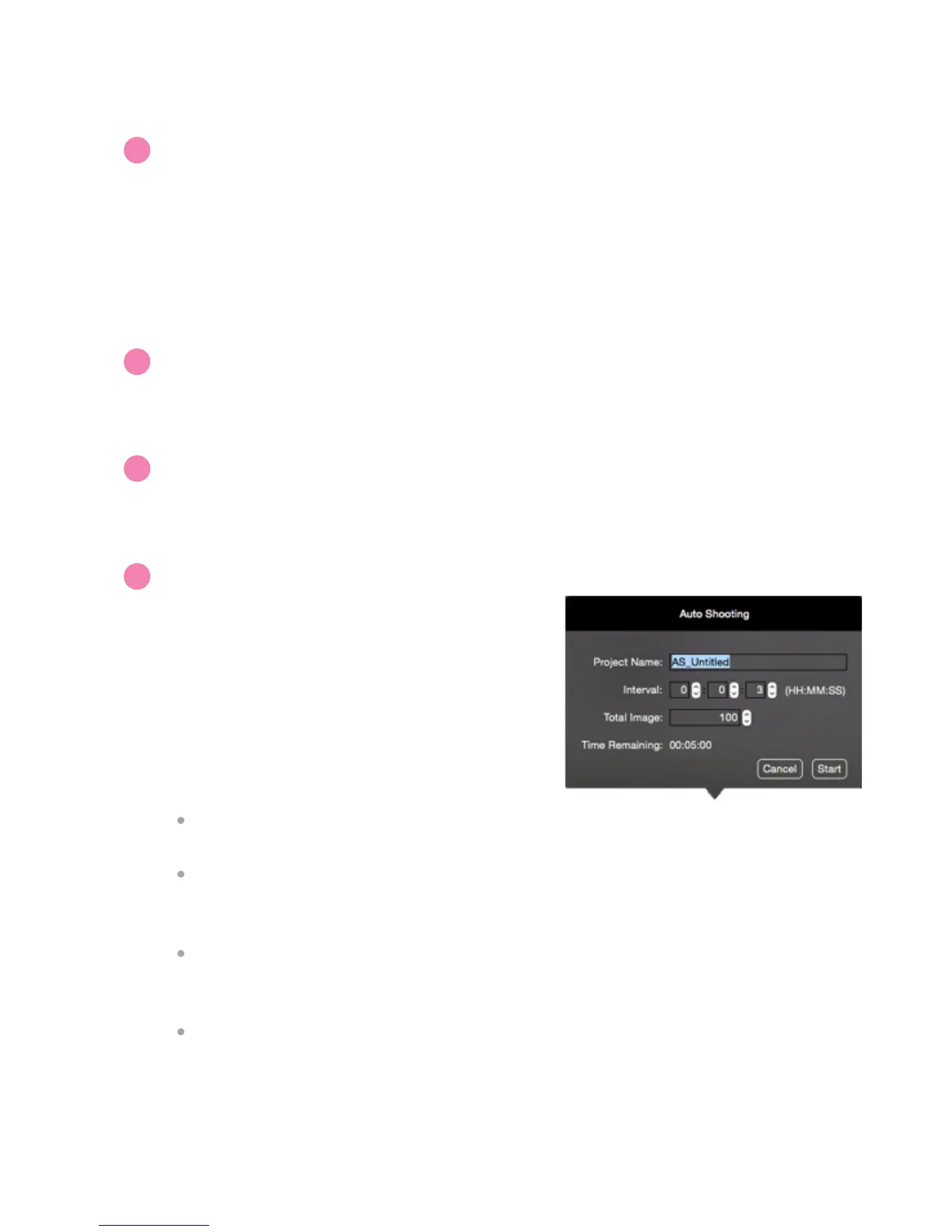
Auto (Interval Shooting)
Project Name
Name your automated snapshot series. It can be accessed in Review mode.
Interval
Type in numbers or tap the arrow keys to set your desired interval between
snapshots in hours (HH), minutes (MM) and seconds (SS).
Total Images
Type in numbers or tap the arrow keys to set the total number of images
(snapshots) you'd like to take in your automated snapshot series.
Time Remaining
Indicates the total time left for the current automated snapshot series to
complete.
Press Start to begin the automated snapshot series according to the
parameters you've set.
Clicking this will bring up a window allowing
you to set up an automated shooting
schedule.
Once set, Presenter will take snapshots
automatically at intervals of your choosing.
This tool is ideal for archiving different
materials quickly, for time-lapse photography,
and for stop-motion videos.
Bottom Menu Functions
I
J
K
L


 To Next Page
 Loading...