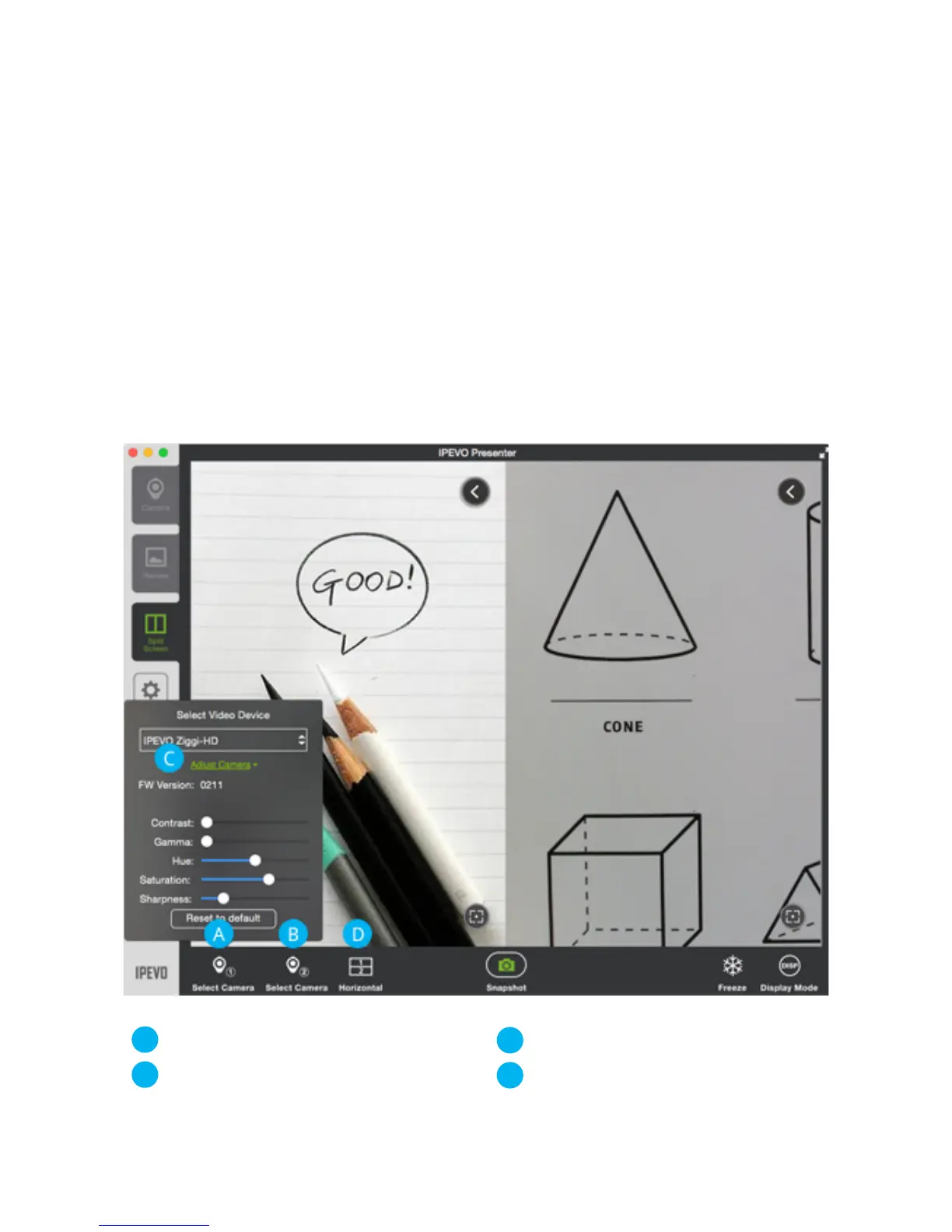
Select Camera 1
Select Camera 2
Adjust Camera
Horizontal/Vertical
Splitscreen Mode
Have two IPEVO doc cams? Now you can connect both of them to your computer.
Presenter will create two screen for the live feeds. Just set one Presenter window
to camera A and the other to camera B. The feeds will appear live on the screen so
you can view them at the same time. It's easily when you need to compare two
works at the same time.
You can also assign two screen to the same doc cam. Make one window your
default live stream and use the other window to zoom, freeze and otherwise
highlight your material. Now Presenter has yet another way to enrich your
presentation and give your audience more perspectives and more details.
To enter Splitscreen mode, click on the Split Screen tab on the left.
A
B
C
D


 To Next Page