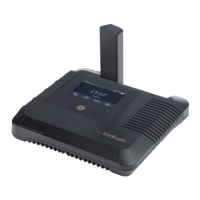
Iridium GO! exec Quick Start Guide 76 Iridium GO! exec Quick Start Guide
1. Getting Started on the Iridium GO! exec App
2. Voice Calls
Note: ALWAYS ensure you’re using the full international dialing sequence: 00 or + [Country Code] [Phone Number].
Using App:
• Using keypad option: To make calls using the keypad option go to Call Keypad Enter full
international dialing sequence Press Call. You can also opt to use the country ag dropdown menu on
the screen for the country code list.
• Using Contacts: Go to Call Contacts Search and select contact Press Call
• Quick Dial: The Iridium GO! exec device supports creation of a quick dial list for up to 10 contacts. Once
created, the list gets synced to the device to enable quick access.
• Set up Quick Dial list: Open Iridium GO! exec App Settings Device Settings Admin Settings
Quick Dial Select Add Contact Enter contact manually or select from Contacts Save. List
gets synced to the device.
Using Device:
• Using keypad option: To make calls using the keypad option go to Call Keypad Enter full
dialing sequence Press Call.
• Using Quick Dial Contacts: Ensure your quick dial list is set up using the app, then go to Call
Quick Dial Select Contact Press Call
Note: To minimize data over the satellite connection, it is strongly recommended to set the Wi-Fi connection to
‘Low Data Mode’ (for iOS) or ‘Metered’ (for Android).
Before getting started, ensure your smartphone or device is within
approximately 30 m (100 ft) Wi-Fi range and the Wi-Fi option is enabled.
Also ensure your Bluetooth option is enabled as the Iridium GO! exec
uses BLE to send notications to your smart device.
• Open the Iridium GO! exec app and accept all required Terms
and Conditions, permissions and set up SOS if not set up.
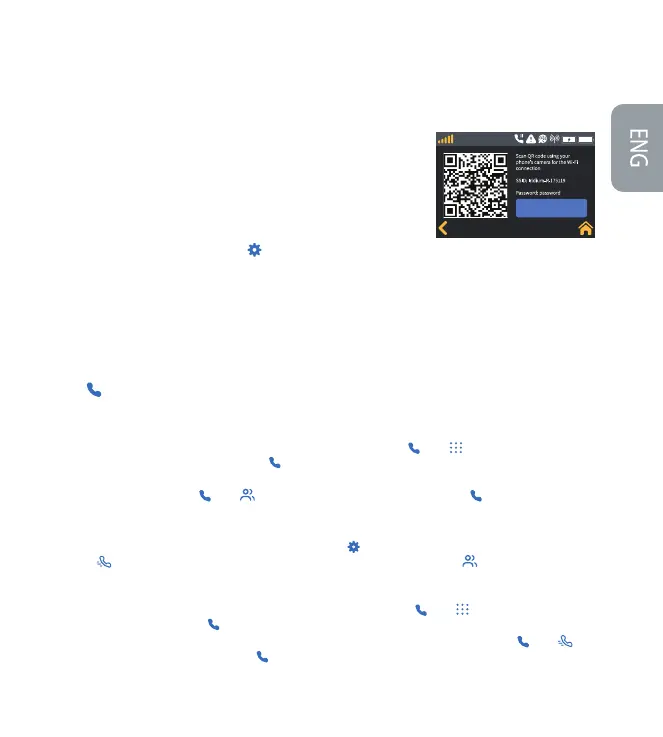
• Connect your smart device to the Iridium GO! exec device:
Go to device touchscreen select Settings Show Wi-Fi Access
Credentials Screen with QR code, Wi-Fi name and password are
displayed.
• Using Iridium GO! exec app, use the SCAN QR code option to scan and connect to device Wi-Fi.
OR
• Go to Wi-Fi Settings menu on your smart device Select Iridium XXXX Wi-Fi Enter password manually
and connect to device Wi-Fi.
Hide Password
Iridium


 To Next Page
 Loading...