The IRIS Flip is a mobile phone designed for ease of use, featuring a flip form factor and a focus on essential communication and accessibility. It comes with an eSIM for service activation, eliminating the need for a physical SIM card. The device includes basic phone functionalities, internet connectivity via Wi-Fi and Bluetooth, and multimedia capabilities for photos and videos.
Function Description:
The IRIS Flip serves as a primary communication device, enabling users to make and receive phone calls, send and receive text messages, and manage contacts. It supports internet browsing through Wi-Fi and Bluetooth connectivity for pairing with other devices. The phone also features a camera for taking photos and recording videos, an email application for managing electronic mail, and personalization options for ringtones and home screen wallpapers. A key aspect of its design is accessibility, offering features like larger text display and louder alerts.
Important Technical Specifications:
- SIM Type: eSIM (electronic SIM)
- Memory Card Support: microSD, up to 32 GB (card not included)
- Connectivity: Wi-Fi, Bluetooth
- Charging Port: USB-C
- SAR Limit (FCC): XXXXX W/kg (head), ******* W/kg (body) - Note: Specific SAR values are indicated as placeholders in the manual and would need to be filled in from official documentation.
- RF Exposure Separation Distance: 15 mm for body-worn operation, 20 cm for general product usage.
Usage Features:
- Initial Setup: The phone guides users through an initial setup wizard. eSIM activation is a primary step, requiring a Wi-Fi connection. Users can choose to download the eSIM directly or scan a QR code provided by Consumer Cellular. After eSIM download, the device reboots automatically.
- Keypad Navigation:
- Navigation Key: Used to open the apps list and navigate through menus.
- Scroll Key: Used to move through apps or features, and to select the OK button.
- Back Key: Returns to the previous view.
- Power/End Key: Quickly returns to the home screen.
- Keypad Lock: The keypad locks automatically when the phone is closed.
- Text Input:
- Repeated Key Press: Pressing a key multiple times cycles through letters and numbers assigned to that key (e.g., pressing '3' three times for 'c').
- Space: Press '0' for a space.
- Special Characters/Punctuation: Press '*' to access special characters and punctuation marks.
- Case Switching: Press '#' to switch between lower and upper case.
- Numbers: Press and hold a number key for 2 seconds to type the number.
- Internet Connectivity:
- Browsing: Access the internet via the "Internet" menu option. Users can type web addresses and navigate using the scroll key.
- Wi-Fi: Connect to available Wi-Fi networks by navigating to Settings > Network & Connectivity > Wi-Fi. Users can turn Wi-Fi on, select a network, enter a password, and connect.
- Bluetooth: Enable Bluetooth via Settings > Network & Connectivity > Bluetooth to find and pair with nearby devices or connect to previously paired devices.
- Phone Calls:
- Making Calls: Type the phone number (use '*' twice for '+' for international calls) and press "CALL".
- Ending Calls: Press "PWR END".
- Answering Calls: Press "CALL" or the Left Navigation Key when a call is received.
- Rejecting Calls: Press "PWR END" or the Right Navigation Key. Options to reject and send a text message are available via the navigation key.
- Contacts:
- Adding Contacts: From the home screen, navigate right to "Contacts", select "New", enter details, and "SAVE". The heart icon allows adding to favorite contacts.
- Transferring Contacts:
- From Gmail/Outlook/Memory Card: Contacts > Options > Settings > Import Contacts.
- Via Bluetooth (from an old phone): Enable Bluetooth on both phones (Settings > Network & Connectivity > Bluetooth > On), send contacts from the old phone, accept the transfer request on the new phone, then go to Notices > Files received > Import on the new phone.
- Calling a Contact: Select "Contacts", scroll to the desired contact, and press "CALL".
- Messaging:
- Sending Messages: From the home screen, navigate down to "Messages", select "New". In the "To" field, type a number or select from "Contacts". Write the message, use the back key to remove characters, and then "SEND".
- Email:
- Adding Account: When using the Email app for the first time, set up the account by entering name, email address, and password.
- Writing Email: Select "E-mail", then "Compose". Enter recipient in "To" field, subject, compose the message, and "Send".
- Photos and Videos:
- Taking Photos: Press down on the navigation key to open the menu, select "Camera". Press the scroll key to take a photo. "Preview" allows immediate viewing; "Gallery" allows later viewing from the home screen.
- Recording Videos: Press down on the navigation key to open the menu, select "Camera". Scroll right and press the scroll key to start recording. Press the scroll key again to stop. "Preview" allows immediate viewing; "Video" allows later viewing from the home screen.
- Personalization:
- Ringtone: Settings > Personalization > Sound > Tones > Ringtones. Scroll and select.
- Home Screen Wallpaper: Settings > Personalization > Display > Wallpaper. Options include using the camera for a new photo, selecting from "Gallery", or choosing from pre-defined "Wallpaper" options.
- Accessibility Mode:
- Large Text: Settings > Device > Accessibility > Large text > On. This mode also provides louder alerts and TTY/HAC functions.
Maintenance Features:
- Battery Charging: The phone should be fully charged before initial use. Only approved chargers and USB cables should be used.
- Battery Removal/Installation:
- Removing Back Cover: Insert a fingernail into the slot at the bottom of the phone, lift, and remove.
- Removing Battery: If the battery is in the phone, lift it out.
- Memory Card Installation: Insert a microSD card (up to 32 GB) in the indicated direction, then replace the battery and back cover.
- Safety Precautions:
- Battery Handling: Do not disassemble, crush, bend, deform, puncture, shred, modify, remanufacture, insert foreign objects, immerse in liquids, or expose to fire/explosion.
- Approved Chargers: Use only charging systems qualified per CTIA Certification Requirements for Battery System Compliance to IEEE 1725.
- Battery Replacement: Replace only with batteries qualified per IEEE-Std-1725. Only authorized service providers should replace non-user replaceable batteries.
- Disposal: Dispose of used batteries according to local regulations.
- Dropping: Avoid dropping the phone or battery, especially on hard surfaces. If dropped and damage is suspected, seek inspection from a service center.
- RF Exposure Compliance: Maintain a separation distance of 15 mm for body-worn operation (using non-metallic belt clips/holsters) and 20 cm from the body for general product usage to ensure compliance with FCC RF exposure requirements.
- FCC Compliance: The device complies with FCC rules (Part 15). Users are advised to reorient/relocate receiving antennas, increase separation between equipment and receiver, connect equipment to a different circuit, or consult a dealer/technician if interference occurs.

 Need help?
 General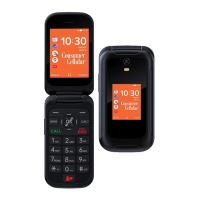

 To Next Page