Confidential and Proprietary Information
IriShield
TM
-USB MK 2120U Basic User’s Guide
8.2.1 Auto Capture Mode
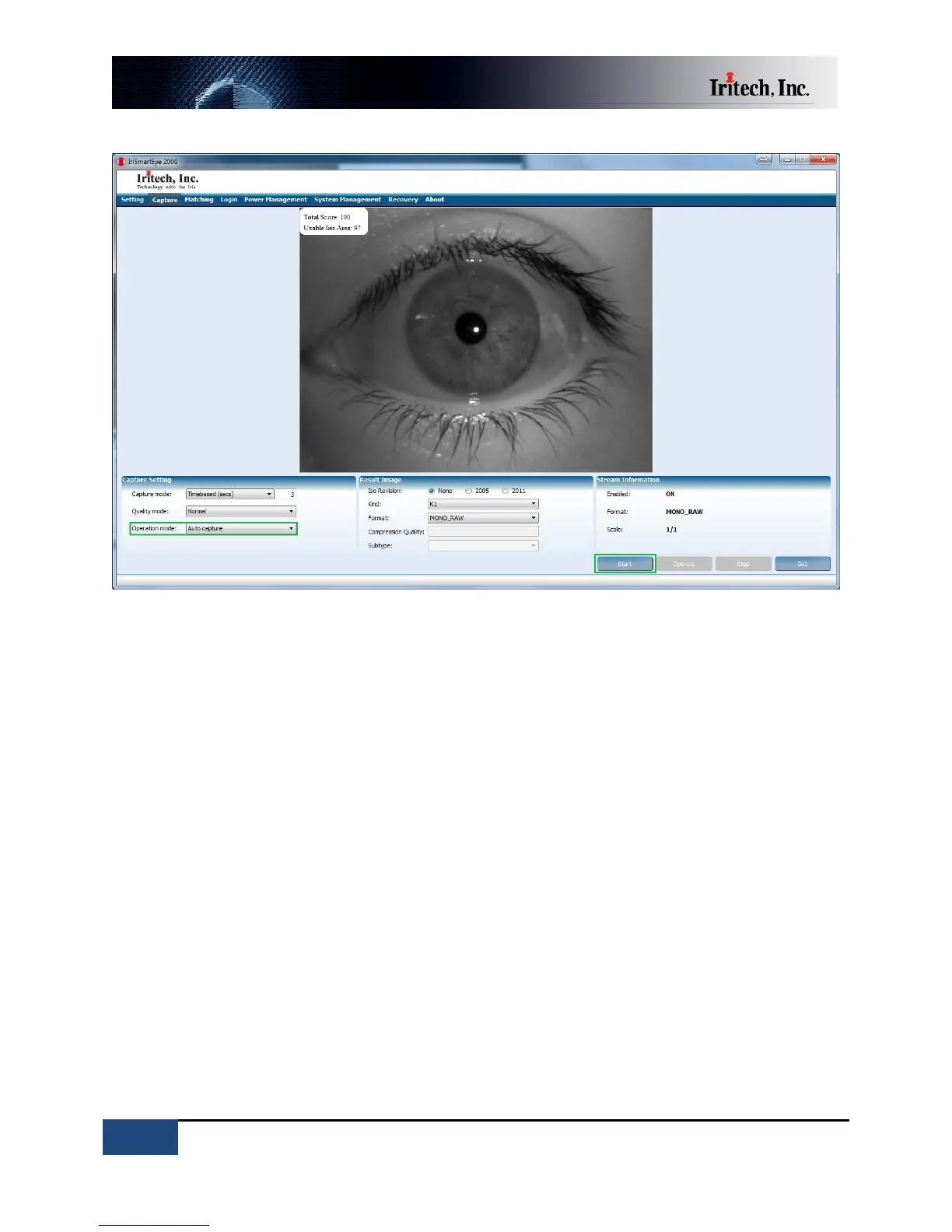
1. Select the “Capture” tab on the IriSmartEye 2000 application.
2. Select “Auto capture” in “Operation mode”.
3. Click “Start” button to activate the camera to capture iris image.
4. Keep your eye wide open, look straight ahead, and align the eye so that it is seen in the center
of camera mirror. (Closing the other eye may help with the alignment.)
5. Approach the camera slowly from a distance of about 5 cm (2 inches) away from the front of
camera. The IriSmartEye 2000 software will say “Keep moving” when it detects the first in‐focus
iris image. (The computer must have a soundcard and a speaker turned on to hear the message.)
6. Once the message “Keep moving” is heard, it is best to keep moving steadily towards and
backward the camera around focus distance (5cm) until the system sounds with “Shutter click”,
signaling that it has selected a qualified iris image and completed capturing process.
7. If non-qualified iris image is captured, an error message of “No frame was qualified. Please try
again.” will appear on the computer.
Note: If power is disconnected from the camera, e.g., during closing of a laptop, it will take a few
seconds after power is reestablished for the camera to operate as normal.


 To Next Page