Confidential and Proprietary Information
IriShield
TM
-USB MK 2120U Basic User’s Guide
Damage of iris pattern due to eye surgery
Most eye surgeries, including LASIK eye correction, do not affect the accuracy of iris recognition.
However, certain eye disease or surgery that hides or changes the iris pattern may degrade the
accuracy. Therefore, the capture device should have the ability to detect and reject iris images where
the iris is significantly affected by surgery. Re-enrollment should be scheduled if the surgical artifacts
heal over time. It is also important to properly establish the identity of the person before the un-
enrollment and the new registration.
8.4.1.3 How to Enroll
The following steps guide user how to enroll captured irises into device with an entered enrollment ID
number.
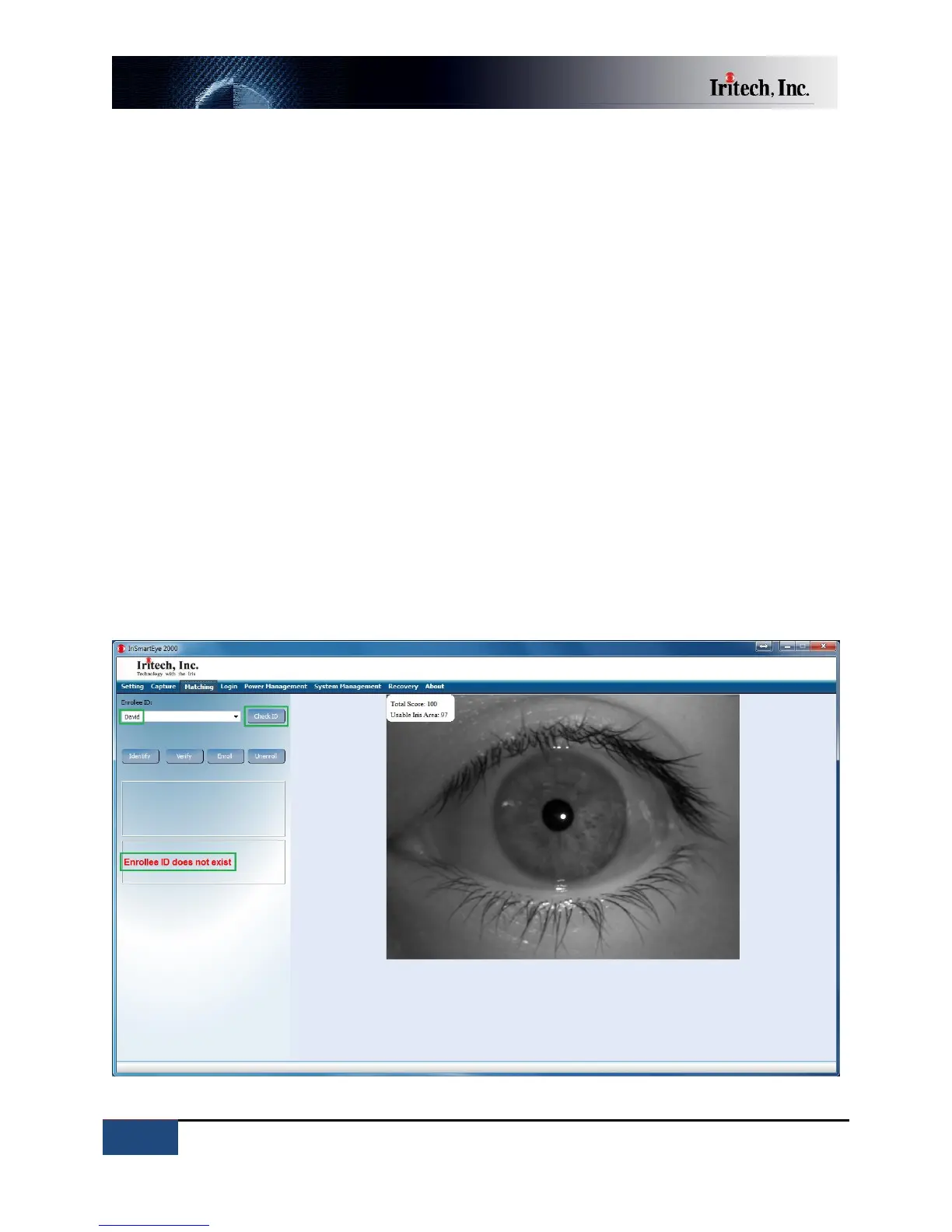
1) After the capturing process, the captured image in the device will be displayed on the software
window. Repeat the capturing if the operator is not satisfied with the captured image’s quality,
e.g., too much occlusion, red-eye effect, side-gazing, too much reflection on the iris, or motion
blur.
2) Enter an enrollment ID, which is an alphanumeric (numbers 0 to 9 and letters A to Z, a to z) and
has maximum length of 31 characters, as the identity of that enrollee in the device. Click “Check
ID” to see whether the entered ID has already been used.


 To Next Page