8. Basic Operation
Adaptive-Sync
This feature is off by default. To activate, you must have hardware with Adaptive-Sync capa-
bility, a DP or HDMI cable, and the latest graphic drivers. After connecting your computer and
monitor with a DP or HDMI cable, you may receive a prompt to enable the feature on your
computer. If you do not, you may need to enable the function in your graphics card menu.
See your graphics card manufacturer’s documentation for instructions.
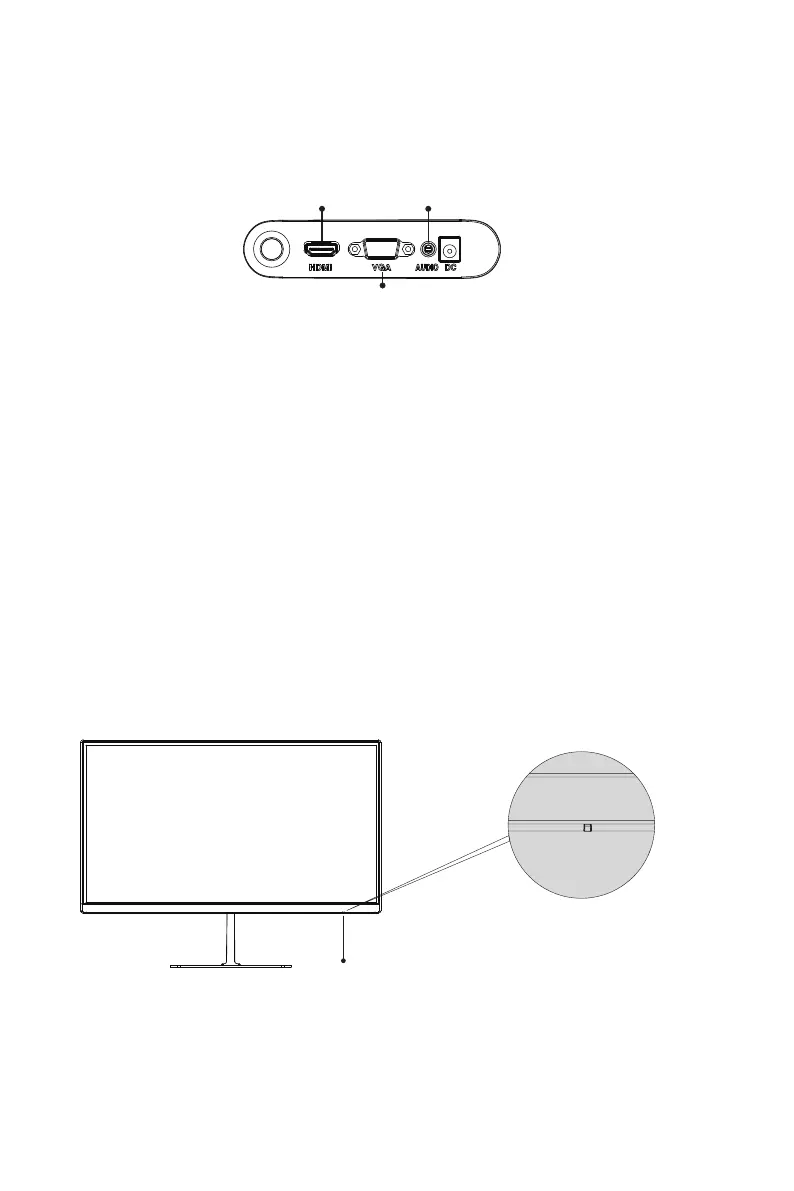
1. Insert one end of the HDMI cable into your PC's graphics card. A VGA cable may
also be used.
2. Connect the other end of the cable to the corresponding connector on your monitor.
3. Connect the power cable to your monitor then connect the other end to your power
source. It is recommended that you use a surge protector with adequate voltage if
a wall outlet cannot be reached directly.
4. Locate the power button on the monitor and press it to turn on the monitor.
Audio OutputHDMI Connector
VGA Connector
Steady blue light indicates the power is on and the monitor runs normally. Red light indicates no
video source and no horizontal or vertical signal detected or low voltage. Please make sure that
your computer is turned on and all video cables are fully plugged in and/or connected.
9. Indicator Light
Indicator Light
Eng-8


 To Next Page