EasyManua.ls Logo

Itek ITMC27V161QHD - User Manual

Itek ITMC27V161QHD
28 pages
Print Icon
To Next Page IconTo Next Page
Loading...
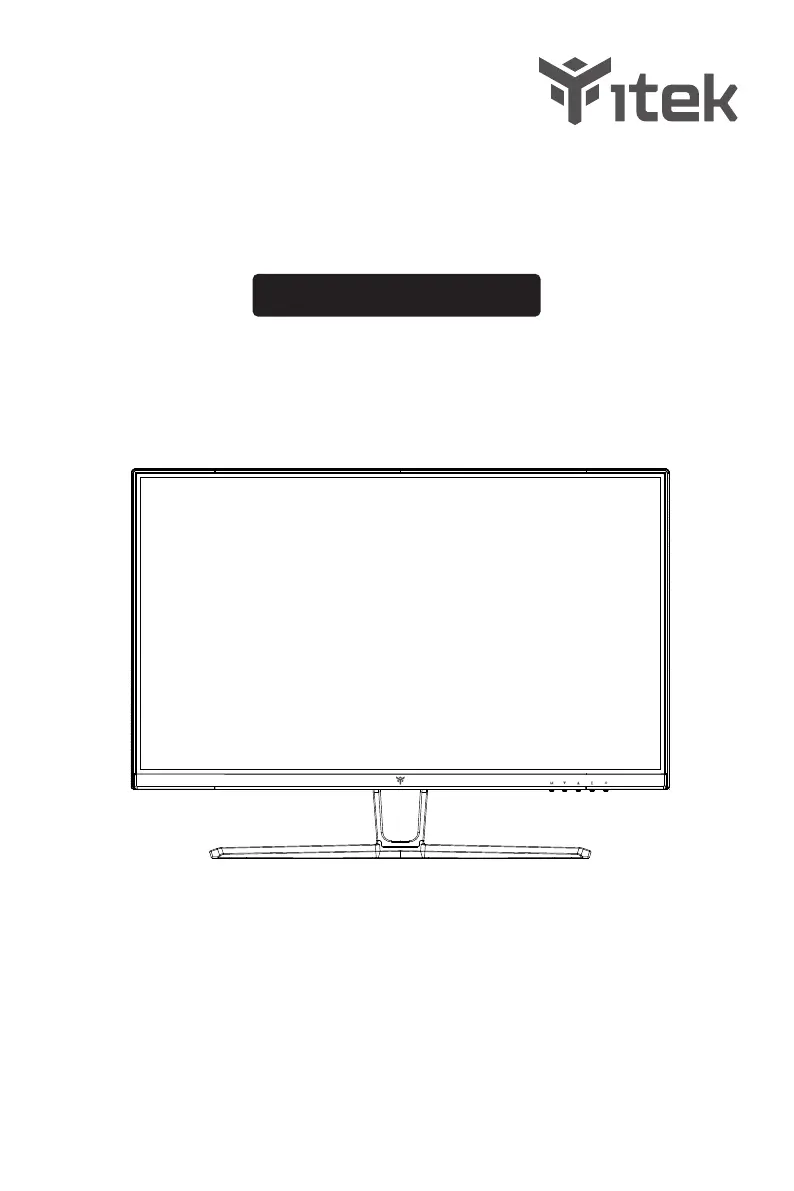
ITMC27V161QHD
User Manual for Monitor
For more information please visit our web site or write us an email:
https://www.itekevo.com
info@itekevo.com

Questions and Answers

  • H
    Haley EspinozaAug 17, 2025
    How to fix no display on Itek Monitor but power light is on?
    • B
      Bradley JacksonAug 17, 2025
      If your Itek monitor's screen is black but the power light is on, first ensure the video cable connecting the monitor to your computer is properly connected and secure. Also, check for bent or broken pins in the video cable connector. Next, verify that the operating system hasn't entered hibernation, sleep, or power-save mode by pressing any key or moving the mouse. Finally, ensure the correct input source is selected in the Input Source menu and try replacing the signal cable (HDMI / DisplayPort) to cross-test.
  • E
    edavisAug 20, 2025
    What to do if Itek ITMC27V161QHD has no display, won't boot, black screen & no power lights?
    • S
      srobinsonAug 20, 2025
      If your Itek monitor shows no display, doesn't boot, has a black screen, and no power lights, first verify that the power outlet is functioning properly using other electrical equipment. Next, make sure the power button on the front panel is pressed fully and is working normally. Finally, check for bent or broken pins in the video cable connector.
  • D
    David AyersAug 23, 2025
    How do I fix the image size on my Itek ITMC27V161QHD so it fills the screen?
    • C
      Christopher ThompsonAug 23, 2025
      If the image on your Itek monitor is centered but doesn't fill the entire viewing area, check the Aspect Ratio setting in the Display menu OSD. Also, check the resolution setting in your PC. You can also try resetting the monitor to factory settings.
  • K
    Kenneth WrightAug 26, 2025
    Why is my Itek ITMC27V161QHD picture fuzzy?
    • L
      Linda SullivanAug 26, 2025
      If you are experiencing poor focus with your Itek monitor, resulting in a fuzzy, blurry, or ghosting picture, try these steps: Eliminate any video extension cables. Reset the monitor to its factory settings. Change the video resolution to the correct resolution and aspect ratio. If the words are still blurry, try enabling or disabling the CLEAR TYPE function from Windows.
  • I
    iarnoldAug 28, 2025
    Why is the USB interface not working on my Itek Monitor?
    • K
      Kyle GarrettAug 28, 2025
      If the USB interface on your Itek monitor is not working, check to see if you plugged a USB-B uplink cable (included in the package) from your computer to the monitor’s USB-B port. Without an uplink cable to the computer, the USB ports on the back of the monitor will not work. Also, check that your monitor is turned On. You can also try to reconnect the uplink cable to your computer, reconnect the USB peripherals (downstream connector), switch the monitor Off and then turn it On again, or reboot the computer. Some USB devices like external portable HDDs require higher electric current; connect the device directly to the computer system.
  • J
    Jacqueline MurilloAug 31, 2025
    Why does the screen appear yellow on my Itek ITMC27V161QHD?
    • S
      Sandra NicholsAug 31, 2025
      If your Itek monitor screen appears yellow, make sure the device was not set to “Care Eyes mode.” Check here: OSD?Picture Setting?Contextual mode?Care Eyes mode.
  • J
    Jermaine FloresSep 2, 2025
    How do I get a higher refresh rate on my Itek Monitor?
    • A
      arielmoraSep 3, 2025
      If you cannot get a higher refresh rate on your Itek monitor, make sure your video card supports that feature. Also make sure you are using DisplayPort to connect from your computer to your monitor.
  • P
    Paula BlackburnSep 5, 2025
    What to do if control panel keys do not work on Itek ITMC27V161QHD Monitor?
    • N
      Neil MyersSep 5, 2025
      If the control panel keys on your Itek monitor do not work, press only one key at a time. You can also try restarting the computer. Also, make sure to have a valid video signal going through the monitor before you can turn on the OSD.
  • J
    John SanchezSep 8, 2025
    Why is there no video after plugging in USB Type-C from computer to Itek ITMC27V161QHD?
    • B
      Billy PopeSep 8, 2025
      If you plugged in USB Type-C from your computer to your Itek monitor and there is no video, note that not every computer/phone ‘s USB Type-C port will support video out signals. Please check your cable and your computer/phone to make sure those will support a video signal.
  • M
    Mrs. Julie LewisSep 12, 2025
    What should I do if my Itek Monitor has visible signs of smoke or sparks?
    • F
      Frank SmithSep 12, 2025
      If you notice visible signs of smoke or sparks from your Itek monitor, do not perform any troubleshooting steps. Contact iTek immediately.

Itek ITMC27V161QHD Specifications

General IconGeneral
BrandItek
ModelITMC27V161QHD
CategoryMonitor
LanguageEnglish

Related product manuals