Connect To PC, Download Video/ Photos and TV Output
Please install bundled programs from supplied installation CD before connecting camcorder with PC for the
first time
1. Insert supplied CD into computer CD ROM
2. Follow instruction and install programs; see more information inside “How to upload your video clips to
YouTube”.
• Connecting To PC
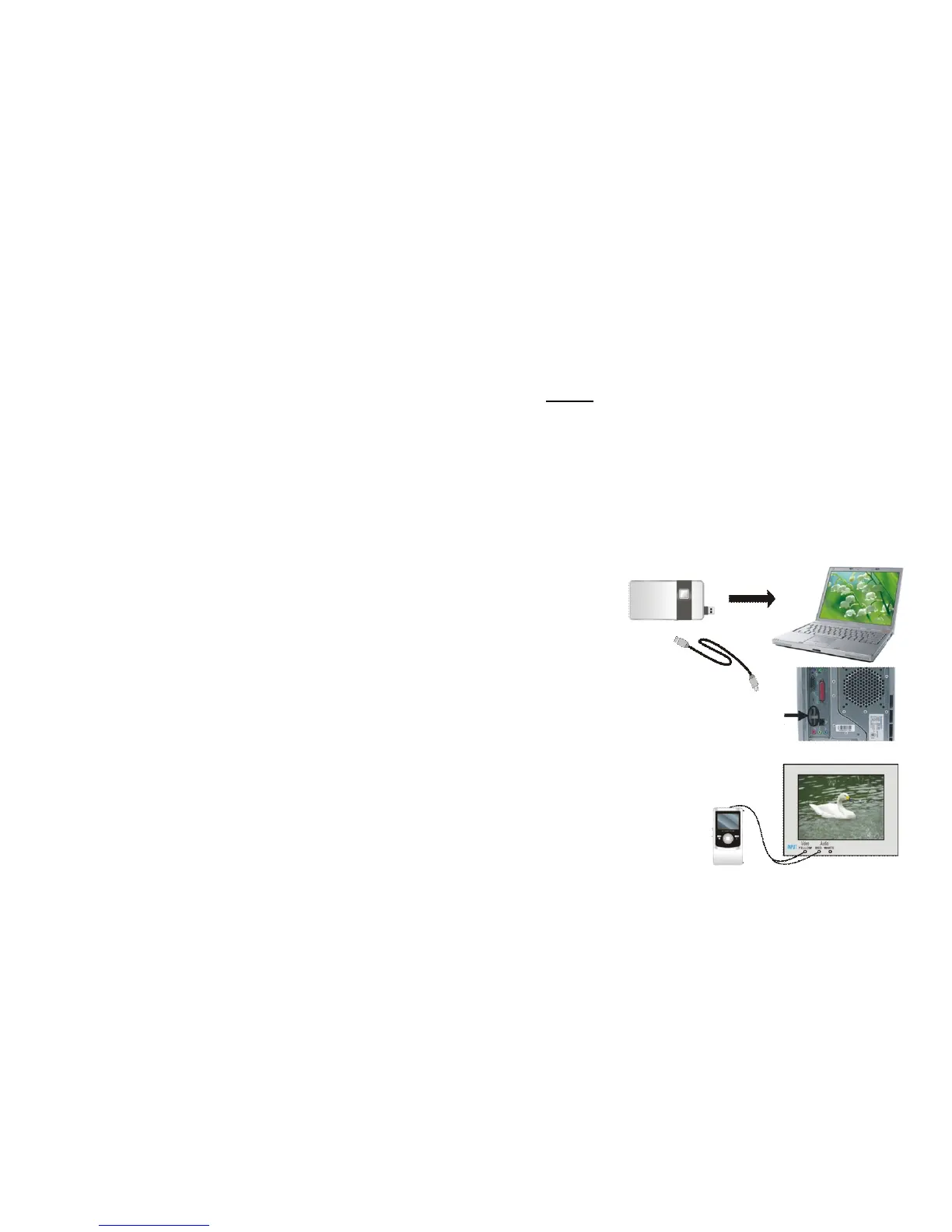
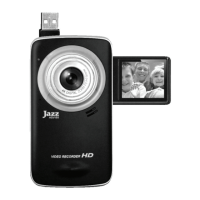
1. Slide the USB Switch UP to extend the USB connector.
2. Turn the camcorder ON.
3. Insert camcorder USB connector into computer USB port, or use supplied USB extension cable to make
connection.
• Download Video/Photos From Camcorder To PC
1. When camcorder is ON and connected to PC, go to “My computer” and
select the “Removable Disc”
2. Open the “Removable Disc” and \DCIM \ 100MEDIA folder which stores all
your Videos and Still pictures.
3. Select desired picture or video from 100MEDIA folder and copy or drag file
into the selected location in your computer (My Documents, Desktop, etc).
4. You may use ArcSoft MediaImpression to upload your videos to YOUTUBE site.
5. You may use ArcSoft VideoImpression and PhotoImpression to edit Video and pictures.
All above programs can be installed from supplied CD.
• TV Output
You can view your recorded Video or Still pictures on TV screen
1. Plug in supplied TV cable into camcorder’s TV OUT PORT.
2. Connect another end of TV cable - video (yellow) and audio (red or white) –into AV
port of your TV.
3. Turn on TV and camcorder.


 To Next Page