©2024 Harman International | Features, Specications, and Appearance subject to change without notice.
Pg 5 of 9
EN
Bluetooth Operation
Connecting your phone or tablet:
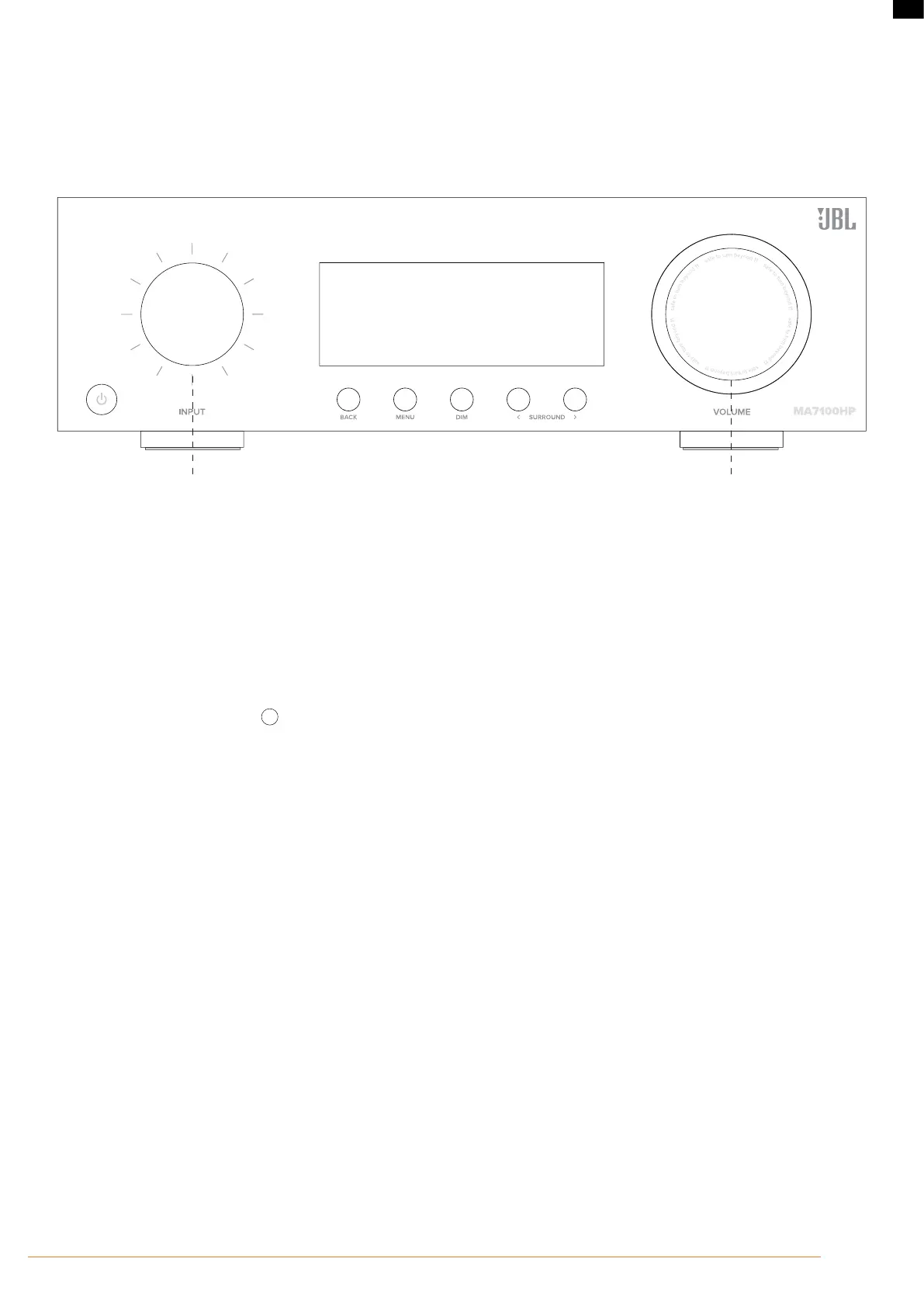
• Select the Bluetooth input on the AVR for Bluetooth pairing of a source device. Push and Hold the Input knob to initiate Pairing Mode.
• To pair your Bluetooth source device, open the Bluetooth settings on your source device and scan for
MA7100HP/MA9100HP ######
from the list. Each
product has a unique ID.
1. Rotate Input Carousel
2. Push to Select "Bluetooth"
3. Push and Hold to activate Pairing Mode
4. Open the Bluetooth settings on your phone/tablet. Scan
for
MA7100HP/MA9100HP ######
and select from the
list. Each product has a unique ID.
Rotate to Control Volume
Push to Mute/Unmute
• The AVR can recall 7 device pairings. If 7 are in memory already, the oldest will be replaced.
• Because portable devices often have a volume slider. Upon pairing, there is a default volume setting in the amplier to prevent excessive volume output
being selected accidentally. The default is 20.
Connect your wireless headphones:
• To pair Bluetooth headphones, press
MENU
on the remote control to access the TOP MENU and select Audio.
• Scroll down and select Bluetooth Setup.
• Once in the Bluetooth Setup menu, set Mode to "Transmit"
• Next, scroll down and select "Transmit Pairing" and select "Search" to start searching for Bluetooth devices
• Your headphone must be in pairing mode to be discovered and paired.
• When you see "searching..." pairable Bluetooth devices will be listed. Scroll down to pair new Bluetooth device.
• Bluetooth headphones cannot be used with the Bluetooth input.


 To Next Page