15
Programming Text Example
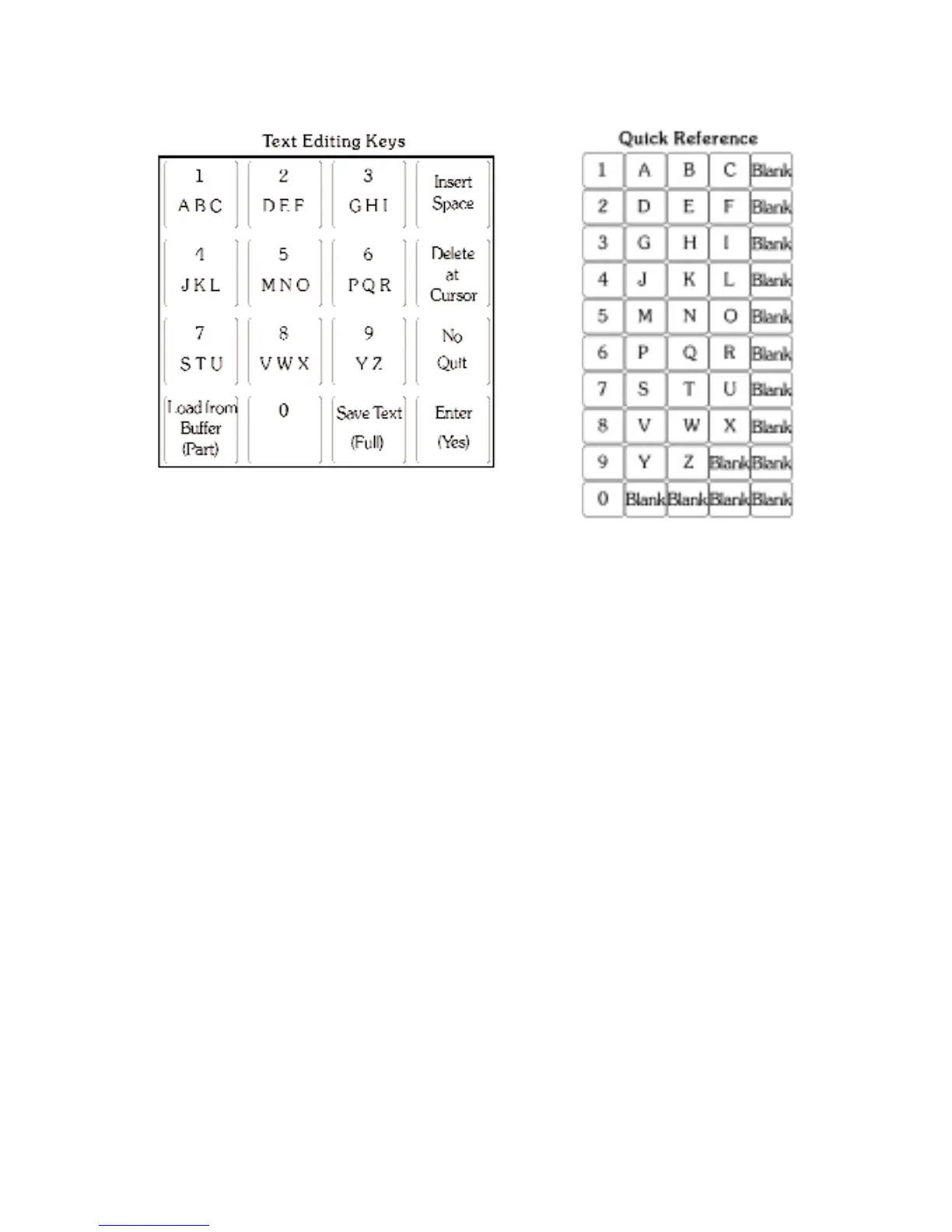
Programming the word “HALL” on a blank text line.
Enter “H” by repeatedly pressing the [3] key until “H” is displayed; if it is missed just keep
pressing the key. Accept the “H” by pressing the [YES/OPTION] key; the cursor will move to
the next character position.
Enter “A” using the [1] key and accept using the [YES/OPTION] key; use the [4] key to provide
the “LL”. Remember to press [YES/OPTION] after each character is programmed.
The word “HALL” should be displayed. Press [FULL]; the text will be saved and an edit line will
be displayed for naming the next zone.
The next zone is to be named “REAR HALL”.
The Text Buffer is holding the previous entry “HALL”; this can be recalled to assist in naming
this zone.
Press the [PART] key. “HALL” will be displayed. Press [SCROLL UP] five times. This moves
“HALL” five spaces to the right leaving room to enter the word “REAR” and includes an extra
space to separate the two words.
Enter “REAR” using the method previously described remembering to press [YES/OPTION]
after each character is entered.
The display reads “REAR HALL”. Press [FULL] to save the zone name.



 To Next Page