ENGLISH - 7 -
Picture Menu
To change picture settings:
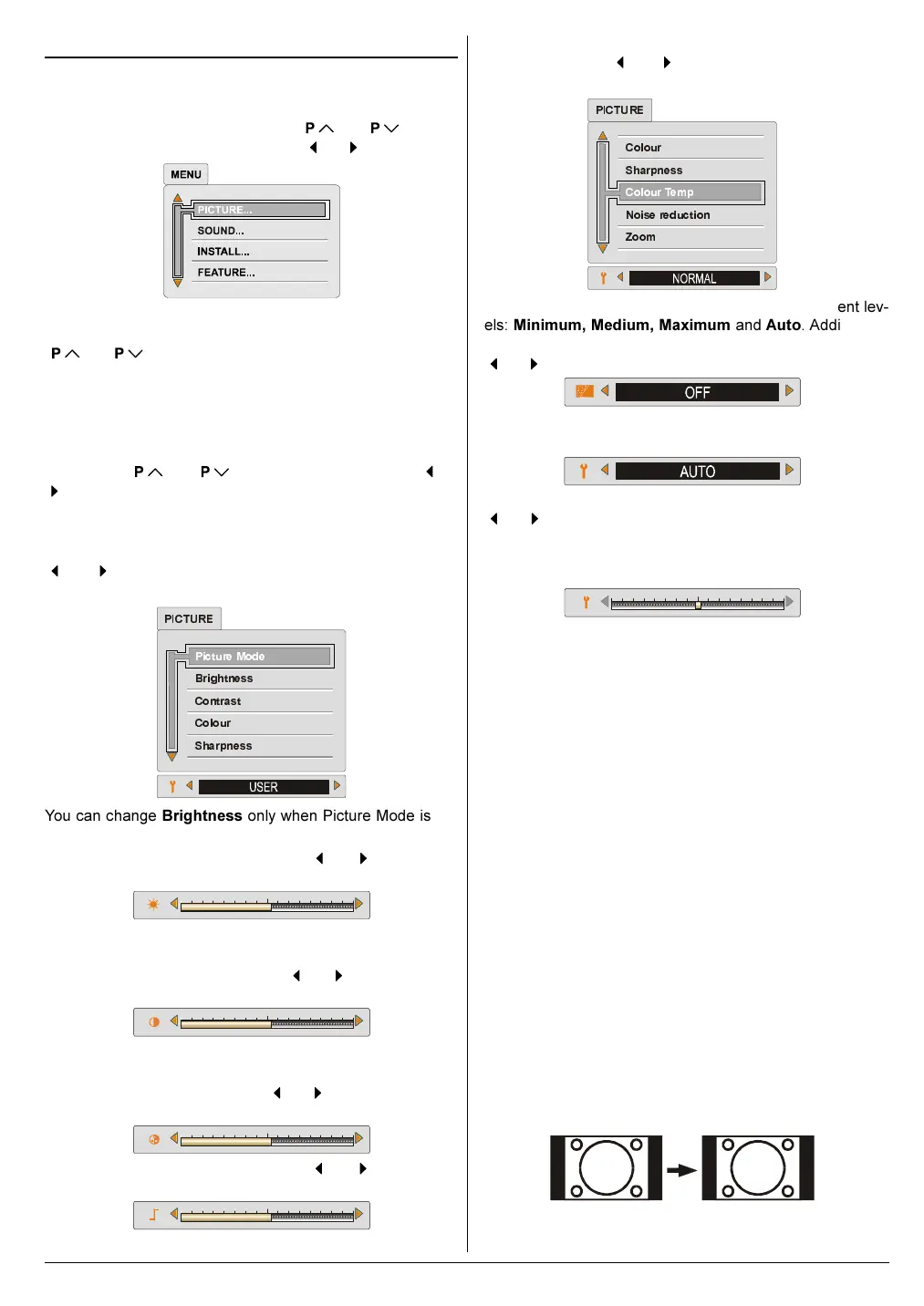
Press MENU button, now you are in main menu. In the
main menu, select PICTURE using
or button,
then enter the picture menu pressing
or button.
Note: When Picture Mode is not USER, BRIGHTNESS,
CONTRAST and COLOUR options can not be reached by
or buttons.
Factory Settings:
In the Picture Menu if you press the YELLOW button the ad-
justments switches themselves to the factory settings.
You can change the values of this items firstly by selecting
the item by
or button and then by using or
button. The PICTURE menu disappears and level indica-
tors are displayed while items are changed. The PICTURE
menu is restored after adjustment is finished.
This item is used to change the picture mode. By pressing
or button you may choose one of these options:
Bright, Standard, Soft, User.
3LFWXUH
0RGH
%ULJKWQHVV
&RQWUDVW
&RORXU
6KDUSQHVV
3,&785(
You can change Brightness only when Picture Mode is se-
lected User.
You can change the Brightness by
or button after
selecting this item.
You can change Contrast only when Picture Mode is select-
ed User.
You can change the Contrast by
or button after se-
lecting this item.
You can change Colour only when Picture Mode is selected
User.
You can change the Colour by
or button after select-
ing this item.
You can change the Sharpness by or button after
selecting this item.
You can adjust the Colour Temp item as Normal, Warm
and Cool. Using
or button toggle between these
three settings.
&RORXU
6KDUSQHVV
1RLVHUHGXFWLRQ
=RRP
&RORXU7HPS
3,&785(
The Noise reduction can be adjusted in four different lev-
els: Minimum, Medium, Maximum and Auto. Additionally
it can be cancelled by selecting the OFF option. Pressing
or button toggles between these five settings.
You can change the screen size according to the picture
aspect ratio. For details, please see ZOOM on page 7.
You can change the Hue for NTSC 3.58/4.43 systems by
or button after selecting this item. A level indicator for
Hue is displayed while changing this item. The Hue bar is
displayed while an NTSC signal is input from the EXT-1,
EXT-2, EXT-3, or EXT-4 (Front AV) terminal.
Recalling Factory settings.:
You can re-set the current PICTURE menu settings (except
Noise Reduction and Colour Temp settings) to the default
settings.
Press PICTURE button when no menu appears.
Zoom
You can change the screen size according to the picture as-
pect ratio. Choose the optimum one from the following ZOOM
modes.
AUTO:
When a WSS (Wide Screen Signalling) signal, which
shows the aspect ratio of the picture, is included in the
broadcast signal or the signal from an external device, the TV
automatically changes the ZOOM mode to 16:9 ZOOM mode
or FULL mode according to the WSS signal.
If a WSS signal is not included, the picture is displayed in
the PANORAMIC mode.
When the AUTO mode does not function correctly due to
poor WSS signal quality or when you want to change the
ZOOM mode, change to another ZOOM mode manually.
REGULAR:
Use to view a normal picture (4:3 aspect ratio) as this is its
original shape.
01-ENG-2835-AK52-1512UK-16-9-(AV-28GH1&BUF&SUF).p65 21.05.2003, 15:027


 To Next Page