EasyManua.ls Logo

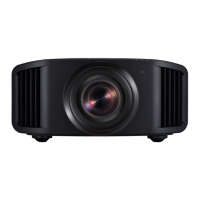
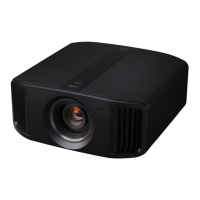
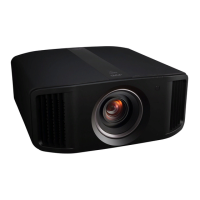
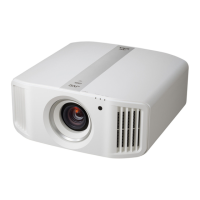
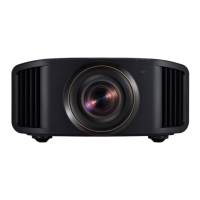
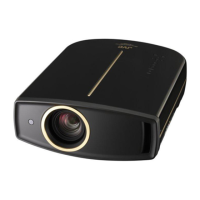
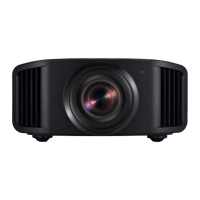
JVC DLA-NZ900 - User Manual

JVC DLA-NZ900
116 pages
Print Icon
To Next Page IconTo Next Page
Loading...
.
D-ILA
PROJECTOR
DLA-NZ900
DLA-NZ800
DLA-RS4200
DLA-RS3200
.
.
https://manual3.jvckenwood.com/projector/mobile/global/
The Mobile User Guide can be viewed on mobile internet devices including
smartphones and tablets.
Mobile User Guide
.
Serial No.
Model No.
Enter below the serial No. which is located on the side of the cabinet. Retain this information for future reference.
For Customer use :
DLA-NZ900K, DLA-NZ800K, DLA-NZ900E, DLA-NZ800E,
DLA-RS4200K, DLA-RS3200K, DLA-RS4200E, DLA-RS3200E
Not suitable for household room illumination.
INSTRUCTIONS
B5A-4578-01
Getting Started Set up Operate Adjust/Set Maintenance
Troubleshooting
Others

Table of Contents

Questions and Answers

  • K
    karenjonesAug 17, 2025
    What to do if the JVC DLA-NZ900 power is not supplied?
    • B
      Beth ElliottAug 18, 2025
      If your JVC Projector isn't getting power, here's what to check: * Ensure the power cord is firmly plugged in. * If the unit is in Cool-down mode, wait until it exits this mode, then try turning the power on again. * If the unit is in Eco mode, press the A button on the projector or remote, wait for the “STANDBY/ON” indicator to light up red, then press the C [ON] button.
  • A
    Amy OwensAug 20, 2025
    How to fix unnatural colors on JVC DLA-NZ900?
    • L
      Lisa GreenAug 20, 2025
      If the colors on your JVC Projector appear unnatural, here are a few things to check: * Ensure the color space of the input signal is correctly set to match the projector setting. Adjust the “Color Space” for “Input Signal” accordingly. * Adjust the “Color” and “Tint” settings as needed. Refer to the Picture Settings. * Verify that the AV device or PC is properly connected.
  • J
    jhaleAug 22, 2025
    What to do if the video image flickers on JVC Projector?
    • A
      Angela HendersonAug 22, 2025
      If the video image on your JVC Projector is flickering: * If you see horizontally-extended, overlapping video images, set “3D Format” to “Auto.” * If viewing under fluorescent light, this may be caused by interference with the 3D glasses. Try viewing with the fluorescent light turned off. * If “Dynamic CTRL” has been configured, set “Dynamic CTRL” to “Off.”
  • D
    Danielle ColonAug 25, 2025
    How to fix dark projected image on JVC DLA-NZ900?
    • M
      Mary Phillips DVMAug 26, 2025
      If the projected image on your JVC Projector is too dark: * Increase the value of the “Aperture” setting. * Increase the “LD Power” value if it is set too low. * If “Theater Optimizer” is set to “On”, press “Set” in the “Theater Optimizer” menu. * Select a different Picture Mode. Check Picture Settings. * Set “Dynamic CTRL” to “Off” if it’s set to a setting other than “Off.”
  • J
    Jacob DavisAug 27, 2025
    Why does my JVC DLA-NZ900 power shuts down automatically?
    • K
      Kyle MasonAug 27, 2025
      Your JVC Projector might be shutting down automatically due to these reasons: * “ECO Mode” might be enabled. Set “ECO Mode” to “Off.” * “Off Timer” might be configured. Set “Off Timer” to “Off.” * The air inlets and exhaust vent might be blocked. Ensure proper clearance around the unit. * The sponge filter might be clogged with dirt. Remove the dirt using a vacuum cleaner.
  • J
    Jeffrey HarrisSep 2, 2025
    Why are 3D images not appearing on my JVC DLA-NZ900 Projector?
    • E
      Emily SimpsonSep 2, 2025
      If 3D images are not appearing on your JVC Projector, consider these possibilities: * If you see two images displayed side by side, set “3D Format” to “Side by Side.” * If using an intermediate device (AV amplifier, divider, etc.), connect the source device directly to the projector to see if the issue improves. * Ensure you are using an HDMI-certified high-speed cable, and keep the cable as short as possible. * If using PK-AG3 3D Glasses, ensure they are turned on. * Check that the PK-AG3 battery of the 3D Glasses is charged. * Make sure the 3D Glasses and 3D Synchro Emitter are positioned at an appropriate distance from each other. * Verify that the 3D Glasses are synced.
  • W
    wcooperSep 4, 2025
    Why does the video image appears horizontally (vertically) extended on my JVC DLA-NZ900 Projector?
    • A
      Alicia WaltersSep 4, 2025
      If the video image on your JVC Projector appears horizontally or vertically extended: * If “3D Format” is set to “Side by Side,” set it to “Auto.” * If “Anamorphic” is set to a setting other than “Off,” set it to “Off.”
  • M
    mark86Sep 7, 2025
    What to do if part of the video image is missing on JVC Projector?
    • D
      Dr. William WilliamsSep 7, 2025
      If part of the video image is missing on your JVC Projector: * If screen mask has been configured, set “Mask” to “Off.” * If “Anamorphic” is set to a setting other than “Off,” set it to “Off.” * If “Aspect” is set to a setting other than “Native,” set it to “Native.”
  • N
    Natalie DyerSep 9, 2025
    How to fix remote control that does not work with JVC DLA-NZ900?
    • J
      Joseph ColeSep 9, 2025
      If the remote control isn't working with your JVC Projector: * Ensure the batteries are correctly installed, matching the polarities (+/-). * Replace the batteries with new ones if they are exhausted. * Remove any objects obstructing the path between the remote control and the remote sensor. * Hold the remote control closer to the sensor during use. * Ensure the remote control code is correctly matched with the projector. The factory settings are both “A.”
  • D
    daisycarpenterSep 12, 2025
    Why is noise heard from JVC DLA-NZ900?
    • A
      amyblankenshipSep 12, 2025
      If you're hearing noise from your JVC Projector: * Check the installation condition of the projector. If the exhaust vent is blocked or the unit is near a heater or air conditioner, the fan speed increases, causing more noise. * Setting the “LD Power” value too high increases the fan rotation speed, resulting in louder noise. * Switching sound is generated by the “8K e-shift” setting for “MPC”. This is not a malfunction.

Summary

Getting Started

Safety Precautions

Important safety information to prevent fire or electrical shock hazards.

Accessories and Optional Accessories

Lists included accessories and optional items for the projector.

Controls and Features

Details the main unit's front, bottom, and rear controls and features.

Set up

Installing the Projector

Provides guidance on installing the projector, including placement and ventilation.

Precautions during Mounting

Details safety measures for securing the projector, especially for ceiling mounts.

Adjusting the Position

Explains how to adjust the projector's elevation and image position using lens shift.

Connecting the Projector

Guides on connecting various devices via HDMI, LAN, RS-232C, and TRIGGER terminals.

Operate

Viewing Videos

Instructions on turning on the projector and selecting the image source to play video.

Adjusting the Projector Screen

How to adjust focus, zoom, and shift for optimal screen projection.

Adjusting the Screen Size (Aspect)

Steps to adjust the projected image's screen size based on input aspect ratio.

Viewing 3 D Movies

Setup and viewing instructions for enjoying 3D video content.

Adjust;Set

Selecting an Image Quality According to the Video Type

Guide to selecting picture modes based on content type like SDR, HDR10+, HDR10, and HLG.

Setting the Color Profile

How to fine-tune image quality by setting color space according to the selected picture mode.

Adjusting to your Preferred Color (Color Management)

Detailed steps for managing color adjustments like hue, saturation, and brightness.

Viewing HDR Content

Explains HDR technology and the projector's features for enhanced HDR image quality.

Maintenance

Maintaining the Cabinet and Remote Control

Guidelines for cleaning the projector's cabinet and remote control.

Cleaning and Replacing the Filter

Procedures for cleaning or replacing the projector's sponge filter.

Troubleshooting

Power is not supplied

Steps to resolve issues when the projector does not receive power.

Power shuts down automatically

Checks and actions for when the projector shuts down unexpectedly.

Video image does not appear

Troubleshooting steps for when no video image is displayed on the screen.

3 D images do not appear

Solutions for issues where 3D images are not displayed correctly.

Others

External Control

Information on controlling the projector via RS-232C cross cable or LAN network.

Command Format

Details the structure of commands for external control communication.

Specifications

Technical specifications of the D-ILA projector, including dimensions and power.

JVC DLA-NZ900 Specifications

General IconGeneral
Light SourceLaser
Lens ShiftVertical: ±100%, Horizontal: ±43%
Light Source Life20, 000 hours
3D SupportYes
Brightness3000 Lumens
Contrast Ratio (Dynamic)Infinite:1
HDR SupportHDR10, HLG
ZoomMotorized
HDMI Inputs2
Zoom Ratio2x

Related product manuals