ENGLISH
37
Getting Started
Preparation
Basic Operation
Troubleshooting
Settings
Others
Input Signal > Aspect (Video)
16
Aspect (Video)
Congures the screen size of the projected image.
4:3 Sets the screen size of the projected image as 4:3.
16:9 Sets the screen size of the projected image as 16:9.
Zoom Zooms the images. (This item cannot be selected in the case of HD signals.)
● This setting can also be congured from the remote control. ( P14)
● The items cannot be set in the case of PC signals.
Input Signal > Aspect (Computer)
17
Aspect (Computer)
Congures the screen size of the projected image.
Auto
Enlarges the PC signal horizontally/vertically until it ts the panel height, and displays
it in the original aspect ratio.
1:1
Displays the PC signal corresponding to the panel at one dot per pixel ratio. The PC
screen can be shown in the original size.
Full Enlarges the PC signal horizontally/vertically.
● This setting can also be congured from the remote control. ( P14)
● This setting cannot be set in the case of SD or HD signals.
Input Signal > V-Stretch (when HD or SD video signals are input)
18
V-Stretch
When set to
“
On
”
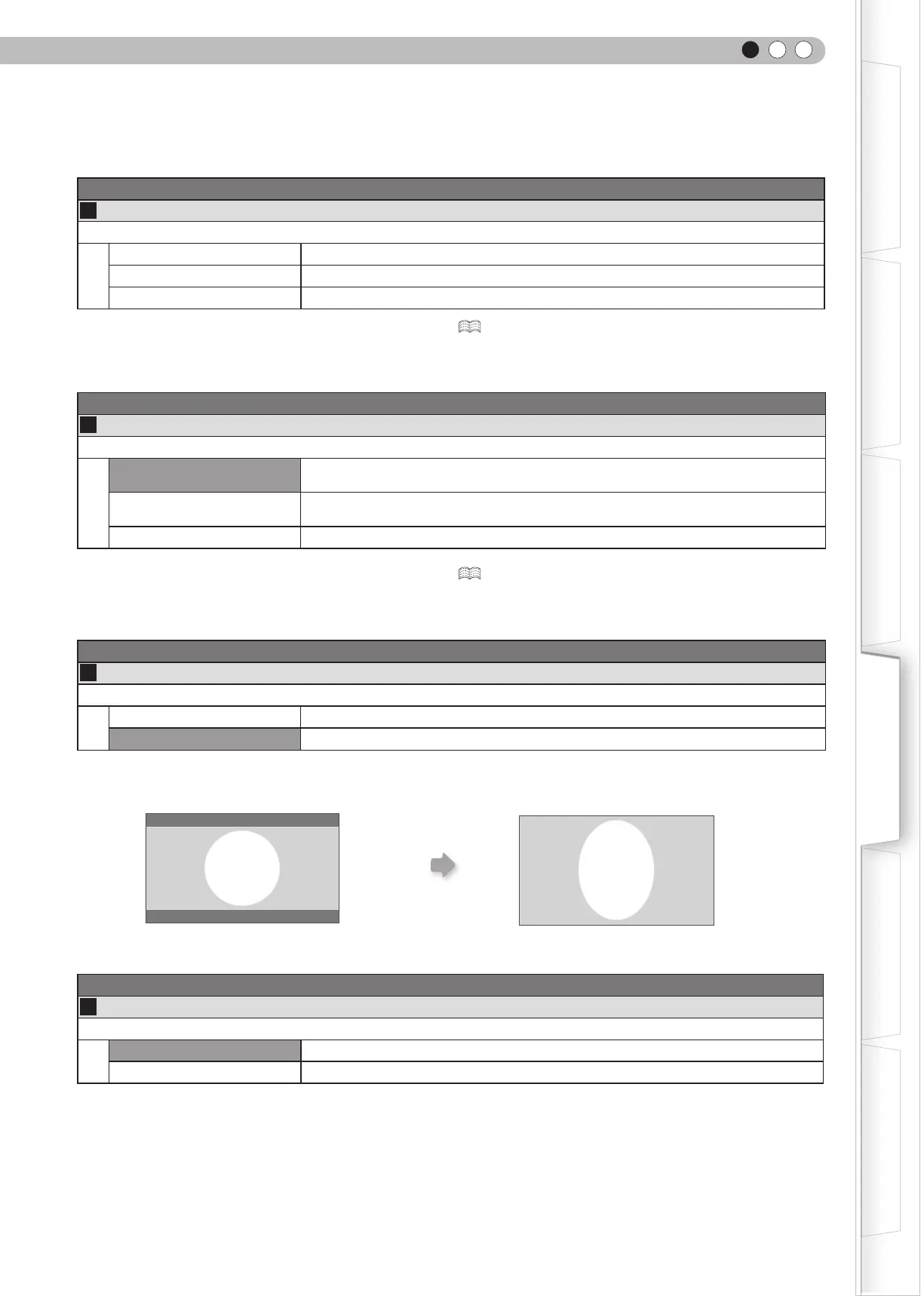
, the projected 2.35:1 image will be stretched vertically to the panel resolution.
On The projected 2.35:1 image will be stretched vertically to the panel resolution.
Off Projects the 2.35:1 image as-is. (Black bands will be displayed on the top and bottom.)
● This setting cannot be set in the case of PC signals.
Input Signal > Over Scan
19
Over Scan
Selects whether or not to set over scan for the SD video signal.
On Over scan the top, left, bottom and right at 2.5% each.
Off Do not over scan.
●
This setting is not available when HD signal or PC signal is input.
“
Off
” “
On
”


 To Next Page