EasyManua.ls Logo

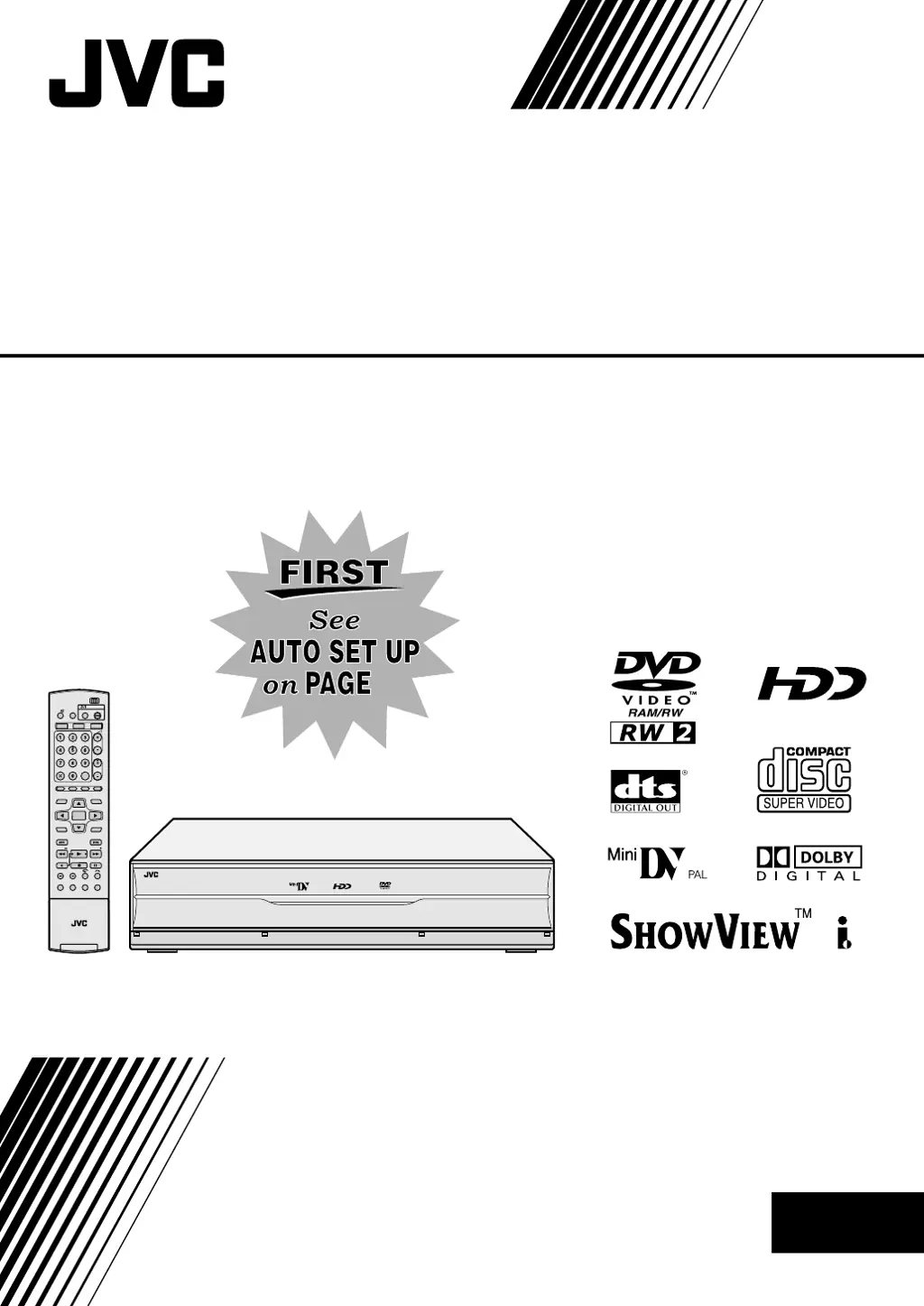
JVC DR-DX5SE - User Manual

JVC DR-DX5SE
92 pages
Print Icon
To Next Page IconTo Next Page
Loading...
STANDBY/ ON
DV/HDD/DVD
S-VIDEO VIDEO
(MONO)
L–AUDIO–R
DV HDD DVD
DV IN/OUT
DISPLAY
SELECT
VHS REC MODE
PR
F–1
DV/HDD
DV HDD DVD
DVD
CABLE/SAT
TV
DVD
PR
NEXTPREVIOUS
PAUSEREC
REC MODE
REMAIN
DISPLAY
ON SCREEN
SLOWSLOW PLAY/SELECT
STOP/
CLEAR
NAVIGATIONTOP MENU
RETURN
ENTER
MENU
TV/CBL/SAT
STANDBY/ON
TV
TV
AV
VIDEO
TV
AUX
CANCEL
MEMO/MARK
PROGRAMME
EDITDUBBING
LIVE
JUMP
SET UP
SAT
AUDIO
SUBTITLE
VPS/PDC
ANGLE
LIVE CHECK
PROGRESSIVE
SCAN
RAM/RW
LPT1100-001C
EN
17
Mini DV & HDD & DVD VIDEO RECORDER
INSTRUCTIONS
DR-DX5SE
DX5SEU_00.book Page 1 Wednesday, November 23, 2005 2:13 PM

Table of Contents

Other manuals for JVC DR-DX5SE

Questions and Answers

  • K
    Kyle AtkinsAug 14, 2025
    What to do if JVC DVD Recorder doesn't start playback and shows 'NO DISC'?
    • S
      Sydney TaylorAug 14, 2025
      If playback doesn't start immediately or stops after pressing play on your JVC DVD Recorder, and 'NO DISC' appears on the front display, ensure the disc is loaded correctly with the playback surface facing down. Also, confirm that the disc is compatible with the unit, clean the disc if it's dirty, or replace it if it's warped or scratched. Check that the source (another video recorder, camcorder) has been properly connected and all units’ power switches are turned on. Finally, select the input channel position (F-1, L-1 or L-2) that corresponds to the input terminal connected to the external equipment.
  • L
    lopezstephanieAug 17, 2025
    Why can't I record with my JVC DR-DX5SE DVD Recorder?
    • M
      Matthew WhiteAug 17, 2025
      If you are unable to make a recording with your JVC DVD Recorder, make sure you load a recordable disc that is compatible with the unit. If the disc is not formatted, you will need to format it. Note that recording cannot be made on finalized discs. Ensure that the disc is not full and has enough space. For DVD-RAM discs, verify that the protect tab is not slid to the protect position.
  • H
    hojohnAug 21, 2025
    How to fix JVC DVD Recorder remote control not working?
    • E
      elizabeth74Aug 21, 2025
      If the remote control for your JVC DVD Recorder isn't working properly, first, try replacing the batteries with new ones. If that doesn't work, ensure the remote control code is correctly set to the same code (1, 2, 3, or 4) on both the unit and the remote. You can also try removing the batteries, waiting for at least 5 minutes, and then reinserting them.
  • K
    Kristi BrownAug 25, 2025
    How to fix dubbing issues on JVC DVD Recorder?
    • W
      warrenjoshuaAug 25, 2025
      If dubbing from external equipment is not possible with your JVC DVD Recorder, make sure the TV receiver is set to AV mode. Also, if an interlace scanned program is played back, ensure progressive scan mode is not selected by pressing and holding PROGRESSIVE SCAN until the indicator disappears from the front display panel.
  • S
    Stephanie ParkerAug 27, 2025
    Why can't I program the timer on my JVC DVD Recorder?
    • X
      xdavisAug 28, 2025
      If timer programming cannot be made on your JVC DVD Recorder, ensure that the date and time are set correctly. Note that timer programming cannot be performed while a timer recording is in progress; wait until it finishes.
  • J
    Jeffrey SanchezAug 31, 2025
    How to resolve distorted TV image on JVC DR-DX5SE?
    • M
      Mario RileyAug 31, 2025
      If the image of the TV broadcast appears distorted on the TV screen when using your JVC DVD Recorder, press PROGRESSIVE SCAN for 3 or more seconds so that the Video output indicator lights off on the front display panel.
  • D
    Danielle WarrenSep 4, 2025
    How to set up JVC TV remote to work with JVC DVD Recorder?
    • A
      Antonio LevySep 4, 2025
      To operate your JVC DVD Recorder using a JVC TV remote control, set the remote control code of the unit to 1 (Default: 3).
  • B
    Brenda MendozaSep 7, 2025
    How to fix JVC DR-DX5SE when the DVD deck cannot be operated?
    • R
      Rhonda SmithSep 7, 2025
      To resolve the issue of the DVD deck not operating on your JVC DVD Recorder, press A to turn off the unit, then press and hold A, and then press o for two seconds or more.
  • C
    Charles RasmussenSep 12, 2025
    How to stop on-screen display from recording on JVC DR-DX5SE?
    • A
      Alexandra LoweSep 12, 2025
      Set SUPERIMPOSE to OFF on your JVC DVD Recorder.

Summary

INSTRUCTIONS

SAFETY FIRST

Safety Precautions

Essential safety guidelines for operating the JVC DR-DX5SE to prevent hazards.

INSTALLING YOUR NEW UNIT

INITIAL SETTINGS

Auto Set Up

Automatic setup for channels, clock, and program numbers based on country.

BASIC OPERATIONS ON DVD DECK

BASIC OPERATIONS ON HDD DECK

BASIC OPERATIONS ON DV DECK

LIVE MEMORY PLAYBACK ON HDD;DVD DECK

TIMER RECORDING ON HDD;DVD DECK

SHOWVIEW Timer Programming

Programming timer recordings using SHOWVIEW codes for simplified setup.

Manual Timer Programming

Manually setting timer recordings by date, time, and channel.

NAVIGATION ON HDD;DVD DECK

Library Database Navigation

Searching and selecting recorded titles from the HDD or DVD.

EDITING

SYSTEM CONNECTIONS

SUBSIDIARY SETTINGS

Mode Set

Accessing and changing various operational modes and settings.

SHOWVIEW System Setup

Setting up SHOWVIEW for timer programming and channel mapping.

Clock Set

Setting the unit's internal clock for accurate timing.

TROUBLESHOOTING

Timer Recording (HDD & DVD Deck)

Resolving issues with timer programming and recording start.

SPECIFICATIONS

JVC DR-DX5SE Specifications

General IconGeneral
TypeDVD Recorder
Recording FormatDVD-RAM, DVD-R, DVD-RW
Video SystemPAL
Progressive ScanYes
Video DAC10-bit / 27MHz
Video Recording FormatMPEG-2
Video InputComposite, S-Video
Video OutputComposite, S-Video, Component
Remote ControlYes
Playback FormatDVD-Video, DVD-R, DVD-RW, CD, CD-R, CD-RW, MP3, JPEG
Audio DAC24-bit
TunerNTSC
Audio Recording FormatDolby Digital
Audio InputRCA
Audio OutputRCA, Optical
Connectors (Rear)Composite, S-Video, Component, Optical
Connectors (Front)Composite, S-Video

Related product manuals