Masterpage:Right+
EN 63
Filename [DX5SEU_12Editing.fm]
EDITING
Page 63 Wednesday, 23 November 2005 14:13
L-1 Output And L-1 Input Setting
The [L-1 IN/OUT] connector accepts and delivers either a
composite signal (regular video signal) or a Y/C signal (a signal in
which the luminance and chrominance signals are separated). Set
AL-1 OUTPUTB and AL-1 INPUTB to the appropriate mode
depending on the type of appliance connected to the unit’s [L-1 IN/
OUT] connector.
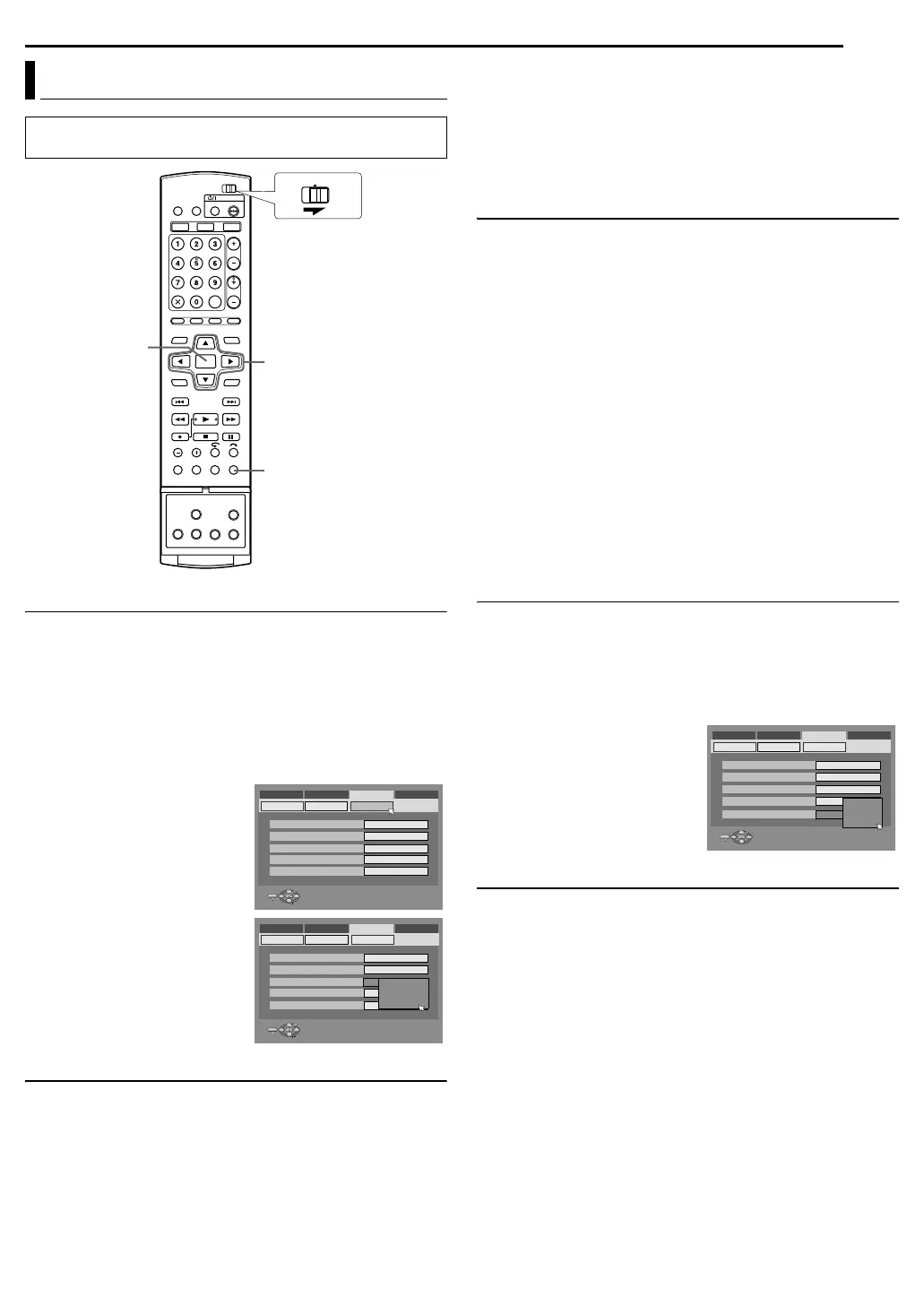
1 Press SET UP to access the Main Menu screen.
2 Press selection keys to select AFUNCTION SET UPB, then
press G.
3 Press selection keys to select
AVIDEO IN/OUTB, then press
G.
4 Press selection keys to select
AL-1 OUTPUTB or AL-1
INPUTB, then press ENTER.
5 Press selection keys to select
the appropriate setting, then
press ENTER.
6 Press SET UP to complete the
setting.
*The boldface settings below indicate the settings at your purchase.
8 L-1 OUTPUT ^ SCART VIDEO / SCART S-VIDEO / SCART
RGB / COMPONENT
SCART VIDEO:
If a connected appliance’s input is compatible only with regular
video signals, set to ASCART VIDEOB
.
SCART S-VIDEO:
If a connected appliance’s input is compatible with Y/C signals,
set to ASCART S-VIDEOB. You can obtain high-quality picture.
(For connection, be sure to use a 21-pin SCART cable that is
compatible with the Y/C signal.)
SCART RGB:
If a connected appliance’s input is compatible with RGB signals,
set to ASCART RGBB. You can obtain a high-quality RGB
picture.
COMPONENT:
If a connected appliance’s input is compatible with Y/P
B
/P
R
signals, set to ACOMPONENTB. You can obtain a high-quality
Y/P
B
/P
R
picture. Switch the TV to the input that you can watch
component video pictures.
8 L-1 INPUT ^ VIDEO / S-VIDEO
VIDEO:
If a connected appliance’s output is compatible only with regular
video signals, set to AVIDEOB.
S-VIDEO:
If a connected appliance’s output is compatible with Y/C
signals, set to AS-VIDEOB. You can obtain a high-quality
picture. (For connection, be sure to use a 21-pin SCART cable
that is compatible with the Y/C signal.)
NOTES:
● If AL-1 OUTPUTB is set to ASCART S-VIDEOB or ASCART RGBB,
it is not possible to set AL-1 INPUTB to AS-VIDEOB.
● If AL-2 SELECTB is set to ASAT S-VIDEOB or ADECODERB, it is
not possible to set AL-1 INPUTB to A S-VIDEOB.
● If AL-2 SELECTB is set to ADECODERB, it is only possible to set
AL-1 OUTPUTB to ASCART VIDEOB
.
● Component video signals are not output from the [L-1 IN/OUT]
connector.
● When Progressive scan mode is engaged, it is not possible to
select the setting of AL-1 OUTPUTB. (A pg. 63)
L-2 Select Setting
Set AL-2 SELECTB to the appropriate mode depending on the type
of appliance connected to the unit’s [L-2 IN/DECODER] connector.
1 Perform steps 1 and 2 of AL-1 Output And L-1 Input SettingB on
the left column.
2 Press selection keys to select AL-2 SELECTB, then press
ENTER.
3 Press selection keys to select
the appropriate setting, then
press ENTER.
4 Press SET UP to complete the
setting.
*The boldface settings below indicate the settings at your purchase.
8 L-2 SELECT ^ VIDEO / S-VIDEO / SAT VIDEO / SAT S-VIDEO /
DECODER
Select AVIDEOB or AS-VIDEOB to use this unit as the recording
deck with the player connected to the [L-2 IN/DECODER]
connector, or to use the satellite receiver connected to the [L-2 IN/
DECODER] connector.
VIDEO:
If a connected appliance’s output is compatible only with regular
video signals, set to AVIDEOB.
S-VIDEO:
If a connected appliance’s output is compatible with Y/C
signals, set to AS-VIDEOB. You can obtain high-quality picture.
(For connection, be sure to use a 21-pin SCART cable that is
compatible with the Y/C signal.)
Select ASAT VIDEOB or ASAT S-VIDEOB to view a satellite
programme with the TV set while the unit is turned off. (A pg. 69)
SAT VIDEO:
If a connected satellite receiver’s output is compatible only with
regular video signals, set to ASAT VIDEOB.
Output/Input Set
● Turn on the TV and select the AV mode.
● Slide the TV/CABLE/SAT/DVD switch to DVD.
FGDE
ENTER
SET UP
CABLE/SAT
DVDTV
Selection Keys
ENTER
SELECT
SET UP
EXIT
DVD VIDEO SET UP
MONITOR TYPE
HDD/DVD/DV SET UP
FUNCTION SET UP
INITIAL SET UP
REC/PLAY SET UP
DISPLAY SET
F-1 INPUT
L-1 OUTPUT
L-1 INPUT
L-2 SELECT
VIDEO IN/OUT
4:3LB
VIDEO
SCART VIDEO
VIDEO
VIDEO
SELECT WITH @ THEN PRESS [ENTER]
PRESS [SET UP] TO EXIT
ENTER
SELECT
SET UP
EXIT
DVD VIDEO SET UP
MONITOR TYPE
HDD/DVD/DV SET UP
FUNCTION SET UP
INITIAL SET UP
REC/PLAY SET UP
DISPLAY SET
F-1 INPUT
L-1 INPUT
L-1 OUTPUT
L-2 SELECT
VIDEO IN/OUT
4:3LB
VIDEO
VIDEO
SCART VIDEO
VIDEO
SCART VIDEO
SCART S-VIDEO
SCART RGB
COMPONENT
SELECT WITH @ THEN PRESS [ENTER]
PRESS [SET UP] TO EXIT
ENTER
SELECT
SET UP
EXIT
DVD VIDEO SET UP
MONITOR TYPE
HDD/DVD/DV SET UP
FUNCTION SET UP
INITIAL SET UP
REC/PLAY SET UP
DISPLAY SET
F-1 INPUT
L-1 INPUT
L-1 OUTPUT
L-2 SELECT
VIDEO IN/OUT
4:3LB
VIDEO
VIDEO
SCART VIDEO
VIDEO
SELECT WITH @ THEN PRESS [ENTER]
PRESS [SET UP] TO EXIT
VIDEO
SAT VIDEO
DECODER
S-VIDEO
DX5SEU_00.book Page 63 Wednesday, November 23, 2005 2:13 PM


 To Next Page