Capturing a Still Image in the Video During
Playback
You can capture still images of the scenes you like in the recorded videos.
1
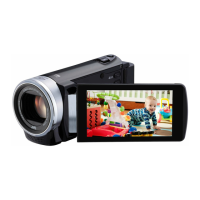
Open the LCD monitor.
.
0
Check if the recording mode is A.
0
If the mode is B still image, tap B on the recording screen to display
the mode switching screen.
Tap A to switch the mode to video. (You can also use the A/B button
on this unit.)
2
Tap “<<PLAY” to select the playback mode.
.
3
Tap on the desired video.
.
4
Tap pause e at the desired scene during playback.
.
0
After pausing the video, you can fine-tune the point to capture by
tapping forward slow-motion k and reverse slow-motion l.
5
Press the SNAPSHOT button.
.
Memo :
0
Still images are captured with a size of 1920×1080.
Capturing a Required Part in the Video
(TRIMMING)
Select the required part of a video and save it as a new video file.
0
The original video remains in its existing location.
1
Open the LCD monitor.
.
0
Check if the recording mode is A.
0
If the mode is B still image, tap B on the recording screen to display
the mode switching screen.
Tap A to switch the mode to video. (You can also use the A/B button
on this unit.)
2
Tap “<<PLAY” to select the playback mode.
.
3
Tap “MENU”.
.
4
Tap “TRIMMING”.
.
5
Tap the video to edit.
.
6
Tap e to pause playback at the desired start point, then tap “A”.
Editing
70



 To Next Page


