EasyManua.ls Logo

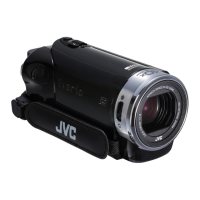
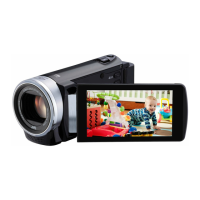
JVC Everio GZ-EX355 - User Manual

JVC Everio GZ-EX355
263 pages
Print Icon
To Next Page IconTo Next Page
Loading...
Basic User Guide
HD MEMORY CAMERA
GZ-EX355 A
GZ-EX310 A
Basic User Guide(this manual)
.
Verifying the Accessories
AC Adapter
AC-V11U
Battery Pack
BN-VG114U
USB Cable
(Type A - Mini Type B)
CD-ROM
Basic User Guide
(this manual)
AV Cable
QAM1322-001
Please consult your JVC dealer or the nearest JVC service center when
purchasing a new AV cable.
LYT2605-001A-M
BC mark means complies with Energy Efficiency Law.
BC
EN
.
Detailed User Guide
For more details on operating this
product, please refer to the “Detailed
User Guide” at the following website.
o
http://manual3.jvckenwood.com/
index.html/
.
Mobile User Guide
When you are outside, refer to the
“Mobile User Guide”. Mobile User Guide
can be viewed with standard browser for
Android tablet and iPhone.
o
http://manual3.jvckenwood.com/mobile/
us/
Dear Customers
Thank you for purchasing this JVC product.
Before use, please read the Safety Precautions
and Cautions on p. 2 and p. 18 to ensure
safe use of this product.
For Future Reference:
Enter the Model No. (located on the bottom of the camera)
and Serial No.
(located on the battery pack mount of the camera) below.
Model No.
Serial No.

Table of Contents

Other manuals for JVC Everio GZ-EX355

Questions and Answers

  • A
    angela39Jul 31, 2025
    What to do if operation is disabled on JVC Camcorder because POWER/CHARGE and ACCESS lamps are blinking?
    • C
      claytonjustinJul 31, 2025
      If your JVC Camcorder is disabled and the POWER/CHARGE and ACCESS lamps are blinking, try turning the unit off and then on again. Also, remove the AC adapter and battery pack, and then remove and re-insert the SD card.
  • E
    Edward MasonAug 5, 2025
    Why doesn't the lamp flash when charging my JVC Everio GZ-EX355 Camcorder battery?
    • N
      Nancy CastroAug 5, 2025
      The lamp on your JVC Camcorder may not flash during battery pack charging if the battery is already fully charged. Check the remaining battery power.
  • J
    Jessica AlvarezAug 10, 2025
    What to do if sound or video is interrupted on my JVC Everio GZ-EX355?
    • M
      Michael CarlsonAug 10, 2025
      If the sound or video on your JVC Camcorder is interrupted, try turning the unit off and on again. Also, remove the AC adapter and battery pack, then remove and re-insert the SD card. Clean any dirt from the SD card terminals. If the problem persists, back up your files and format the built-in memory or SD card in the [MEDIA SETTINGS] menu. Note that all data will be deleted.
  • M
    Michelle ToddAug 15, 2025
    What to do if recording cannot be performed on JVC Camcorder?
    • R
      ravenmichaelAug 15, 2025
      If you cannot record with your JVC Camcorder, try turning the unit off and on again. If the problem continues, back up your files and then format either the built-in memory or the SD card using the [FORMAT BUILT-IN MEM.] or [FORMAT SD CARD] options in the [MEDIA SETTINGS] menu. Be aware that this will erase all data.
  • P
    Paul HughesAug 20, 2025
    How to fix 'ERROR IN BUILT-IN MEMORY' or 'MEMORY CARD ERROR' on JVC Everio GZ-EX355 Camcorder?
    • J
      James CollinsAug 20, 2025
      To address the 'ERROR IN BUILT-IN MEMORY!' or 'MEMORY CARD ERROR!' message on your JVC Camcorder, start by turning the unit off and then on again. If the error persists, back up your files and proceed to format either the built-in memory or the SD card. You can find these options, [FORMAT BUILT-IN MEM.] or [FORMAT SD CARD], in the [MEDIA SETTINGS] menu. Remember that formatting will erase all data.
  • J
    Jeffrey MartinAug 25, 2025
    Why is my JVC Camcorder unable to record properly in Intelligent Auto mode?
    • J
      johngrahamAug 25, 2025
      If your JVC Camcorder is not recording properly in Intelligent Auto mode, it may be due to multiple light sources or specific shooting conditions that prevent correct exposure and focus adjustments. In this case, you should adjust the settings manually.

Summary

Safety Precautions

WARNING: TO PREVENT FIRE OR SHOCK HAZARD, DO NOT EXPOSE THIS UNIT TO RAIN OR MOISTURE.

Crucial warning about avoiding water and moisture to prevent unit damage.

Caution on Replaceable lithium battery

Important notes on handling lithium batteries safely to prevent hazards.

For USA-California Only

Special handling information for CR Coin Cell Lithium Battery in California.

Getting Started

Verifying the Accessories

List of included accessories and instructions for checking their presence and condition.

Charging the Battery Pack

Detailed steps on how to properly charge the camera's battery pack for optimal use.

Inserting an SD Card

Guide on inserting and removing SD cards for storage, including compatible types.

Clock Setting

Procedure for setting the camera's date and time, essential for accurate recording information.

Recording

Video Recording

Comprehensive guide on how to record video, including auto and manual modes.

Still Image Recording

Detailed steps for capturing high-quality still photographs with the camera.

Playback

Playing Back;Deleting Files on this Unit

Steps for selecting, playing, and deleting recorded files directly on the camera.

Playing Back on TV

Procedure for connecting the camera to a TV to view recorded content on a larger screen.

Copying

Troubleshooting

Battery Pack

Guidance on resolving problems related to the camera's battery pack, including charging and usage.

Direct Monitoring

Solutions for connection issues and problems during direct monitoring via Wi-Fi.

Recording Medium

Advice on troubleshooting issues with SD cards or internal memory for recording problems.

Access Point (Wireless LAN Router)

Troubleshooting steps for issues related to finding or connecting to wireless access points.

LCD Monitor

Solutions for display problems or issues with the camera's LCD screen.

Using the Touch Screen

Adjusting the Touch Panel

Steps to calibrate the touch screen for accurate response and input.

Names of Buttons and Functions on the LCD Monitor

Menu screen (recording mode)

Indications for Video Recording

Scenes of Intelligent Auto

Indications During Still Image Recording

Operation Buttons for Still Image Recording

Zooming

Shooting According to Scene (Subject)

Adjusting Focus Manually

Adjusting Brightness

Setting Backlight Compensation

Setting White Balance

Taking Close-up Shots

Recording with Effects

Recording with Animation Effects (ANIMATION EFFECT)

Recording with Face Decorations (DECORATE FACE EFFECT)

Recording with Decorative Stamps (STAMP)

Recording with Personal Handwriting (HANDWRITING EFFECT)

Capturing Subjects Clearly (TOUCH PRIORITY AE;AF)

Capturing Smiles Automatically (SMILE SHOT)

Capturing Pets Automatically (PET SHOT)

Registering Human Face Personal Authentication Information

Deleting Unwanted Files

Protecting Files

Protecting;Releasing Protection of Selected Files

Capturing a Still Image in the Video During Playback

Capturing a Required Part in the Video (TRIMMING)

Creating Playlists from the Recorded Videos

Deleting Playlists

Creating a Disc Using a Connected Blu-ray Recorder

Dubbing Files to a Disc by Connecting to a DVD Recorder

Dubbing Files to a VHS Tape by Connecting to a VCR

Moving Files to an SD Card (GZ-EX355)

Copying to Windows PC (GZ-EX355;GZ-EX310)

Installing the Provided Software

Backing Up Files

Disconnecting this Unit from Computer

Backing Up Files Without Using Provided Software

Copying to Windows PC (GZ-E300)

Installing the Provided Software (Built-in)

Backing Up All Files

Organizing Files

Using Wi-Fi (GZ-EX355;GZ-EX310)

Wi-Fi Capabilities

Overview of the camera's wireless functions and their capabilities.

INDOOR MONITORING (connection at home)

OUTDOOR MONITORING (connection from the Internet)

E-mail (Notification Mail, Video Mail)

Wi-Fi Specifications

Using the Game Score

Transferring Videos (AVCHD format)

Transferring Videos (iFrame format)

Transferring Still Images

Smartphone Application Settings

Game Score Settings

JVC Everio GZ-EX355 Specifications

General IconGeneral
Optical Zoom40x
Digital Zoom200x
LCD Screen Size3.0 inches
StorageSD/SDHC/SDXC
Weight0.58 kg
Touch ScreenYes
HD RecordingYes
Effective Pixels2.29 MP
LCD Screen Resolution230, 000 dots
Focus SystemAuto/Manual
Image StabilizationAdvanced Image Stabilizer
HDMI OutputYes
Battery TypeLithium-ion
Video ResolutionFull HD (1920 x 1080)
Video FormatMP4
Audio FormatDolby Digital 2ch
USB InterfaceYes

Related product manuals