EasyManua.ls Logo

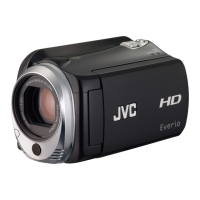
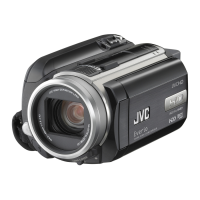
JVC Everio GZ-HD30 - User Manual

JVC Everio GZ-HD30
72 pages
Print Icon
To Next Page IconTo Next Page
Loading...
GUIDEBOOK
EN
HD HARD DISK CAMCORDER
ENGLISH
Dear Customers
Thank you for purchasing this hard
disk camera. Before use, please read
the safety information and precautions
contained on pages 8 and 9 to ensure
safe use of this product.
For Future Reference:
Enter the Model No. (located on the
bottom of the camera) and Serial No.
(located on the battery pack mount of the
camera) below.
Model No.
Serial No.
U
U
GZ-HD40
GZ-HD30

Table of Contents

Questions and Answers

  • E
    edwardhansonSep 15, 2025
    Why is the continuous shooting speed slow on JVC Everio GZ-HD30?
    • K
      Kimberly BeckerSep 15, 2025
      The continuous shooting speed on your JVC Camcorder will drop after continuous shots. Also, continuous shooting speed may drop depending on the recording media or under certain recording conditions.
  • M
    Michael CrawfordAug 25, 2025
    Why do images look unnatural on the TV when using JVC Everio GZ-HD30?
    • D
      Danny HamiltonAug 25, 2025
      If images look unnatural (long and thin etc.) on the TV when using your JVC Camcorder, change [VIDEO OUTPUT] in the [BASIC SETTINGS] to match your TV.
  • M
    Mason LopezAug 26, 2025
    Why the lamp does not flash during battery charging on JVC Everio GZ-HD30 Camcorder?
    • B
      Brittany JuarezAug 26, 2025
      The lamp does not flash during battery charging on your JVC Camcorder if the battery is fully charged. Additionally, when recharging in a hot or cold environment, ensure the battery is being charged within the permitted temperature range, as recharging may stop to protect the battery if it's outside this range.
  • T
    tonymillerAug 26, 2025
    What to do if recording cannot be performed on JVC Camcorder?
    • C
      Charles PageAug 27, 2025
      If your JVC Camcorder isn't recording, make sure to open the LCD monitor to turn on the camera. Also, press the PLAY/REC button to select the recording mode.
  • W
    walterkevinSep 16, 2025
    Why sound or video are interrupted on JVC Camcorder?
    • H
      Heather LamSep 16, 2025
      Sometimes playback is interrupted at the connecting section between two scenes on your JVC Camcorder.
  • J
    Jamie BarrySep 23, 2025
    What to do if some videos cannot be played back when dubbing a playlist on JVC Camcorder?
    • L
      lloydsherylSep 23, 2025
      When dubbing a playlist and some videos cannot be played back on your JVC Camcorder, set to MPEG-2 TS format and dub a playlist that only includes videos of 1440 CBR picture quality while the camera is connected via an i.LINK cable. Alternatively, connect using an audio/video cable and dub to an analog device using standard quality dubbing.
  • N
    Nicole HumphreySep 7, 2025
    Why do images on the LCD monitor appear dark on JVC Everio GZ-HD30?
    • W
      wbishopSep 8, 2025
      If images on the LCD monitor of your JVC Camcorder appear dark or whitish, adjust the brightness and angle of the LCD monitor. The LCD monitor appears dark when used in cold places, but this is not a malfunction. If the issue persists, the LCD monitor may be reaching the end of its service life. Consult your nearest JVC dealer or the JVC customer service.
  • V
    Victoria SilvaSep 8, 2025
    Why cannot use spot exposure control on JVC Everio GZ-HD30?
    • T
      Thomas BrownSep 9, 2025
      If you cannot use spot exposure control on your JVC Camcorder, keep the zoom ratio below [10x].
  • M
    mbrownSep 2, 2025
    Why does the LCD monitor appear blank on my JVC Camcorder?
    • D
      David LawrenceSep 2, 2025
      If the LCD monitor on your JVC Camcorder appears blank, try operating the camera. When using the AC adapter, the camera enters sleep mode if not operated for a while, turning off the LCD monitor.
  • C
    Charles SimonAug 31, 2025
    Why digital zoom does not work on JVC Everio GZ-HD30?
    • T
      Thomas MillerAug 31, 2025
      If the digital zoom on your JVC Camcorder isn't working, try changing [ZOOM] to [40x] or [200x]. Also, deactivate any active effects or focus assist features.

Summary

Easy Start Guide

Charge the Battery Before Recording

Instructions for charging the battery pack before using the camcorder.

Preparation Steps

Video Recording Procedures

Start Recording

Initiating the video capture process.

Playing Back Files

High-Definition Recording Formats

Before Recording and Playback

Copying Files to a DVD

Methods for backing up recorded files to DVD discs.

Safety Precautions

General Safety Warnings

Covers electrical shock, moisture, ventilation, and flame hazards.

Lithium Battery Precautions

Safe handling and usage guidelines for replaceable batteries.

Important Safety Instructions

General Safety Guidelines

Comprehensive list of operational rules and precautions.

Read This First! Important Notes

Backup and Trial Recording Recommendations

Recommendations for data safety and ensuring correct recording.

Camera Reset and Battery Precautions

Troubleshooting steps and battery handling guidelines.

Camera Controls and Indicators

Camera Buttons and Functions

Detailed listing of camera buttons and their operations.

Remote Control Functions

Detailed listing of remote control buttons and their functions.

LCD Monitor Indications

Indications During Recording

Symbols and indicators shown during video and still image recording.

Necessary Settings Before Use

Charging the Battery Pack

Procedure and estimated times for charging the battery.

Recording Files

Video Recording Procedure

Step-by-step guide for capturing video footage.

Still Image Recording

Still Image Capture Procedure

Step-by-step guide for capturing still photographs.

Manual Recording Settings

Advanced Manual Recording Features

Video Playback

Playback Operations and Controls

Using playback functions like play, pause, search, and volume.

Still Image Playback

File Search Function

Watching Images on TV

TV Connection Methods

Connecting the camera to a TV via HDMI, Component, or AV.

Watching Images on TV (Continued)

Playback Operation on TV

Steps for viewing recorded content on a television screen.

Managing Files

Deleting and Protecting Files

Managing file security and removing unwanted files.

Managing Files (Continued)

Playing Back Playlists

Copying Files

Copying Files to DVD Burner

Copying Files (Continued)

Backup All Files to DVD

Creating a full backup of all recorded files onto a DVD.

Digest Playback from DVD

Viewing video previews or opening scenes from a created DVD.

Selecting Files for DVD Backup

High-Definition Dubbing

Changing Menu Settings

Changing Menu Settings (Continued)

Changing Menu Settings (IMAGE)

Changing Menu Settings (BASIC SETTINGS)

Troubleshooting

Card and Power Issues

Problems related to microSD card insertion and power supply.

Recording and Focus Issues

Problems encountered during recording and focus adjustment.

Troubleshooting (Continued)

Brightness, Zoom, WB, and Shooting Speed Issues

Problems with exposure, zoom, white balance, and shooting speed.

Display and Playback Issues

Problems with the LCD monitor and playback errors.

Image Color, Noise, Dubbing, and Operation Issues

Problems with color, audio noise, dubbing, and camera performance.

LCD Monitor Issues and HDD Maintenance

LCD monitor problems and hard disk maintenance procedures.

TV Output and File Search Issues

Problems with TV display and finding recorded files.

Resetting Camera and Cleaning Procedures

Camera reset steps and instructions for cleaning the unit.

Warning Indications

Initial Warnings (Lens, Date;Time, Communication)

Common error messages for lens cover, date/time, and communication.

Media, Data, and Recording Warnings

Warnings related to media formatting, data errors, and recording limits.

Warning Indications (Continued)

Recording Failure and File Errors

Indications of recording failures and file integrity issues.

USB Device and Disc Errors

Warnings related to USB connections and DVD disc errors.

Specifications

General Camera Specifications

Details on physical dimensions, power supply, and weight.

Video, Audio, Image, and Connector Specs

Recording formats, quality, image sizes, and port details.

Specifications (Continued)

Recording Time and Image Capacity Estimates

Estimated storage capacity for video and still images.

Cautions

AC Adapter and Battery Pack Safety

Safety guidelines for using the AC adapter and battery packs.

Recording Medium and Device Care

Guidelines to prevent data corruption and protect devices.

LCD Monitor Protection

Precautions to prevent damage to the LCD monitor.

Main Unit Safety Instructions

General Prohibitions and DO NOTs

Prohibitions for unit operation, including disassembly and avoiding hazards.

Usage Environment and Regulatory Information

Recommended operating conditions and compliance statements.

JVC Everio GZ-HD30 Specifications

General IconGeneral
Optical Zoom10x
Digital Zoom200x
LCD Screen Size2.7 inches
Optical Sensor Size1/5 inch
Image StabilizerOptical
Display Size2.7 inches
Display TypeLCD
Hard Drive Capacity60 GB
Resolution1920 x 1080
Internal Storage Capacity60 GB
Image FormatJPEG
Max Video Resolution1920 x 1080
Audio FormatDolby Digital
HDMI OutputYes
USB InterfaceUSB 2.0
Video FormatMPEG-2
Storage MediaSD/SDHC
Battery TypeLithium-ion

Related product manuals