EN31
OFFFADER/ IPE
AM AEPROGR
ACAMER
LMANUA
MSYSTE
END
AYDISPL
C
AN E
W
W
.BAL
RE NEON SC LCD / TV
UAOT
IMETDATE /
T I ME CODE
CLOCK
ADJ .
–
–
– FFO
25 ’01
CED
30
PM
:5
NRETUR
MODESNAP
ODEREC M SP
I
12
BTMODESOUND
ZOOM
UPGAIN
–
–
–
–
–
40
X
LFUL
AGC
NRETUR
DIS –
ON
OFF
BEEP
MELODY
NO
TALLY
ID N MUBER
–
–
– 60
DEMO M.ODE – NO
CAM ERSET
NRETUR
FADER/ W I P E
AM AEPROGR
ACAMER
LMANUA
MSYSTE
END
AYDISPL
C
AN E
W. BAL
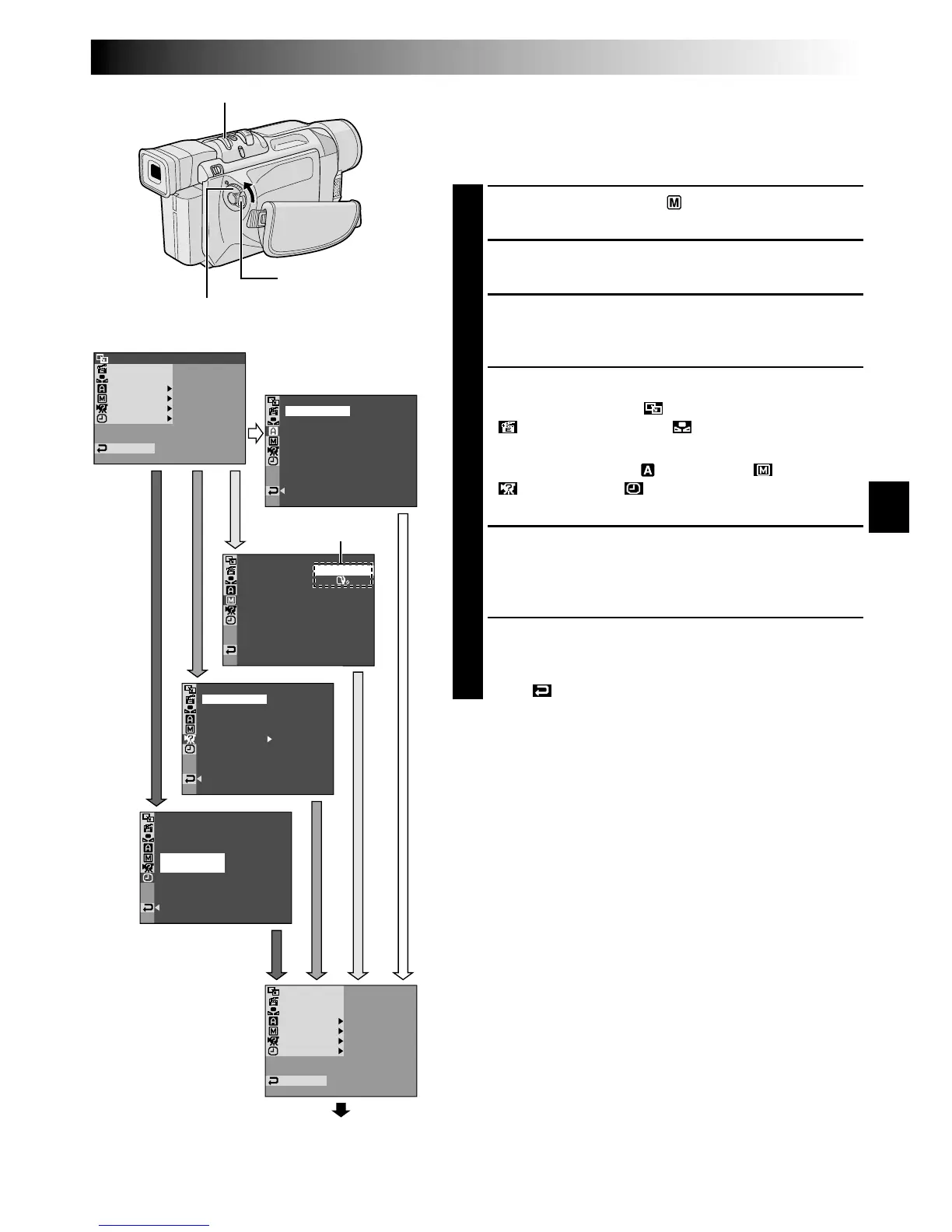
Display
Menu Screen
MENU/BRIGHT Wheel
Lock Button
Power Switch
USING MENUS FOR DETAILED ADJUSTMENT
For Recording Menu
This camcorder is equipped with an easy-to-use,
on-screen menu system that simplifies many of the more
detailed camcorder settings ( pg. 32 – 34).
1
Set the Power Switch to “ ” while pressing down
the Lock Button located on the switch.
2
Press the MENU/BRIGHT wheel in. The Menu
Screen appears.
3
Rotate the MENU/BRIGHT wheel to select the
desired function menu, and press it. The selected
function menu appears.
4
Function menu setting depends on the function.
If you have selected “ WIPE/FADER”,
“ PROGRAM AE” or “ W. BALANCE” . . .
.... see pg. 32.
If you have selected “ CAMERA”, “ MANUAL”,
“ SYSTEM” or “ DISPLAY” . . .
.... go to step 5.
5
Rotate the MENU/BRIGHT wheel to select the
desired function and press it. The Sub Menu appears.
Then, rotate the MENU/BRIGHT wheel to select the
parameter, and press it. Selection is complete.
6
Rotate the MENU/BRIGHT wheel to select
“
1
RETURN” and press it twice. The Menu Screen
closes.
•The icon represents “END”.
Sub Menu
Normal Screen
CONTINUED ON NEXT PAGE



 To Next Page