EasyManua.ls Logo

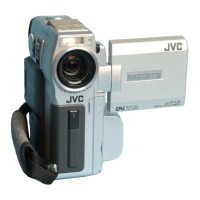
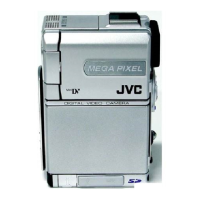
JVC GR-DVP7EA - User Manual

JVC GR-DVP7EA
105 pages
Print Icon
To Next Page IconTo Next Page
Loading...
LYT1003-001A
EN
DIGITAL VIDEO CAMERA
ENGLISH
GR-DVP7
Automatic Demonstration 8
GETTING STARTED
9
VIDEO RECORDING &
PLAYBACK
18
DIGITAL STILL CAMERA
(D.S.C.) RECORDING &
PLAYBACK
26
ADVANCED FEATURES
37
REFERENCES 80
TERMS 102
Please visit our Homepage on the World Wide
Web and answer our Consumer Survey (in
English only):
For Accessories:
http://www.jvc-victor.co.jp/english/index-e.html
http://www.jvc-victor.co.jp/english/accessory
INSTRUCTIONS

Table of Contents

Questions and Answers

  • P
    Patricia HesterAug 21, 2025
    Why isn't the CHARGE indicator lighting on my JVC GR-DVP7EA Camcorder?
    • S
      Steven Parker MDAug 21, 2025
      If the CHARGE indicator on the AC Power Adapter/Charger of your JVC Camcorder does not light, it could be due to the battery temperature being extremely high or low. To protect the battery, it is recommended to charge it in places with a temperature of 10°C to 35°C.
  • R
    Richard HodgesSep 3, 2025
    Why is my JVC Camcorder Snapshot image too bright?
    • S
      Sergio JohnsonSep 3, 2025
      If the image taken using Snapshot on your JVC Camcorder is too bright, set “r PROGRAM AE” to “SPOTLIGHT”.
  • M
    Melanie MillerSep 1, 2025
    Why are some MENU functions unavailable on my JVC Camcorder?
    • V
      vickiesmithSep 1, 2025
      If some functions are not available using the MENU Button on your JVC Camcorder, set the Power Switch to “M”.
  • M
    mcclurejulieAug 30, 2025
    Why is the LCD monitor hot on my JVC GR-DVP7EA Camcorder?
    • P
      Phillip VasquezAug 31, 2025
      If the rear of the LCD monitor on your JVC Camcorder is hot, close the LCD monitor to turn it off or set the Power Switch to “OFF”, and let the unit cool down.
  • A
    Anne LambAug 29, 2025
    Why do images on my JVC GR-DVP7EA Camcorder LCD look dark or whitish?
    • M
      Michael NavarroAug 29, 2025
      If the images on the LCD monitor of your JVC Camcorder appear dark or whitish, adjust the brightness and angle of the LCD monitor.
  • M
    Megan CoxAug 27, 2025
    Why is my JVC Camcorder not focusing automatically?
    • C
      curtis93Aug 28, 2025
      If the focus on your JVC Camcorder does not adjust automatically, first, ensure that Focus is set to the Auto mode. If it is already on Auto mode, clean the lens and check the focus again.
  • C
    curtisgallegosAug 26, 2025
    Why can't I record with my JVC GR-DVP7EA?
    • B
      brian06Aug 26, 2025
      If your JVC Camcorder won’t record, ensure the Power Switch is set to “A” or “M”. Check that the tape’s erase protection tab is set to “REC”. Also, verify that the VIDEO/MEMORY Switch is set to “VIDEO”. If “TAPE END” appears, replace the cassette. Finally, make sure the cassette holder cover is closed. If the VIDEO/MEMORY Switch is set to “VIDEO”, set the VIDEO/MEMORY Switch to “MEMORY”.
  • W
    wongrobertAug 25, 2025
    How to troubleshoot no power on JVC Camcorder?
    • U
      urodriguezAug 25, 2025
      If no power is supplied to your JVC Camcorder, make sure the AC Power Adapter/Charger is securely connected. Also, check if the battery is dead; if so, replace it with a fully charged one. Ensure that the LCD monitor is fully open or the viewfinder is pulled out when recording.
  • M
    Martin RandallAug 22, 2025
    Why does my JVC GR-DVP7EA say “SET DATE/TIME!”?
    • L
      Luis GrayAug 23, 2025
      If your JVC Camcorder displays “SET DATE/TIME!”, this indicates that the built-in clock’s rechargeable lithium battery is discharged or the previously set date/time is erased. To resolve this, connect your camcorder to an AC outlet using the AC Power Adapter/Charger for over 24 hours to charge the clock’s lithium battery.

JVC GR-DVP7EA Specifications

General IconGeneral
TypeDigital Camcorder
Recording FormatMiniDV
Optical Zoom10x
Digital Zoom200x
Sensor TypeCCD
Display TypeLCD
Image StabilizerElectronic
Focus AdjustmentAutomatic, Manual
Microphone Operation ModeStereo
USB InterfaceUSB 1.1
IEEE 1394 (FireWire/i.LINK)Yes
Recording MediaMiniDV
Image SensorCCD
Screen Size2.5 inches
ViewfinderColor
Shooting ModesManual
White BalanceAutomatic, Manual, Presets
White Balance Presetscloudy
FeaturesBacklight Compensation
Connector TypeUSB
Video OutputComposite video, S-Video
Included AccessoriesBattery Pack, AC Adapter, AV Cable, USB Cable

Related product manuals