EasyManua.ls Logo

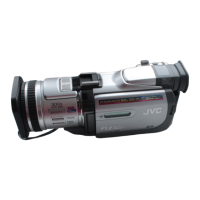
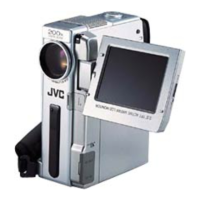
JVC GR GR-DV4000 - User Manual

JVC GR GR-DV4000
88 pages
Print Icon
To Next Page IconTo Next Page
Loading...
LYT1129-001A
Master Page: Cover1
EN
ENGLISH
GR-DV4000
AUTOMATIC
DEMONSTRATION
9
GETTING STARTED
10
VIDEO RECORDING &
PLAYBACK
17
DIGITAL STILL CAMERA
(D.S.C.) RECORDING &
PLAYBACK
23
ADVANCED FEATURES
31
REFERENCES
67
TERMS
86
Please visit our Homepage on the World Wide
Web for Digital Video Camera:
For Accessories:
http://www.jvc-victor.co.jp/english/cyber/
http://www.jvc-victor.co.jp/english/accessory/
INSTRUCTIONS
DIGITAL VIDEO CAMERA
GR-DV4000PAL.book Page 1 Friday, February 14, 2003 10:30 PM

Table of Contents

Questions and Answers

  • J
    Joshua DavisAug 13, 2025
    How to troubleshoot a JVC Camcorder that has no power?
    • M
      milescraigAug 13, 2025
      If your JVC Camcorder is not supplying power, ensure the AC Power Adapter/Charger is securely connected. Also, a dead battery could be the cause, so replace it with a fully charged one. Finally, make sure the LCD monitor is fully open or the viewfinder is pulled out when recording.
  • M
    Megan KochAug 16, 2025
    What to do if my JVC GR GR-DV4000 is not recording?
    • M
      Maureen FerrellAug 16, 2025
      If your JVC Camcorder isn't recording, check that the Power Switch is set to 'A' or 'M'. Also, verify the tape’s erase protection tab is set to 'REC'. Ensure the VIDEO/MEMORY Switch is set to 'VIDEO'. If 'TAPE END' appears, replace the cassette. Finally, make sure the cassette holder cover is closed and the VIDEO/MEMORY Switch is set to 'MEMORY'.
  • S
    Sara OwensAug 19, 2025
    Why won't my JVC Camcorder play, rewind, or fast-forward?
    • S
      Samantha WilliamsAug 20, 2025
      If the Play, Rewind, and Fast-Forward functions aren't working on your JVC Camcorder, make sure the Power Switch is set to 'PLAY'. Also, check that the VIDEO/MEMORY Switch is set to 'VIDEO'.
  • K
    Keith LopezAug 25, 2025
    What to do if the JVC GR GR-DV4000 tape is moving, but there is no picture?
    • H
      Heather YoungAug 25, 2025
      If the tape is moving but there is no picture on your JVC Camcorder, set the TV to the correct mode for video playback. Also, ensure that the cassette holder cover is closed.
  • D
    Dr. Kevin RodriguezAug 27, 2025
    What to do if my JVC Camcorder won't playback the memory card?
    • S
      sbrownAug 27, 2025
      If a memory card cannot be played back on your JVC Camcorder, ensure the Power Switch is set to 'PLAY'. Also, check that the VIDEO/MEMORY Switch is set to 'MEMORY'.
  • L
    Loretta SmithAug 31, 2025
    How to display date and time during JVC Camcorder recording?
    • R
      Ryan ParrishAug 31, 2025
      To enable the date and time display during recording on your JVC Camcorder, ensure that 'DATE/TIME' is set to 'ON'.
  • G
    gterrellSep 4, 2025
    Why is digital zoom not working on my JVC GR GR-DV4000 Camcorder?
    • C
      Carol DonovanSep 4, 2025
      If the digital zoom isn't working on your JVC Camcorder, set 'ZOOM' to '40X' or '300X'. Also, ensure the VIDEO/MEMORY Switch is set to 'VIDEO'.
  • B
    brownronaldSep 8, 2025
    How to fix blocks of noise during JVC GR GR-DV4000 playback?
    • S
      Sherry ClarkSep 8, 2025
      To resolve blocks of noise during playback, or a blue screen with no picture on your JVC Camcorder, clean the video heads with an optional cleaning cassette.

JVC GR GR-DV4000 Specifications

General IconGeneral
TypeCamcorder
Camcorder Media TypeMini DV
Optical Sensor Size1/4 inch
Image SensorCCD
Optical Zoom10 x
ViewfinderColor
Image StabilizerElectronic
White Balance PresetsIndoor, outdoor
Microphone Operation ModeStereo
FireWire InterfaceYes
Recording MediaMiniDV
Video Resolution720 x 480 pixels
Focus AdjustmentAuto/Manual
White BalanceAuto, Manual
Connector TypeS-Video
Included Accessoriesaudio video cable
Battery TypeLithium-Ion
Effective Pixels680000 pixels

Related product manuals