43
123
456
789
1
2
1
2
3
– –:– –
0
3
4
4
SET TV BRAND CODE
1
Refer to the chart below. Press and hold TV on the
recorder's remote control for over 2 seconds, enter your
TV’s brand code using the NUMBER keys, then press
OK.
Check if the TV's power goes on as it should. If it does,
try other operations (Z step 2).
● Once you have set the remote control to operate the
TV, you don't have to repeat this step until you
replace your remote control's batteries.
● JVC and SAMSUNG have more than one code. If the
TV does not function with one code, try entering
another.
OPERATE TV
2
First, press TV to set the remote control to TV mode, then
press the corresponding button: , TV PROG +/–,
TV/VCR, TV +/– (Volume), (Muting), NUMBER
keys.
● For some brands of TV, you must press OK after
having pressed the NUMBER keys.
● To return the remote to video recorder control, press
VCR.
IMPORTANT
Although the provided remote control unit is compatible with
JVC televisions, as well as many other models, it may not work
with your TV, or in some instances, may have limited function
capability.
TV Multi-brand Remote
Control
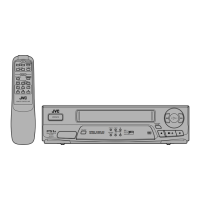
Your remote control can operate the basic functions of your TV
set. In addition to JVC TVs, other manufacturer’s TVs can also
be controlled.
Before you start . . .
● Turn off the TV using its remote control.
OK
TV PROG+/–
TV
+/–
Control Your TV Using
Additional Buttons
Use the NUMBER keys, and the button, button or ‰
button to select the TV’s channel.
● With televisions under Code 01, 02, 07, 10, 11, 14, 20,
23, 24, 25, 27, 33 or 35, the button corresponds to
the 1-digit/2-digit entry switching button (often labelled
– /– –) of your TV’s remote control.
● With televisions under Code 01, 28, 29 or 34, the button
corresponds to the 10 + button, and the ‰ button corre-
sponds to the 20 + button of your TV’s remote control.
NOTE:
The way these buttons are used is determined by your TV.
Use these buttons as instructed for your TV’s remote control.
NUMBER



 To Next Page
 Loading...