EasyManua.ls Logo

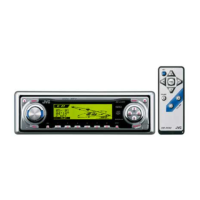
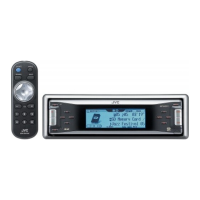
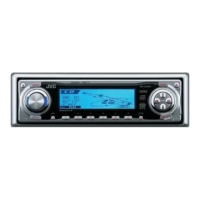
JVC KD-LH300 - User Manual

JVC KD-LH300
63 pages
Print Icon
To Next Page IconTo Next Page
Loading...
GET0201-001A
[J]
INSTRUCTIONS
MANUAL DE INSTRUCCIONES
MANUEL D’INSTRUCTIONS
CD RECEIVER KD-AR3000/KD-LH300
ENGLISH
ESPAÑOL
FRANÇAIS
For installation and connections, refer to the separate manual.
Para la instalación y las conexiones, refiérase al manual separado.
Pour l’installation et les raccordements, se référer au manuel séparé.
RECEPTEUR CD KD-AR3000/KD-LH300
RECEPTOR CON CD KD-AR3000/KD-LH300
For customer Use:
Enter below the Model No. and
Serial No. which are located on
the top or bottom of the
cabinet. Retain this information
for future reference.
Model No.
Serial No.
This unit is equipped with the display demonstration. To cancel it, see page 8.
Esta unidad está equipada con demostración en la pantalla. Para cancelarla, consulte la página 8.
Cet appareil est équipé d’une fonction de démonstration des affichages. Pour l’annuler, référez-
vous à la page 8.
SOUND
VOL
VOL
SOURCE
R
F
U
D
ATT
SOUND
VOL
VOL
SOURCE
R
F
U
D
ATT
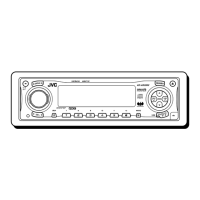
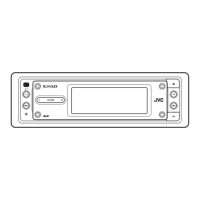
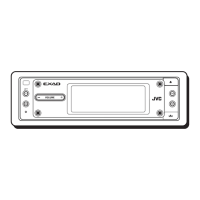
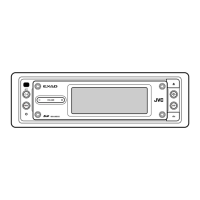
KD-AR3000
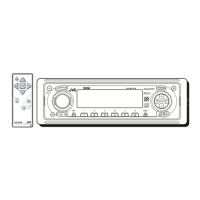
KD-AR3000
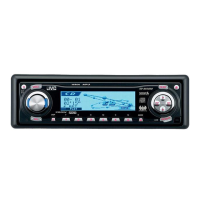
KD-LH300
KD-LH300

Other manuals for JVC KD-LH300

Questions and Answers

  • E
    Evelyn WhiteAug 19, 2025
    Why is there no sound from the speakers on my JVC Car Receiver?
    • D
      david58Aug 19, 2025
      If you cannot hear sound from the speakers, it might be due to the volume level being set too low. Ensure the volume is adjusted to an audible level. Also, check all the cords and connections to make sure they are correctly and firmly in place.
  • R
    Robert SmithAug 21, 2025
    What to check if there is no 5V or 0V at IC621 pin 40 on my JVC KD-LH300?
    • B
      Becky Lopez MDAug 21, 2025
      If there is no 5V or 0V at IC621 pin 40, check IC681 on your JVC Car Receiver.
  • V
    Victor CampbellAug 23, 2025
    What to do if my JVC Car Receiver does not work at all?
    • T
      Tiffany PinedaAug 25, 2025
      If your unit isn't working, the built-in microcomputer may have malfunctioned due to electrical noise or other interference. Try pressing the reset button located on the control panel. Keep in mind that this will erase the clock setting and preset stations stored in memory. Also, ensure that the control panel is correctly and firmly attached. Detach it, wipe the connectors, and then reattach it securely.
  • P
    Pamela RodriguezAug 26, 2025
    Why does my JVC Car Receiver interrupt disc sound?
    • J
      Jason EstradaAug 26, 2025
      Interrupted disc sound can occur for several reasons: * If you are driving on rough roads, stop playback. * The disc may be scratched, try changing the disc. * Connections might be incorrect, so check the cords and connections. * If there's no disc in the loading slot, insert one. * The disc may be inserted incorrectly, so insert the disc correctly.
  • R
    Roberta PierceAug 27, 2025
    Why does my JVC Car Receiver show 'No Disc'?
    • M
      Mr. Robert AyalaAug 28, 2025
      If the display shows “No Disc,” it could be due to several reasons: * There is no disc in the magazine, insert discs into the magazine correctly. * This unit and the CD changer are not connected correctly, connect them correctly and press the reset button of the CD changer. * Press the reset button of the CD changer. * Press the reset button on the control panel. Note that the clock setting and preset stations stored in memory will be erased.
  • T
    taylordavidAug 30, 2025
    What to do if my JVC Car Receiver displays 'Not Support' and tracks skip?
    • N
      Nicole TownsendAug 30, 2025
      If “Not Support” appears and tracks skip, it may be because the tracks are not encoded in an appropriate format. Use a disc that contains tracks encoded in a supported format. Also, if you're playing WMA tracks, copy-protected tracks cannot be played back; this is normal.
  • L
    Lori WilliamsSep 1, 2025
    How to fix SSM (Strong-station Sequential Memory) automatic preset if it does not work on my JVC Car Receiver?
    • T
      Tiffany StevensSep 1, 2025
      If the SSM automatic preset isn't working, it could be due to weak signals. In this case, store stations manually. Another reason could be that the antenna is not connected firmly, so ensure the antenna is securely connected.
  • T
    Tina FosterSep 3, 2025
    What to do if my JVC Car Receiver cannot play CD-R/CD-RW?
    • J
      julielongSep 3, 2025
      If the CD-R/CD-RW cannot be played back, it may not be finalized. Insert a finalized CD-R/CD-RW. You can also finalize the CD-R/CD-RW with the component used for recording.
  • E
    Eric MooreSep 5, 2025
    What to do if my JVC Car Receiver cannot recognize the disc?
    • C
      campbelllauraSep 5, 2025
      If the display shows “No Disc,” “Loading Error,” or “Eject Error,” the CD player may be malfunctioning. While pressing (standby/on attenuator), press and hold 0 (eject) for more than 2 seconds to eject the disc.
  • W
    William ReedSep 7, 2025
    Why does my JVC Car Receiver generate noise?
    • A
      Aaron RogersSep 7, 2025
      If noise is generated, it could be that the track played back is not a true MP3/WMA track, even if it has the or extension. Try skipping to another track or changing the disc. Do not add the extension code or to non-MP3/WMA tracks.

Summary

User Manual Introduction

Customer Use Information

Information for customer use, including Model No. and Serial No.

Laser Safety Precautions

Volume Setting Caution

Warning about potential speaker damage from sudden volume increases when playing discs.

Resetting the Unit

Procedure to reset the unit using the reset button and its implications.

Pre-Operation Precautions

Safety and Operational Precautions

Safety advice on volume, complicated operations, and temperature conditions.

Control Panel Overview

Control Panel Buttons

Identification and function of each button and control on the main unit's panel.

Illumination Navigation

Explanation of how display and controls indicate operational steps.

Remote Controller Functions

Remote Controller Buttons

Details the functions of each button on the remote control for various operations.

Remote Controller Installation and Setup

Remote Controller Installation

Instructions for aiming the controller, installing the battery, and safety warnings.

Basic Operation Guide

Powering On and Source Selection

How to turn on the unit, select audio sources (tuner, CD, external).

Volume and Sound Adjustment

Adjusting audio volume and general sound settings.

Display Demonstration Control

Clock and System Time Setup

Radio Tuning Operations

Radio Tuning Methods

How to tune into radio stations using auto or manual search methods.

Improving FM Stereo Reception

FM Sound Quality Issues

Explains interference noise and how to adjust FM tuner selectivity (IF Filter).

Storing Radio Stations

Automatic and Manual Station Presets

Instructions for automatically storing FM stations (SSM) and manually storing FM/AM stations.

Preset Station Tuning

Direct Preset Station Selection

How to directly select a stored radio station using its preset number.

Selecting Preset Stations via List

Display Pattern Customization

How to change the information displayed using the DISP button.

Disc Operations

Playing Discs

Steps for inserting and playing audio CDs, CD-Rs, CD-RWs, MP3, and WMA discs.

MP3 and WMA Disc Information

Explanation of how MP3/WMA tracks and folders are organized on discs.

Stopping Playback and Ejecting Discs

ImageLink Feature Activation

Disc Track Navigation

Track Navigation and Searching

How to fast-forward, reverse, skip tracks, and quickly locate specific tracks.

Folder Navigation (MP3;WMA)

Direct Folder Selection (MP3;WMA)

How to directly select a folder on MP3/WMA discs, including folder naming requirements.

Skipping Folders (MP3;WMA)

How to skip to the next or previous folder on MP3/WMA discs.

Folder and Track Selection Using Lists

Playback Mode Selection

Random and Repeat Playback Modes

How to set Random Play (Disc, Folder) and Repeat Play (Track, Folder, Disc) modes.

Intro Scan Playback

Prohibiting Disc Ejection

How to lock a disc in the loading slot and how to unlock it.

Display Pattern Customization

Sound Adjustments

Adjusting Fader, Balance, and Subwoofer

How to adjust speaker balance (fader/balance) and subwoofer output level/cutoff frequency.

Preset Sound Mode Selection (iEQ)

Preset Sound Mode EQ Settings

Storing Custom Sound Modes

Display Theme Selection

Graphic Displays

Image Converter Overview

Introduction to using the Image Converter CD-ROM for custom graphics.

Downloading Custom Graphics

Downloading Graphics from CD-ROM

Steps for downloading still images and animations from a CD-ROM to the unit.

Selecting Graphics Files for Download

Deleting Unwanted Graphics Files

Managing Downloaded Graphics

Steps for downloading files and deleting all stored graphics files.

Deleting Specific Graphics Files

Activating Downloaded Graphics

Activating Opening;Ending Animations

How to activate stored opening and ending screen animations.

Activating Graphic Screens (Picture;Movie)

How to activate graphic screens using downloaded pictures or movies.

Selecting User Picture for Graphics

Other Main Functions

Changing General Settings (PSM)

How to change general settings using the PSM control, grouped by categories.

PSM Settings Details

Displaying Graphics Options

Source Animation Control (KeyIn CFM)

How to turn the source animation on or off when changing sources.

Scroll Mode Selection

How to select the scroll mode for disc information (Once, Auto, Off).

Display Contrast Adjustment

How to adjust the display contrast level from 1 to 10.

Display Illumination Pattern (LCD Type)

How to select the display illumination pattern (Auto, Positive, Negative).

Display Font Type Selection

How to select the font type for the display (1 or 2).

Tag Display Control (ID3 Tag)

How to turn the ID3 tag display on or off for MP3/WMA tracks.

FM Tuner Selectivity Adjustment

Key-Touch Tone Control (Beep)

How to activate or deactivate the key-touch tone.

External Component Input Selection

How to select external components like CD changer, Line In, or SIRIUS.

Amplifier Gain Control

How to adjust the amplifier gain control (HighPower/LowPower).

Slot Light Control

How to turn the disc slot light illumination on or off.

Dimmer Mode Selection

Display Color Customization

Setting Display Color by Source

How to set a desired display color for each audio source or for all sources.

Creating Custom User Colors

Assigning Source Names

Control Panel Angle Adjustment

Detaching and Attaching Control Panel

CD Changer Operations

Playing Discs with CD Changer

How to select the CD changer and play discs, including MP3 disc handling.

Navigating CD Changer Discs and Tracks

Quickly Navigating Tracks (CD Changer)

Folder Navigation (MP3 Discs - CD Changer)

How to skip to the next or previous folder when playing MP3 discs with the CD changer.

Selecting Discs, Folders, Tracks via Lists (CD Changer)

Playback Modes (CD Changer)

Random and Repeat Playback (CD Changer)

How to set Random Play and Repeat Play modes for the CD changer.

Intro Scan Playback (CD Changer)

External Component Operations

Playing External Components

Steps for connecting and playing external components like SIRIUS or Line-In devices.

Troubleshooting

General Troubleshooting

Common issues related to sound, unit operation, panel connection, and FM/AM reception.

Disc Playback Troubleshooting

Solutions for problems like discs not playing, ejecting, or being recognized.

MP3;WMA Playback Issues

Troubleshooting Graphics and CD Changer

Maintenance

Disc Handling and Care

Guidelines for handling, cleaning, storing discs, and cautions for CD-Rs/CD-RWs.

Technical Specifications

Installation Parts List

In-Dash Mounting Installation

Illustrated guide for typical in-dash installation, including professional installation advice.

Unit Removal Procedure

Steps to remove the unit from the dash, including using removal handles.

Electrical Connection Guidelines

Power and Speaker Connection Precautions

Critical warnings about connecting power cord leads and speaker wiring to prevent damage.

Typical Connection Diagrams

Amplifier Connections

CD Changer Connections

How to connect the JVC CD changer to the unit.

Subwoofer Connections

How to connect a subwoofer through an amplifier.

External Component Connections

How to connect external components like SIRIUS Radio or Line Input devices.

JVC KD-LH300 Specifications

General IconGeneral
TypeCar Receiver
Tuner BandsAM/FM
CD PlayerYes
MP3 PlaybackYes
WMA PlaybackYes
USB InputYes
BluetoothNo
Display TypeLCD
Detachable FaceYes
Remote ControlYes
AUX InputYes
Auxiliary InputYes
Channels4
Maximum Power Output50W x 4

Related product manuals