EasyManua.ls Logo

JVC KD-R461 - User Manual

JVC KD-R461
20 pages
Print Icon
To Next Page IconTo Next Page
Loading...
Data Size: B6L (182 mm x 128 mm)
Book Size: B6L (182 mm x 128 mm)
ENGLISH
B5A-0106-00 [U/UI]
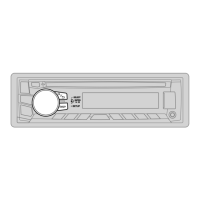
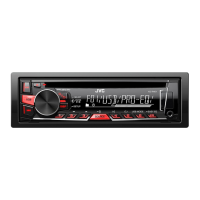
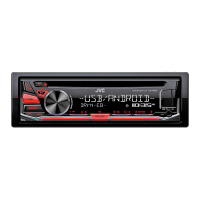
KD-R661 / KD-R561 / KD-R466 / KD-R461
CD RECEIVER
INSTRUCTION MANUAL
Please read all instructions carefully before
operation to obtain the best possible performance
from the unit.
JS_JVC_KD_R661_U_C00.indd 1JS_JVC_KD_R661_U_C00.indd 1 2/7/2014 3:21:15 PM2/7/2014 3:21:15 PM

Questions and Answers

  • K
    Katherine MartinAug 21, 2025
    How to fix no sound on my JVC Car Receiver?
    • C
      Chad GarrettAug 21, 2025
      To address the issue of no sound from your JVC Car Receiver, first, adjust the volume to a suitable level. If the problem persists, verify that all cords and connections are properly secured.
  • R
    Renee WilsonSep 4, 2025
    What does it mean when my JVC Car Receiver shows 'PLEASE' and 'EJECT'?
    • J
      Jacqueline WongSep 4, 2025
      If you encounter the message “PLEASE” and “EJECT” appearing alternately on your JVC Car Receiver, press , then insert the disc correctly.
  • C
    Christopher MoyerSep 2, 2025
    Why does the sound skip on my JVC Car Receiver?
    • A
      Angel WebsterSep 2, 2025
      If you are experiencing intermittent playback or sound skipping on your JVC Car Receiver, try turning off the power saving mode on your Android device.
  • S
    Steven GonzalezSep 1, 2025
    Why is my iPod/iPhone not working with my JVC Car Receiver?
    • D
      Daniel StricklandSep 1, 2025
      If the iPod/iPhone does not turn on or does not work with your JVC Car Receiver, first, check the connection between the unit and the iPod/iPhone. If the problem persists, detach and reset the iPod/iPhone using a hard reset.
  • F
    Felicia KelleyAug 30, 2025
    How to fix 'NO DEVICE' or flashing 'READING' on JVC Car Receiver?
    • P
      pgarciaAug 30, 2025
      If your JVC Car Receiver displays “NO DEVICE” or “READING” keeps flashing, try switching off the developer options on your Android device. If the issue continues, reconnect the Android device. Note that the connected Android device may not support [AUTO MODE].
  • F
    Fred StanleyAug 29, 2025
    Why is the radio reception poor on my JVC Car Receiver?
    • R
      Robin MccartyAug 29, 2025
      If you are experiencing poor radio reception on your JVC Car Receiver, ensure the antenna is firmly connected. Additionally, extend the antenna fully to improve reception.
  • P
    Philip WuAug 27, 2025
    What does 'PROTECTING SEND' mean on my JVC Car Receiver?
    • Z
      Zachary HardyAug 27, 2025
      If your JVC Car Receiver displays “PROTECTING SEND Send the unit to the nearest service center.”, you should send the unit to the nearest service center.
  • Q
    qbrooksAug 26, 2025
    What to do if my JVC Car Receiver shows a miswiring error?
    • L
      Linda LozanoAug 26, 2025
      If your JVC Car Receiver displays “MISWIRING CHECK Turn the power off, then check to be sure the terminals of WIRING THEN PWR ON”, simply turn the power on again.
  • E
    efisherAug 25, 2025
    Why is there no sound from my Android device on my JVC Car Receiver?
    • A
      Alexis CareyAug 25, 2025
      If the sound cannot be heard during playback on your Android device with the JVC Car Receiver, try reconnecting the Android device. If in [AUDIO MODE], launch any media player application. If the problem persists, relaunch the current media player application or use another media player application. You can also try restarting the Android device. If none of these steps work, the connected Android device may be unable to route the audio signal to the unit.
  • K
    Kevin GrayAug 23, 2025
    How to eject a disc from my JVC Car Receiver when it's stuck?
    • K
      Kayla PrattAug 23, 2025
      If the disc cannot be ejected from your JVC Car Receiver, press and hold to forcibly eject the disc. Exercise caution to prevent dropping the disc during ejection.

Summary

BEFORE USE

Safety Warnings

Crucial safety precautions to ensure safe operation and prevent accidents.

Maintenance and Care

Guidelines for cleaning and maintaining the unit.

Manual Navigation

Tips on how to effectively read and understand the instruction manual.

BASICS

Faceplate Overview

Description of the unit's front panel controls and display.

Remote Control Usage

Instructions for operating the unit with the RM-RK52 remote control.

Fundamental Operations

How to turn on/off, adjust volume, select sources, and change display.

GETTING STARTED

Disabling Demonstration Mode

Steps to turn off the introductory demo mode of the unit.

Setting the Clock

Instructions for setting the unit's internal clock time.

Basic System Settings

Configuring essential operational settings for the unit.

MEDIA PLAYBACK: CD, USB, iPod, ANDROID

Starting Playback

How to begin playback from CD, USB, iPod, or Android devices.

Connecting Devices

Instructions for connecting USB, iPod/iPhone, and Android devices.

MEDIA PLAYBACK ADVANCED

Control Mode Selection

Selecting control modes for iPod and Android devices.

Music Drive Selection

Choosing the source for music playback from connected devices.

Audiobook Playback Speed

Adjusting the playback speed for audiobook files.

File Selection and Search

How to select files and perform quick searches.

RADIO OPERATION

Tuning Radio Stations

Methods for searching and tuning radio stations.

Preset Station Management

How to save and recall preset radio stations.

Radio Timer and SSM

Using the radio timer and automatic station scanning.

RADIO SETTINGS

Advanced Radio Options

Advanced settings for radio reception and station search.

AUX INPUT

Portable Audio Player Connection

Connecting and playing audio from a portable device via AUX.

Bluetooth Audio Setup

Connecting and using a Bluetooth adapter for audio playback.

PANDORA INTEGRATION

Pandora App Setup

Steps to prepare your device for Pandora app usage.

Starting Pandora Playback

How to connect and begin listening to Pandora.

Pandora Station Management

Creating, saving, and searching for Pandora stations.

Bookmarking Pandora Content

How to bookmark songs or artist information on Pandora.

IHEARTRADIO INTEGRATION

iHeartRadio App Setup

Steps to prepare your device for iHeartRadio app usage.

Starting iHeartRadio Playback

How to connect and begin listening to iHeartRadio.

iHeartRadio Station Navigation

Searching and skipping stations within iHeartRadio.

AUDIO SETTINGS

Preset Equalizer Selection

Selecting from pre-defined sound equalization settings.

Custom Sound Settings

Creating and storing personalized sound profiles.

PRO EQ Frequency Adjustments

Detailed adjustments for Bass, Middle, and Treble frequencies.

Additional Audio Options

Accessing other audio configuration settings.

ADVANCED AUDIO CONFIGURATION

Bass, Loudness, and Subwoofer Controls

Adjusting bass boost, loudness, and subwoofer output settings.

Speaker Balance and Volume Adjustment

Configuring speaker output balance and volume levels.

Sound Enhancement Features

Utilizing D.T.EXP and Tel Muting for improved audio experience.

DISPLAY SETTINGS

Display Scroll Behavior

Configuring how display information scrolls on the unit.

Color Theme Customization

Setting display and button illumination colors.

Day and Night Display Modes

Adjusting colors for day and night modes.

Brightness Control

Setting the brightness for display and USB terminals.

ADDITIONAL INFORMATION

Media File Compatibility

Information on playable CD formats and file types.

Device Connectivity Details

Details on USB, iPod/iPhone, and Android device requirements.

Service and App Information

Information on Pandora and iHeartRadio service availability.

JVC MUSIC SOFTWARE

Playlist Creator and Music Control

Support for JVC Playlist Creator and Music Control software.

TROUBLESHOOTING

General and Radio Issues

Solutions for common sound, wiring, and reception problems.

Disc and USB Playback Errors

Troubleshooting disc ejection and playback errors.

App-Related Troubleshooting

Resolving playback and connectivity problems with Pandora/iHeartRadio.

ADVANCED TROUBLESHOOTING

iPod, iPhone, and Android Issues

Resolving issues with iPod/iPhone and Android device connectivity.

Pandora and iHeartRadio Error Messages

Specific error messages and solutions for Pandora/iHeartRadio.

TECHNICAL SPECIFICATIONS

Tuner and CD Player Specs

Detailed technical specifications for radio reception and CD playback.

USB, Auxiliary, and Audio Specs

Technical data for USB, auxiliary input, and audio output.

General Unit Specifications

Specifications for general unit parameters like power and dimensions.

INSTALLATION AND CONNECTION

In-Dash Mounting Guide

Step-by-step instructions for installing the unit into the dashboard.

Unit Removal Instructions

Procedures for safely removing the unit from the vehicle.

Basic Installation Overview

Summary of the wiring and installation process.

WIRING DIAGRAM AND GUIDE

Vehicle Wiring Connection

Diagram and explanation of connecting the unit to the car's wiring.

Recommended Wiring Practices

Specific wiring recommendations for optimal performance.

Installation Component List

List of parts included for the unit's installation.

JVC KD-R461 Specifications

General IconGeneral
Power Output (Peak)50W x 4
RMS Power Output22W x 4
TunerAM/FM
FM Presets18
AM Presets6
Audio Formats SupportedMP3, WMA
USB PortYes
BluetoothNo
Aux InputYes
DisplayLCD
CD PlaybackYes
Detachable FaceplateYes
Channels4
TypeReceiver

Related product manuals