17ENGLISH
1
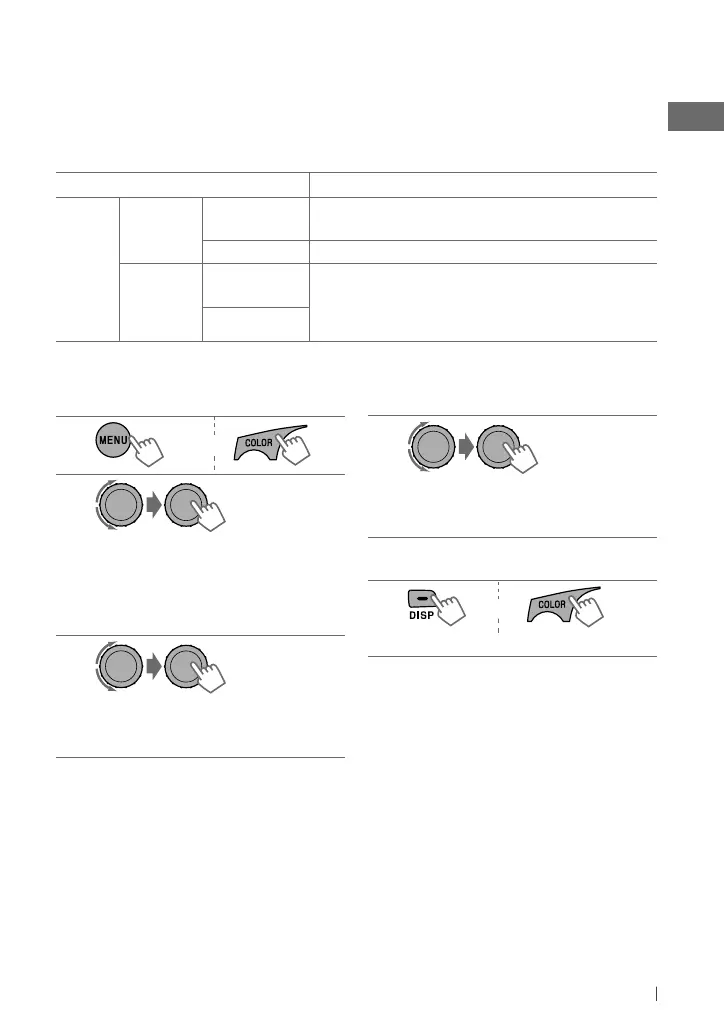
or
2
]
<COLOR SETUP>
]
<DAY COLOR>
]
<BUTTON ZONE>
• Pressing
COLOR
in step 1 will enter
zone selection menu (BUTTON ZONE /
DISP ZONE) directly.
3
]
Select a primary color.
RED
j
GREEN
j
BLUE
j
(back to
the beginning)
[Hold]
4
]
Adjust the level of the selected
primary color.
00 to 31
5
Repeat steps 3 and 4 to adjust other
primary colors.
6
or
]
Exit from the setting.
If “00” is selected for all the primary colors (as
in step 4) for <DISP ZONE>, nothing appear on
the display.
Creating your own day and night colors—USER
You can create your own colors for <DAY COLOR> and <NIGHT COLOR> to apply to button zone
and display zone.
• <DAY COLOR> Displayed when <DIMMER> is set to <DIMMER OFF>.
• <NIGHT COLOR> Displayed when <DIMMER> is set to <DIMMER ON>.
Menu hierarchy Operation
COLOR
SETUP
DAY
COLOR
• BUTTON
ZONE
Follow example below.
• DISP ZONE Press
BACK
after step 5, then select DISP ZONE in step 2.
NIGHT
COLOR
• BUTTON
ZONE
Press
BACK
after step 5, then select NIGHT COLOR in
step 2.
• DISP ZONE
Ex.: Creating <USER> color for <BUTTON ZONE> in <DAY COLOR>.
[Hold]
EN10-17_KD-R516_001A_1.indd 17EN10-17_KD-R516_001A_1.indd 17 11/4/09 12:51:32 PM11/4/09 12:51:32 PM



 To Next Page
 Loading...