EasyManua.ls Logo

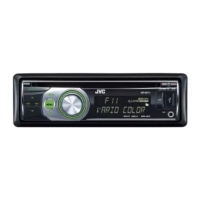
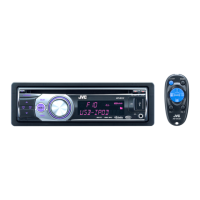
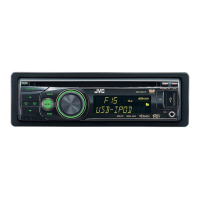
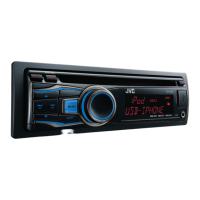
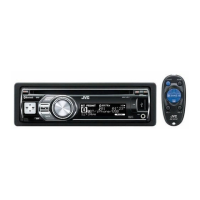
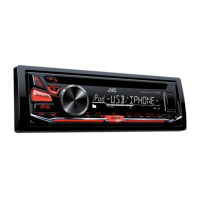
JVC KD-R616 - User Manual

JVC KD-R616
40 pages
Print Icon
To Next Page IconTo Next Page
Loading...
ENGLISH
GET0639-001A
[U/UH]
EN, TH
1209DTSMDTJEIN© 2009 Victor Company of Japan, Limited
For canceling the display demonstration, see page 4. /
CD RECEIVER /
KD-R616
INSTRUCTIONS
For installation and connections, refer to the separate manual.
Having TROUBLE with operation?
Please reset your unit
Refer to page of How to reset your unit
CoverRear_KD-R616_001A_1.indd 1-2CoverRear_KD-R616_001A_1.indd 1-2 11/4/09 3:01:36 PM11/4/09 3:01:36 PM

Other manuals for JVC KD-R616

Questions and Answers

  • S
    Samuel MoonSep 15, 2025
    Why does my JVC Car Receiver take so long to read a disc?
    • A
      Amy AndersenSep 16, 2025
      If a longer readout time is required (“READING” keeps flashing on the display) on your JVC Car Receiver, do not use too many hierarchical levels and folders.
  • H
    Heather YorkAug 25, 2025
    What to do if the sound is interrupted on JVC Car Receiver during Bluetooth playback?
    • G
      gabrielrodgersAug 25, 2025
      If the sound is interrupted or skipped during playback of a Bluetooth audio device on your JVC Car Receiver, try the following: * Reduce the distance between the unit and the Bluetooth audio device. * Disconnect the device connected for “BT-PHONE.” * Turn off, then turn on the unit. * If the sound is still not restored, connect the device again.
  • N
    Nancy CharlesAug 25, 2025
    Why does my JVC Car Receiver say “CANNOT PLAY”?
    • W
      wagnerjustinAug 26, 2025
      If your JVC Car Receiver displays “CANNOT PLAY”, it may be that no tracks are stored. Import tracks to the iPod/ iPhone.
  • S
    stephaniedeanAug 26, 2025
    Why is my JVC Car Receiver not detecting my Bluetooth device?
    • N
      Nicole WarnerAug 26, 2025
      If your JVC Car Receiver is not detecting the Bluetooth device, check the Bluetooth settings of the device. You can also search from the Bluetooth device. After the device detects the unit, select “OPEN” on the unit to connect the device.
  • A
    Amber ZimmermanSep 16, 2025
    Why doesn't my JVC Car Receiver play tracks in the correct order?
    • O
      Omar PittmanSep 16, 2025
      If tracks do not play back in the order you have intended them to play on your JVC Car Receiver, the playback order is determined when the files are recorded.
  • B
    brandon85Sep 23, 2025
    Why is the sound interrupted while playing a track on my JVC Car Receiver?
    • M
      Marco HawkinsSep 23, 2025
      If, while playing a track on your JVC Car Receiver, sound is sometimes interrupted, the MP3/WMA tracks may not have been properly copied into the USB device. Copy MP3/WMA tracks again into the USB device and try again.
  • A
    Alison AdamsSep 8, 2025
    How to stop echo on JVC Car Receiver?
    • H
      Heidi BurnsSep 8, 2025
      If you encounter echo or noise with your JVC Car Receiver, adjust the microphone unit position.
  • J
    jmullenSep 9, 2025
    How to fix distorted sound on JVC Car Receiver?
    • G
      gparkerSep 9, 2025
      If the sound from your JVC Car Receiver is distorted, deactivate the equalizer either on the unit or the iPod/iPhone.
  • K
    Kim SmithSep 2, 2025
    What does “PLEASE” and “EJECT” mean on my JVC Car Receiver display?
    • K
      kelsey83Sep 2, 2025
      If your JVC Car Receiver displays “PLEASE” and “EJECT“ alternately, press 0, then insert a disc correctly.
  • P
    Patrick RiversAug 31, 2025
    Why is my iPod not working with my JVC Car Receiver?
    • N
      nicole99Aug 31, 2025
      If the iPod does not turn on or does not work with your JVC Car Receiver, check the connecting cable and its connection. You may also need to update the firmware version of the iPod/ iPhone, charge the battery, or reset the iPod/iPhone. Check whether setting is appropriate.

Summary

IMPORTANT FOR LASER PRODUCTS

How to read this manual

Canceling the display demonstration

Setting the clock

Preparing the remote controller (RM-RK50)

Basic operations

;SOURCE;;I;ATT

Turns unit on/off, mutes/pauses sound.

SOURCE

Selects available sources for playback.

VOL- VOL+

Adjusts the volume level.

SOUND; EQ;BASS-TRE

Selects sound mode or enters tone level adjustment.

Listening to the radio

Manual search

Manually search for radio stations.

Automatic presetting (FM)-SSM

Automatically presets FM stations.

When an FM stereo broadcast is hard to receive

Adjusts reception for difficult FM signals.

Manual presetting (FM;AM)

Title assignment

Selecting a preset station

Changing the display information

Listening to a disc

Stopping playback and ejecting the disc

How to stop playback and remove a disc.

Prohibiting disc ejection

How to prevent disc ejection.

Selecting the playback modes

Options for repeat and random playback.

Selecting a track;folder

Navigates and selects tracks or folders.

Listening to the USB device

Using Bluetooth devices

Registering using “OPEN”

Registers a Bluetooth device using the "OPEN" method.

Registration (Pairing) methods

Overview of Bluetooth pairing methods.

Registering using “SEARCH”;“SPECIAL”

Connecting;disconnecting;deleting a registered device

Using a Bluetooth mobile phone

Making a call

Instructions for making phone calls via Bluetooth.

Using a Bluetooth audio player

Changing the Bluetooth settings

Listening to the iPod;iPhone

Selecting a track from the menu

Selecting the playback modes

Listening to the other external components

Connecting an external component to the AUX input jack

Selecting a preset sound mode

Storing your own sound mode

Menu operations

DEMO

Controls display demonstration settings.

CLOCK

Sets the clock time.

PRO EQ

Adjusts Bass, Middle, Treble settings.

DIMMER

Controls display brightness.

SCROLL

Configures display information scrolling.

TAG DISPLAY

Shows or hides track tag information.

TUNER

SSM

Configures Strong-station Sequential Memory.

MONO

Activates monaural mode for FM reception.

IF BAND

Adjusts intermediate frequency band for reception.

COLOR SETUP

BUTTON ZONE COLOR

Sets button illumination color.

DISP ZONE COLOR

Sets display illumination color.

DAY COLOR

Creates custom colors for daylight use.

NIGHT COLOR

Creates custom colors for night use.

MENU COLOR

Controls menu illumination.

RING COLOR

Controls color for incoming calls/messages.

AUDIO

FADER

Adjusts front and rear speaker balance.

BALANCE

Adjusts left and right speaker balance.

LOUD

Enhances low and high frequencies at low volumes.

VOL ADJUST

Sets preset volume levels for sources.

L;O MODE

Configures line output mode for subwoofer or speakers.

SUB.W FREQ

Sets subwoofer cutoff frequency.

SUB.W LEVEL

Adjusts subwoofer output level.

AUDIO

BEEP

Activates or deactivates keypress tone.

AMP GAIN

Adjusts amplifier gain control.

SRC SELECT

AM

Enables or disables AM source selection.

EXT IN

Enables or disables external input selection.

AUX IN

Enables or disables auxiliary input selection.

AUDIOBOOKS

Controls playback speed for audiobooks.

IPOD SWITCH

IPOD SWITCH

Selects control mode for iPod/iPhone.

Selecting the variable buttons and display color illumination

Creating your own day and night colors-USER

More about this unit

Basic operations

General operation notes.

Tuner operations

Storing radio stations in memory.

Disc;USB operations

Cautions for DualDisc and general disc/USB playback.

Playing a CD-R or CD-RW

Guidelines for playing CD-Rs and CD-RWs.

Playing an MP3;WMA disc

Conditions for playing MP3/WMA discs.

Playing MP3;WMA tracks from a USB device

How to play MP3/WMA files from USB.

Troubleshooting

General

Common troubleshooting for general issues.

FM;AM

Radio reception troubleshooting.

Disc playback

Troubleshooting disc playback errors.

USB device playback

MP3;WMA playback

Troubleshooting MP3/WMA playback.

USB device playback

Troubleshooting general USB device issues.

Bluetooth *2

Bluetooth device does not detect the unit.

Unit fails to detect Bluetooth devices.

The unit does not detect the Bluetooth device.

Unit fails to detect the Bluetooth device.

Echo or noise occurs.

Echo or noise issues during phone calls.

Phone sound quality is poor.

Poor sound quality for phone calls.

The connected audio device cannot be controlled.

Issues controlling connected audio devices.

iPod;iPhone

The iPod does not turn on or does not work.

Troubleshooting iPod/iPhone power and operation.

The sound is distorted.

Issues with distorted sound from iPod/iPhone.

A lot of noise is generated.

Troubleshooting noise from iPod/iPhone.

Playback stops.

iPod/iPhone playback stopping unexpectedly.

“CANNOT PLAY appears on the display.

Error message when no tracks are stored.

“RESTRICTED” appears on the display.

Compatibility issues with connected iPod/iPhone.

Specifications

JVC KD-R616 Specifications

General IconGeneral
BrandJVC
ModelKD-R616
CategoryCar Receiver
LanguageEnglish

Related product manuals