EasyManua.ls Logo

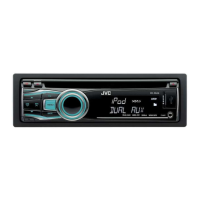
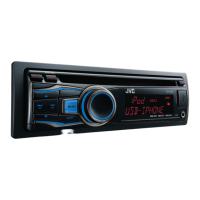
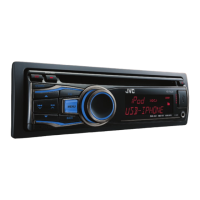
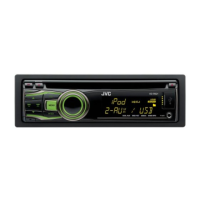
JVC KD-R621 - User Manual

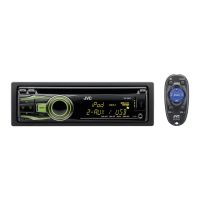
JVC KD-R621
22 pages
Print Icon
To Next Page IconTo Next Page
Loading...
ENGLISH
FRANÇAIS
GET0708-003A
[E/EU]
EN, FR
1110DTSMDTJEIN© 2010 Victor Company of Japan, Limited
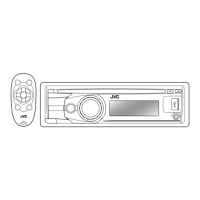
KD-R621
CD RECEIVER / RÉCEPTEUR CD
For canceling the display demonstration, see page 4. / Pour annuler la démonstration des
affichages, référez-vous à la page 4.
INSTRUCTIONS
MANUEL D’INSTRUCTIONS
For installation and connections, refer to the separate manual.
Pour l’installation et les raccordements, se référer au manuel séparé.
Dear Customer,
This apparatus is in conformance with the valid
European directives and standards regarding
electromagnetic compatibility and electrical safety.
European representative of Victor Company of
Japan, Limited is:
JVC Technical Services Europe GmbH
Postfach 10 05 04
61145 Friedberg
Germany
Cher(e) client(e),
Cet appareil est conforme aux directives et
normes européennes en vigueur concernant la
compatibilité électromagnétique et à la sécurité
électrique.
Représentant européen de la société Victor
Company of Japan, Limited:
JVC Technical Services Europe GmbH
Postfach 10 05 04
61145 Friedberg
Allemagne
Having TROUBLE with operation?
Please reset your unit
Refer to page of How to reset your unit
Vous avez des PROBLÈMES de fonctionnement?
Réinitialisez votre appareil
Référez-vous à la page intitulée Comment réinitialiser votre appareil
CoverRear_KD-R621_003A_f.indd 1-2CoverRear_KD-R621_003A_f.indd 1-2 11/2/10 4:09:11 PM11/2/10 4:09:11 PM

Other manuals for JVC KD-R621

Questions and Answers

  • D
    Dustin LoweSep 12, 2025
    Why can't my JVC Car Receiver play back CD-R/CD-RW or skip tracks?
    • J
      Jason KellySep 13, 2025
      If a CD-R/CD-RW cannot be played back or tracks cannot be skipped, insert a finalized CD-R/CD-RW. Finalize the disc using the component you used for recording.
  • J
    juliecurryAug 25, 2025
    Why is there no sound coming from the speakers of my JVC Car Receiver?
    • D
      Devin WilliamsAug 25, 2025
      If you cannot hear sound from the speakers, try the following: First, adjust the volume to a suitable level. Second, ensure that the unit is not muted or paused. Finally, verify that all cords and connections are secure.
  • M
    Melissa MossAug 25, 2025
    What to do if my JVC Car Receiver displays 'MISWIRING CHK WIRING THEN RESET UNIT'?
    • M
      Mary LopezAug 26, 2025
      If you see the 'MISWIRING CHK WIRING THEN RESET UNIT' message, make sure the terminals of the speaker leads are properly covered with insulating tape. After checking the wiring, reset the unit.
  • W
    williamacostaSep 23, 2025
    Why can't my iPod turn on or work with my JVC Car Receiver?
    • T
      Theresa DavisSep 23, 2025
      If the iPod does not turn on or work, check the connecting cable and its connection. You can also try updating the firmware version of the iPod/iPhone, charging the battery, or resetting the iPod/iPhone.
  • D
    Deanna HaleSep 13, 2025
    What to do if my JVC Car Receiver displays “PLEASE” and “EJECT“ alternately?
    • S
      suecurtisSep 13, 2025
      If “PLEASE” and “EJECT“ appear alternately on the display, press 0, then insert a disc correctly.
  • J
    John MorrisSep 23, 2025
    Why is noise generated when playing from my iPod on my JVC Car Receiver?
    • D
      David TerrellSep 23, 2025
      If noise is generated, turn off (uncheck) the “VoiceOver” feature of the iPod.
  • T
    Traci CrossSep 6, 2025
    Why is my JVC Car Receiver not playing tracks/folders in the order I intended?
    • L
      Lori PayneSep 6, 2025
      The playback order is determined by the file name.
  • A
    Amanda JordanSep 7, 2025
    Why does my JVC Car Receiver display 'NO FILE'?
    • T
      tiffany24Sep 7, 2025
      If the display shows 'NO FILE', check whether the device contains playable files.
  • B
    butlermatthewSep 23, 2025
    Why does playback stop on my JVC Car Receiver?
    • M
      Mallory LawrenceSep 23, 2025
      If playback stops, it may be because the headphones were disconnected during playback. Restart the playback operation.
  • R
    robin71Aug 30, 2025
    Why can't I select 'AM' on my JVC Car Receiver?
    • E
      Eric OlsonAug 31, 2025
      If you cannot select 'AM', check the = setting.

Summary

Troubleshooting Introduction

Operational Issues and Resetting

Initial steps for resolving operational problems by resetting the unit.

Important Safety Information

Laser Product Safety Precautions

Critical warnings and handling instructions for Class 1 laser products.

Operational Safety and Disc Handling

Safety guidelines for operation, volume settings, and DualDisc playback.

Environmental Disposal Guidelines

Instructions for proper disposal of the product and batteries according to regulations.

Control Panel and Maintenance

Attaching and Detaching Control Panel

Steps for removing and installing the detachable control panel.

Unit Reset and Disc Ejection

Procedures for resetting the unit and forcibly ejecting a disc.

Cleaning Unit and Connectors

Instructions for cleaning the unit's panel and connector for optimal performance.

Display and Clock Settings

Disabling Display Demonstration

How to disable the automatic display demonstration feature.

Setting the Unit Clock

Step-by-step guide to setting the unit's clock time.

Remote Controller and Disc Handling

Remote Controller Setup and Battery

Initial setup for the remote controller and instructions for battery replacement.

Disc Compatibility and Care

Information on playable disc types and proper handling to prevent damage.

Basic Operations and Controls

Radio Operation

FM Reception and Presetting Stations

Tips for improving FM reception and methods for presetting stations.

Station Scanning and Display Info

How to select preset stations and change displayed information for non-RDS stations.

Advanced Radio Features

RDS Programme Search (PTY)

Searching for radio stations based on programme type (PTY) using RDS data.

Standby Reception Modes

Utilizing TA (Traffic Announcement) and NEWS Standby Reception.

Automatic Station Selection

Using Network-Tracking and Programme Search for better reception.

Disc Playback Operations

Playback Control and Navigation

Stopping playback, ejecting discs, selecting tracks/folders, and fast searching.

Playback Modes and Display Customization

Using repeat/random modes and changing display information during playback.

External Component Connectivity

Auxiliary Input Setup (F-AUX;R-AUX)

Connecting portable audio players and Bluetooth devices via auxiliary inputs.

Listening to External Sources

Steps to select and play audio from connected external devices.

USB Device Playback

Connecting and Using USB Devices

How to connect and play MP3/WMA files from USB mass storage devices.

USB Device Compatibility and Cautions

Important considerations for USB device compatibility, file limits, and potential issues.

iPod;iPhone Integration

Connecting and Selecting iPod;iPhone Mode

Steps to connect and select the control terminal mode for iPod/iPhone.

Navigating iPod;iPhone Content

How to browse menus, select tracks, and control playback on the iPod/iPhone.

iPod;iPhone Playback Features

iPod;iPhone Playback Modes

Using repeat and random playback modes for iPod/iPhone content.

Additional iPod;iPhone Information

Details on compatible iPod/iPhone models and specific operational notes.

Sound Customization

Preset and Custom Sound Modes

Selecting preset sound modes and storing custom audio adjustments.

Menu Operations - Part 1

Menu Item Configuration (Display;Color)

Settings for DEMO, Clock, Color, and Color Setup options.

Menu Operations - Part 2

Display and Illumination Settings

Adjusting dimmer, brightness, scrolling, and tag display for the unit.

Audio Configuration Settings

Fine-tuning sound with PRO EQ, Fader, Balance, Loudness, Volume, Subwoofer, and HPF.

Menu Operations - Part 3

Tuner and Source Selection Settings

Configuring tuner functions and enabling/disabling audio sources like AM/FM/AUX.

iPod;iPhone Mode and Source Management

Managing iPod/iPhone connection modes and source selection options.

Troubleshooting Guide

General and Radio Troubleshooting

Solutions for common issues like no sound, unit not working, and radio reception problems.

Playback Issues (Disc;USB;MP3;WMA)

Diagnosing and resolving problems related to disc, USB, MP3, and WMA playback.

Advanced Troubleshooting

USB and iPod;iPhone Playback Errors

Specific troubleshooting for USB and iPod/iPhone playback errors like 'NO FILE' or 'CANNOT PLAY'.

Audio File Format Compatibility

Information on supported audio file formats, bit rates, and compatibility limitations.

Bluetooth Device Integration

Bluetooth Setup and Phone Calls

Connecting and pairing a Bluetooth device, and using it for calls.

Bluetooth Audio Streaming

Instructions for streaming audio from a Bluetooth-enabled device.

Technical Specifications

Audio, Tuner, and CD Player Specs

Detailed specifications for the audio amplifier, tuner, and CD player sections.

USB, General, and Compatibility Details

Specifications for USB interface, general operating parameters, and compatibility notes.

JVC KD-R621 Specifications

General IconGeneral
MP3 playbackYes
Tuner typeHS-IV
FM band range87.5 - 108 MHz
Output power200 W
Audio output channels4.0 channels
Maximum power per channel50 W
Weight and Dimensions IconWeight and Dimensions
Weight1210 g

Related product manuals