EasyManua.ls Logo

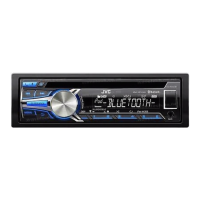
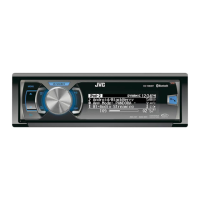
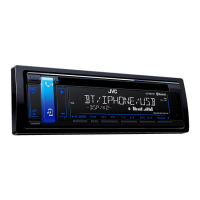
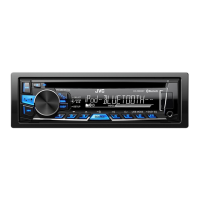
JVC KD-R852BT - User Manual

JVC KD-R852BT
44 pages
Print Icon
To Next Page IconTo Next Page
Loading...
Data Size: B6L (182 mm x 128 mm)
Book Size: B6L (182 mm x 128 mm)
ENGLISH
FRANÇAIS
GET0983-001A [E/EN]
KD-R951BT / KD-R852BT / KD-R851BT
CD RECEIVER
INSTRUCTION MANUAL
RÉCEPTEUR CD
MANUEL D’INSTRUCTIONS
Please read all instructions carefully before
operation to obtain the best possible performance
from the unit.
Veuillez lires les instructions attentivement avant
d’utiliser l’appareil afin d’obtenir les meilleures
performances possibles de l’appareil.
JS_JVC_KD_R951BT_E_C001A.indd 1JS_JVC_KD_R951BT_E_C001A.indd 1 12/3/2013 12:11:15 PM12/3/2013 12:11:15 PM
Downloaded from www.vandenborre.be

Questions and Answers

  • L
    Lauren CooperAug 18, 2025
    How to fix sound not working on JVC KD-R852BT?
    • S
      Steven SandovalAug 18, 2025
      If you cannot hear any sound from your JVC Car Receiver, first, adjust the volume to the optimum level. If the issue persists, check the cords and connections to ensure they are properly connected.
  • D
    Donald BenitezAug 20, 2025
    What to do if no Bluetooth device is detected on JVC Car Receiver?
    • K
      Kristen JonesAug 20, 2025
      If your JVC Car Receiver is not detecting any Bluetooth devices, try searching from the Bluetooth device again. If that doesn't work, reset the unit.
  • B
    Belinda LucasAug 23, 2025
    Why pairing cannot be made on JVC KD-R852BT?
    • A
      Angela MaldonadoAug 23, 2025
      If pairing cannot be made with your JVC Car Receiver, ensure you have entered the same PIN code on both the unit and the Bluetooth device. If the problem persists, delete the pairing information from both devices and perform the pairing process again.
  • M
    Matthew MartinAug 25, 2025
    How to fix “BT DEVICE NOT FOUND” on JVC KD-R852BT?
    • T
      thomaskevinAug 26, 2025
      If “BT DEVICE NOT FOUND” appears on your JVC Car Receiver, turn on Bluetooth from your device and connect manually.
  • F
    franklinjuanAug 27, 2025
    How to fix “BT ERROR PLS UPDATE” on JVC Car Receiver?
    • J
      Joshua WhitakerAug 27, 2025
      If “BT ERROR PLS UPDATE” appears on your JVC Car Receiver, update the Bluetooth firmware.
  • A
    Aaron BeasleyAug 30, 2025
    Why is the radio reception poor on my JVC KD-R852BT?
    • C
      Cody WilkinsAug 30, 2025
      If you are experiencing poor radio reception or static noise with your JVC Car Receiver, ensure the antenna is firmly connected. Also, try pulling the antenna out all the way to improve reception.
  • J
    James RangelSep 1, 2025
    How to fix iPod/iPhone not working with JVC KD-R852BT?
    • V
      Vanessa ChavezSep 1, 2025
      If your iPod/iPhone is not turning on or working with the JVC Car Receiver, check the connection between the unit and your iPod/iPhone. If the issue continues, detach and reset the iPod/iPhone using a hard reset.
  • H
    htaylorSep 3, 2025
    What to do if JVC KD-R852BT Car Receiver says “CANNOT PLAY”?
    • V
      victoria05Sep 3, 2025
      If “CANNOT PLAY” flashes or the connected device cannot be detected on your JVC Car Receiver, verify that the connected device is compatible with the unit and that the files are in supported formats. If compatible, try reattaching the device.
  • C
    cameronedwardSep 5, 2025
    Why does “READING” keep flashing on my JVC KD-R852BT Car Receiver?
    • H
      Heather MunozSep 6, 2025
      If “READING” keeps flashing on your JVC Car Receiver, avoid using too many hierarchical levels and folders. If the issue persists, reload the disc or reattach the USB device.
  • J
    Justin PittmanSep 8, 2025
    What does “MISWIRING CHK WIRING THEN RESET UNIT” mean on JVC Car Receiver?
    • R
      Rachael AlexanderSep 8, 2025
      If “MISWIRING CHK WIRING THEN RESET UNIT” or “WARNING CHK WIRING THEN RESET UNIT” appears on your JVC Car Receiver, check to be sure the terminals of the speaker wires are insulated properly, then reset the unit.

Summary

Safety and Compliance Information

Laser Product Safety

Details on the Class 1 laser product marking and safety.

EU Waste Disposal Guidelines

Information on proper disposal of electrical equipment and batteries in the EU.

BEFORE USE

General Safety Warnings

Crucial safety precautions to prevent accidents and damage.

Volume and Operation Precautions

Guidelines for safe volume levels and operating the unit.

Unit and Battery Care

Instructions for cleaning and maintaining the unit and its battery.

BASICS

Faceplate and Remote Controls

Identification of unit controls and the optional remote.

Initial Setup Procedures

Steps for resetting the unit and replacing the battery.

Basic Operations

Key functions like power, volume, and source selection.

GETTING STARTED

Initial Configuration

Setting the clock and basic system parameters.

CD; USB; iPod

Playback Operations

Starting playback and controlling tracks for various media.

Advanced Media Selection

Selecting files from lists, by name, or changing USB drives.

RADIO

Station Management

Finding, storing, and managing radio stations.

Advanced Radio Features

Using PTY search and Traffic Announcement standby.

Radio Timer and Portable Audio

Setting timers and connecting portable audio players.

BLUETOOTH

Device Connection and Pairing

Connecting the microphone and pairing Bluetooth devices.

Call Management

Handling incoming calls, adjusting volume, and managing hands-free mode.

Contact and Dialing Operations

Accessing contacts, dialing numbers, and using voice commands.

Bluetooth Settings and Management

Configuring device connections, deleting pairs, and managing contacts.

AUDIO SETTINGS

Bluetooth Device Configuration

Setting Bluetooth PIN, auto-connect, initialization, and device information.

Bluetooth Audio Player Controls

Managing playback of music from connected Bluetooth audio devices.

Equalizer Presets and Adjustment

Selecting and customizing sound equalization settings.

Advanced Equalizer and Sound Tuning

Fine-tuning audio with advanced EQ, fader, balance, and other controls.

DISPLAY SETTINGS

Color Customization

Customizing display and button illumination colors for different zones.

Display and Brightness Adjustments

Adjusting display and button brightness for day and night modes.

Display Scroll Function

Controlling the scrolling of information on the display.

MORE INFORMATION

Media and Device Compatibility

Details on playable media, USB, iPod/iPhone, and Bluetooth compatibility.

Software and Character Information

Information on companion software and supported character sets.

TROUBLESHOOTING

Common Operational Issues

Addresses common operational issues and their remedies.

Bluetooth Troubleshooting

Bluetooth Device Issues

Resolves issues related to Bluetooth connectivity, pairing, and audio playback.

SPECIFICATIONS

INSTALLATION; CONNECTION

In-Dash Mounting Procedures

Step-by-step instructions for installing the unit in the dashboard.

Wiring Connections and Parts

Details on electrical connections, wiring diagrams, and installation parts.

JVC KD-R852BT Specifications

General IconGeneral
TypeCar Receiver
ModelKD-R852BT
Power Output50W x 4
RMS Power22W x 4
BluetoothYes
USB PortYes
AUX InputYes
Radio TunerAM/FM
Display TypeLCD
CD PlayerYes
Subwoofer ControlYes
Detachable FaceplateYes
Preset EQYes
Steering Wheel ControlYes
Built-in MicrophoneYes
Compatible FormatsMP3/WMA/WAV
Preset Stations18 FM + 6 AM

Related product manuals