12
ENGLISH
Data Size: B6L (182 mm x 128 mm)
Book Size: B6L (182 mm x 128 mm)
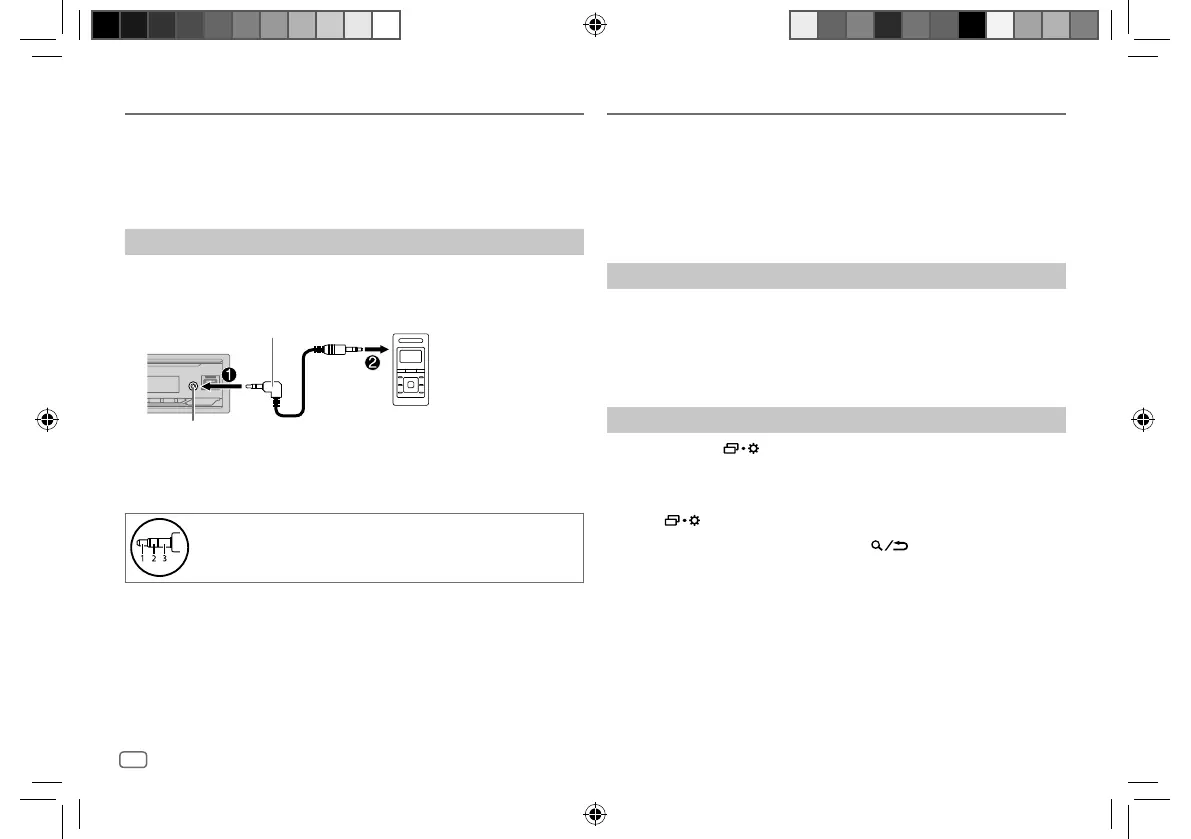
You can listen to music from a portable audio player via the auxiliary input
jack.
Preparation:
Select
[ON]
for
[BUILT-IN AUX]
in
[SOURCESELECT]
. (Page5)
Start listening
1
Connect a portable audio player (commercially available).
3.5 mm stereo mini plug with “L” shaped
connector (commercially available)
Portable audio player
Auxiliary input jack
2 Press B SRC repeatedly to select AUX.
3 Turn on the portable audio player and start playback.
Use a 3-core plug head stereo mini plug for optimum audio
output.
AUX JVC Remote Application
(for KD-X282DBT)
You can control the JVC car receiver from Android device (via Bluetooth)
using JVC Remote application.
• For more information, visit <https://www.jvc.net/cs/car/>.
Preparation:
Install the latest version of JVC Remote application on your device before
connecting.
Start using JVC Remote application
1
Start up the JVC Remote application on your device.
2 Connect your device.
• Pair the Android device with this unit via Bluetooth. (Page14)
3 Select the device to use from the menu.
See the following “Settings to use JVC Remote application”.
Settings to use JVC Remote application
1
Press and hold .
2 Turn the volume knob to select an item (page13), then press the
knob.
3 Repeat step 2 until the desired item is selected or activated.
4 Press to exit.
To return to the previous setting item, press
.
KD-X282DBT_E_B5A-3845-00_EN_1st Draft.indd 12KD-X282DBT_E_B5A-3845-00_EN_1st Draft.indd 12 7/9/2021 4:26:57 PM7/9/2021 4:26:57 PM


 To Next Page