EasyManua.ls Logo

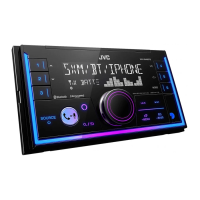
JVC KW-X855BTS - User Manual

JVC KW-X855BTS
70 pages
Print Icon
To Next Page IconTo Next Page
Loading...
Data Size: B6L (182 mm x 128 mm)
Book Size: B6L (182 mm x 128 mm)
ENGLISH
FRANÇAIS
ESPAÑOL
B5A-3883-00 [K]
KW-R950BTS
CD RECEIVER
INSTRUCTION MANUAL
RÉCEPTEUR CD
MANUEL D’INSTRUCTIONS
RECEPTOR CON CD
MANUAL DE INSTRUCCIONES
KW-X855BTS / KW-X850BTS
DIGITAL MEDIA RECEIVER
INSTRUCTION MANUAL
RÉCEPTEUR MULTIMÉDIA NUMÉRIQUE
MANUEL D’INSTRUCTIONS
RECEPTOR DE MEDIOS DIGITALES
MANUAL DE INSTRUCCIONES
For customer Use:
Enter below the Model No. and Serial No. which are
located on the top or bottom of the cabinet. Retain this
information for future reference.
Model No.
Serial No.
KW_R950BTS_K_B5A-3883-00_Cover_2nd Draft.indd 1KW_R950BTS_K_B5A-3883-00_Cover_2nd Draft.indd 1 5/8/2021 10:47:28 AM5/8/2021 10:47:28 AM

Other manuals for JVC KW-X855BTS

Questions and Answers

  • D
    Denise SimmonsAug 19, 2025
    How to fix no sound on JVC KW-X855BTS Car Receiver?
    • E
      Erin ThomasAug 19, 2025
      If the sound from your JVC Car Receiver is not audible, make sure to adjust the volume to a level that you can hear. Also, check all cords and connections to ensure they are properly connected.
  • M
    Mrs. Alyssa JohnsonAug 20, 2025
    Why can't I control Bluetooth audio player with my JVC KW-X855BTS Car Receiver?
    • N
      noah66Aug 21, 2025
      If the connected Bluetooth audio player cannot be controlled, verify that it supports Audio/Video Remote Control Profile (AVRCP). If it does, try disconnecting and reconnecting the Bluetooth player.
  • L
    Laura PageAug 23, 2025
    What to do if “IN DISC” appears and disc cannot be ejected from JVC KW-X855BTS Car Receiver?
    • L
      Leslie RamosAug 23, 2025
      If “IN DISC” appears and the disc cannot be ejected from your JVC Car Receiver, ensure that nothing is blocking the loading slot when you attempt to eject the disc.
  • B
    brandi92Aug 26, 2025
    How to fix a JVC KW-X855BTS when the Bluetooth audio player cannot be controlled?
    • J
      Jason TuckerAug 26, 2025
      If you can't control the connected Bluetooth audio player with your JVC Car Receiver, first check if the player supports Audio/Video Remote Control Profile (AVRCP). If it does, try disconnecting and reconnecting the Bluetooth player.
  • G
    gibsonautumnAug 28, 2025
    Why does “PLEASE WAIT” appear on my JVC KW-X855BTS Car Receiver?
    • L
      Laura KruegerAug 28, 2025
      If you see “PLEASE WAIT” on your JVC Car Receiver, the unit is preparing to use the Bluetooth function. If the message persists, turn the unit off and then on again, and reconnect your device.
  • P
    Peter MitchellAug 30, 2025
    How to enable phone call sound on JVC KW-X855BTS Car Receiver?
    • J
      Jamie DickersonAug 30, 2025
      If the phone call sound cannot be heard from the car speakers when using your JVC Car Receiver, press the designated button during a call to switch between hands-free and private talk mode.
  • B
    brian64Sep 1, 2025
    Why is the radio reception poor on my JVC Car Receiver?
    • A
      Anna SteeleSep 1, 2025
      If the radio reception is poor on your JVC Car Receiver, ensure the antenna is firmly connected. Static noise can also affect radio quality.
  • E
    Elizabeth CantrellSep 3, 2025
    What does “PLEASE EJECT” mean on my JVC Car Receiver?
    • T
      Tiffany CoxSep 4, 2025
      If “PLEASE EJECT” appears on your JVC Car Receiver, press the eject button, then insert the disc correctly.
  • A
    Abigail MillerSep 6, 2025
    What to do if “H/W ERROR” appears on JVC KW-X855BTS Car Receiver?
    • D
      Diane MooreSep 6, 2025
      If “H/W ERROR” appears on your JVC Car Receiver, reset the unit and try the operation again. If the error persists, consult your nearest service center.
  • M
    Ms. Colleen ChenSep 8, 2025
    Why correct characters are not displayed on my JVC KW-X855BTS?
    • C
      Connie GravesSep 8, 2025
      This JVC Car Receiver can only display uppercase letters, numbers, and a limited number of symbols. Depending on the display language selected, some characters may not be displayed correctly.

Summary

Before Use

WARNING

Warns against distracting operation and battery hazards.

Basics

Faceplate

Identifies key controls and indicators on the front panel.

Radio

CD;USB;iPod

Connect a USB device

Steps to connect USB devices for playback.

Connect an iPod;iPhone

How to connect iPod/iPhone via USB or Bluetooth.

SiriusXM Radio

Start listening

Steps to select SIRIUS XM and tune channels.

JVC Remote Application

Start using JVC Remote application

Connecting your device and starting the application.

Bluetooth

Bluetooth - Connection

Explains supported profiles, codecs, and microphone connection.

Pair and connect a Bluetooth device for the first time

Step-by-step guide for initial Bluetooth device pairing.

Bluetooth - Mobile phone

Features for managing calls via Bluetooth.

Improve the voice quality

Settings for MIC GAIN, NR LEVEL, and ECHO CANCEL.

Make a call

How to make calls via history, phonebook, or voice.

[VOICE]

Instructions for voice control and recognition.

Bluetooth mode settings

Settings for device selection, PIN, reconnect, and initialization.

Bluetooth compatibility check mode

How to check compatibility of Bluetooth profiles.

AMAZON ALEXA

Setup for the first time

Guides through pairing device and unit with Alexa app.

Basic operations

Speaking commands and understanding Alexa's responses.

Audio Settings

[EQ SETTING]

Adjusting equalizer settings including EASY EQ and PRO EQ.

[AUDIO CONTROL]

Settings for bass boost, loudness, and volume adjustment.

Troubleshooting

CD;USB;iPod

Troubleshooting playback errors for discs and USB devices.

SiriusXM Radio

Solutions for code errors, channel unavailability, or connection checks.

Bluetooth

Troubleshooting Bluetooth pairing, call quality, and audio playback.

AMAZON ALEXA

Troubleshooting Alexa connection and response issues.

Installation;Connection

Basic procedure

Outlines the fundamental steps for installing the unit.

Installing the unit (in-dash mounting)

Detailed instructions for flush-mounting the unit in a dashboard.

Wiring connection

Detailed diagram and explanation of wire connections.

Connect external components

How to connect microphones, USB cables, and tuners.

Connect external amplifiers via output terminals

Connecting external amplifiers to the unit's output terminals.

JVC KW-X855BTS Specifications

General IconGeneral
Display TypeLCD
CEA-2006 CompliantYes
Power Output50 watts x 4 channels
Preamp Voltage4 volts
Subwoofer OutputYes
BluetoothYes
USB InputYes
USB Ports1
AUX InputYes
SiriusXM ReadyYes
HD RadioYes
Android AutoYes
Apple CarPlayYes
TouchscreenYes
Steering Wheel Control CompatibleYes
Backup Camera InputYes
Radio TunerAM/FM
Dimensions (W x H x D)7 x 4 x 6 inches
Presets18 FM, 6 AM
DIN Size2-DIN
Preamp Outputs3 Pairs
EQ13-band
Compatible FormatsMP3, WMA, AAC, FLAC
Screen Size6.8 in
RMS Power Output22 watts x 4 channels
Max Power Output50 watts x 4 channels
EQ Settings13-Band

Related product manuals