Scanning
Make sure the sealed end of the protective sleeve
goes fi rst into the feed slot for scanning.
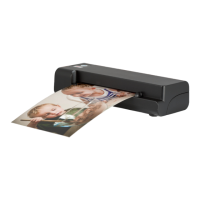
1. Insert the photo, or document facing UP into the
feed slot.
2. Adjust the paper guide against the edges of the
photo.
3. Press SCAN, the photo will be rolled through and
scanned.
When the scanning is done, the scanned image will
appear on the LCD screen and will be saved into the
memory card.
Note: Be sure to align the photo, or document
against the right side of the feed slot if it is smaller
than A4 size.
Turning on the Power
Long press button to turn on the scanner.
Using the Photo Protective Sleeve
It is recommended to use the supplied photo
protective sleeve for photo scanning. Please place
the photo inside the protective sleeve.
Note: Do not place the photo into the protective
sleeve if the photo you wish to scan has been
laminated.
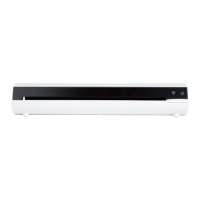
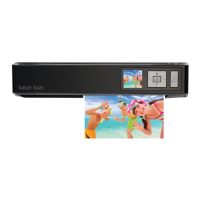
Product Overview
Standalone A4 Photo Scanner
Quick Guide
Package Contents
•
Scanner
•
Mini USB Cable
•
Quick Guide
•
Calibration Paper
•
Photo Protective Sleeve
•
Lens Cleaner
•
Roller Cleaner
•
Power Adapter
Important Safety Instruction
• Keep away from water or moisture and dusty areas.
• Never store in hot and very cold areas.
• Only use attachments/accessories specifi ed by the
manufacturer.
• No objects fi lled with liquids, such as vases, shall be
placed on apparatus.
• Avoid dust contamination when the scanner is not in use.
• When left unused for a long period of time, the unit
should be disconnected from the power supply.
• Avoid environments where the scanner would be exposed
to direct sunlight (or any other source of excessive heat)
for long periods of time.
• Protect the scanner from potential liquid spills such as
soda, coffee, tea, etc.
• Be carefully to keep it without dropping it or strong
impact.
• Operate the scanner on a level, well-grounded work
surface, free of excessive vibration.
• Don’t open the scanner case alone without technical
support because there is danger of electrical shock.
This symbol on the product or in the instructions
means that your electrical and electronic
equipment should be disposed at the end of its
life separately from your household waste. There
are separate collection systems for recycling in
the EU. For more information, please contact the local
authority or your retailer where you purchased the product.
Specifi cations
Scanner Type: A4 CIS Sheet-feed Scanner
Display:1.45” color TFT LCD (128 x 128 pixels)
Scan Size: Up to A4 size
Scan Mode: Color / Gray
Scan Resolution: 150 / 300 / 600 dpi
Scan Speed: 8.7 seconds for a A4 color at 150dpi
9.3 seconds for a A4 color at 300dpi
33.2 seconds for a A4 color at 600dpi
Memory Card Slot: MMC/SD (SDHC)
I/O Ports: USB mini-B/DC-In
Power Supply: 5V 1A
File Format: JPG/PDF
Dimensions: 298 x 55.8 x 45 mm
Weight: 440g/0.97lbs
Supported OS for Mass Storage: Windows XP / Vista / 7 ;
Mac OS X (10.4 / 10.5 / 10.6)
Connecting to Power
Connect one end of the supplied power adapter to
the scanner’s DC-IN 5V jack and the other end to a
power socket.
4 5 6 7 8 91
10 11
12 13 1514
1
Paper guide
• Adjustable paper guide makes easy for guiding paper.
2
Feed slot
• Feeds the paper or photo for scanning.
3
LCD screen
4
Playback
• Press to view the scanned images.
5
Setting
• Press to make the Scan Setting and the System Setting.
6
Left button
• Moves left in the menus.
• Moves to the previous scanned image.
7
Menu button
Up button
• Brings up the Mode menu.
• Moves up in the menus.
8
Right button
• Moves right in the menus.
• Moves to the next scanned image.
9
/SCAN button
• Long press to turn the power on/off.
• Press slightly to start/stop the image scan.
10
Delete button
Down button
• Brings up the Delete menu.
• Moves down in the menus.
11
OK/Zoom button
• Press to make or confi rm the selections in the menus.
• Zoom the scanned image.
12
Mini USB port • Connects to PC for fi le transfer.
13
Card slot • Accommodates a MMC/SD card
14
Paper exit slot
•
Outputs the paper after scanning.
15
DC-IN jack
• Connects to the supplied AC power adapter.
Inserting a MMC/SD Card
Insert your MMC or SD card into the card slot with
the gold contacts facing up.
Note: The MMC/SD card must be formatted by the
scanner for the fi rst time use. To format the card,
refer to the "Setting" for respective setting.
3
2
82-352-00020
Open
End
Sealed
End

 Need help?
 General

 To Next Page