10
Get Your KAT Device Ready
If you didn't pair your KAT device yet, plug its USB cable into your computer port, pair the sensors
using the PC version of software (follow the instructions in KAT Gateway) and fully charge them.
Install the KAT Gateway of Nexus App onto Your Headset
Connect Your Oculus Quest 2 to the PC via USB-C cable (do not keep any other android devices such
as a smart phone connected to your PC at the same time, an do not disconnect the device during
installation). Choose 'always enable' in the windows popups if they show (and the same in your
headset). Install the Gateway for Nexus via KAT Gateway, the SideQuest, the ADB Tool as following
or any other apk installation tool you're familiar with.
Via KAT Gateway 2.1.2 or higher
Open the Gateway on your computer and click the installation icon to install KAT Gateway into your
Standalone VR headset.
Hard Disk Space: At least 50~80 MB of space(For installing product software)
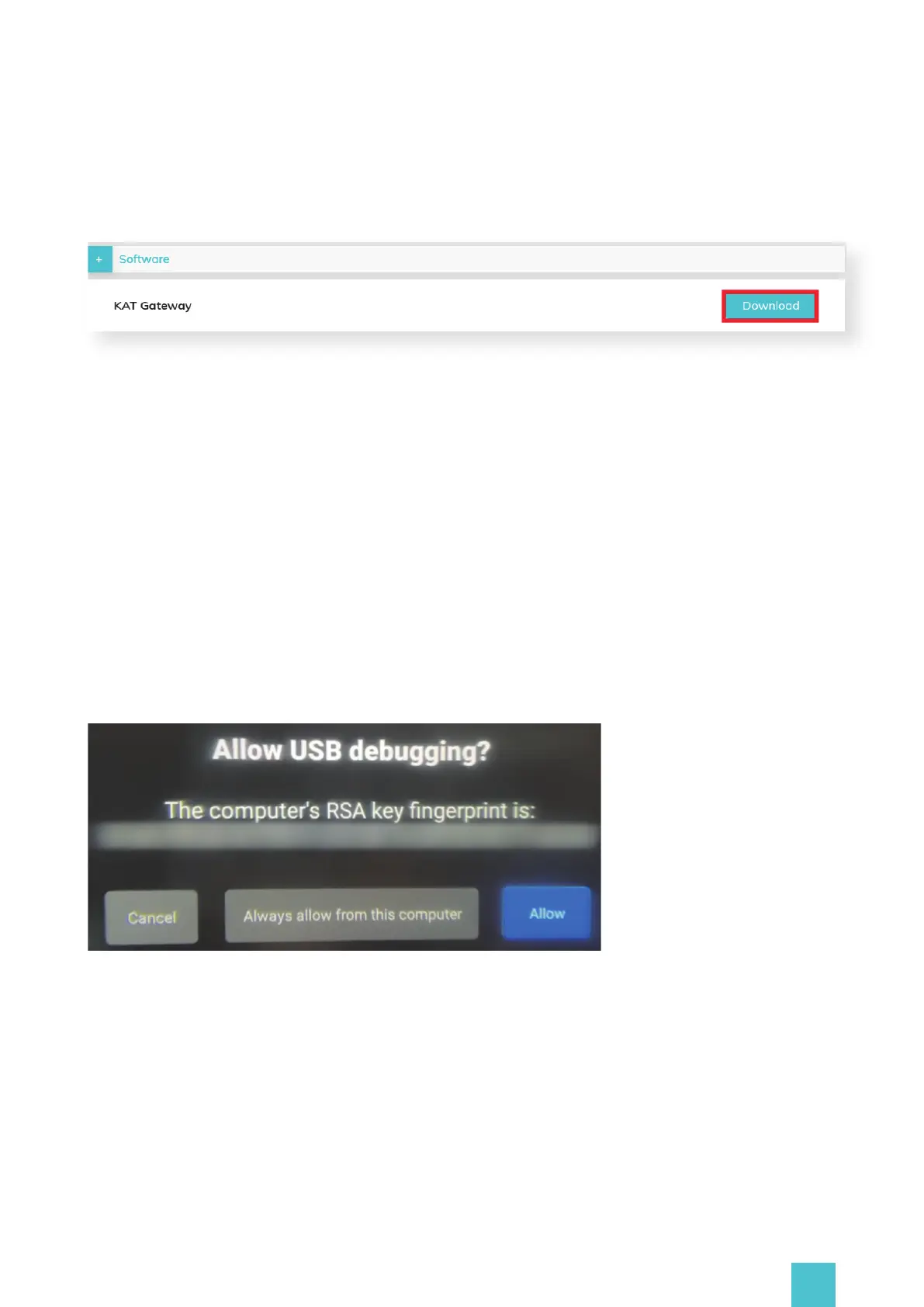
Visit the official website: https://www.kat-vr.com/, and click "Support" to proceed to the product
list. Select Your KAT device and proceed to the product resource page.
Download And install KAT Gateway in your computer.


 To Next Page