Production installation
09
Before use:
1. Please open an Oculus developer account by navigating to the Oculus for Developers homep-
age (please refer to https: developer.oculus.com/documentation/native/android/mobile-de-
vice-setup/ for more instructions). It will be necessary to enter the developer's mode which
enables you to install third party software on the oculus device. Enter the Oculus app on your
mobile phone and enable the Oculus developer mode.
2. Please prepare any computer (Windows Only) for KAT device paring and software installation.
3. Please make sure that the internet WI-FI router to which you have linked your PC and headset
provides a stable internet connection.
Starting Up
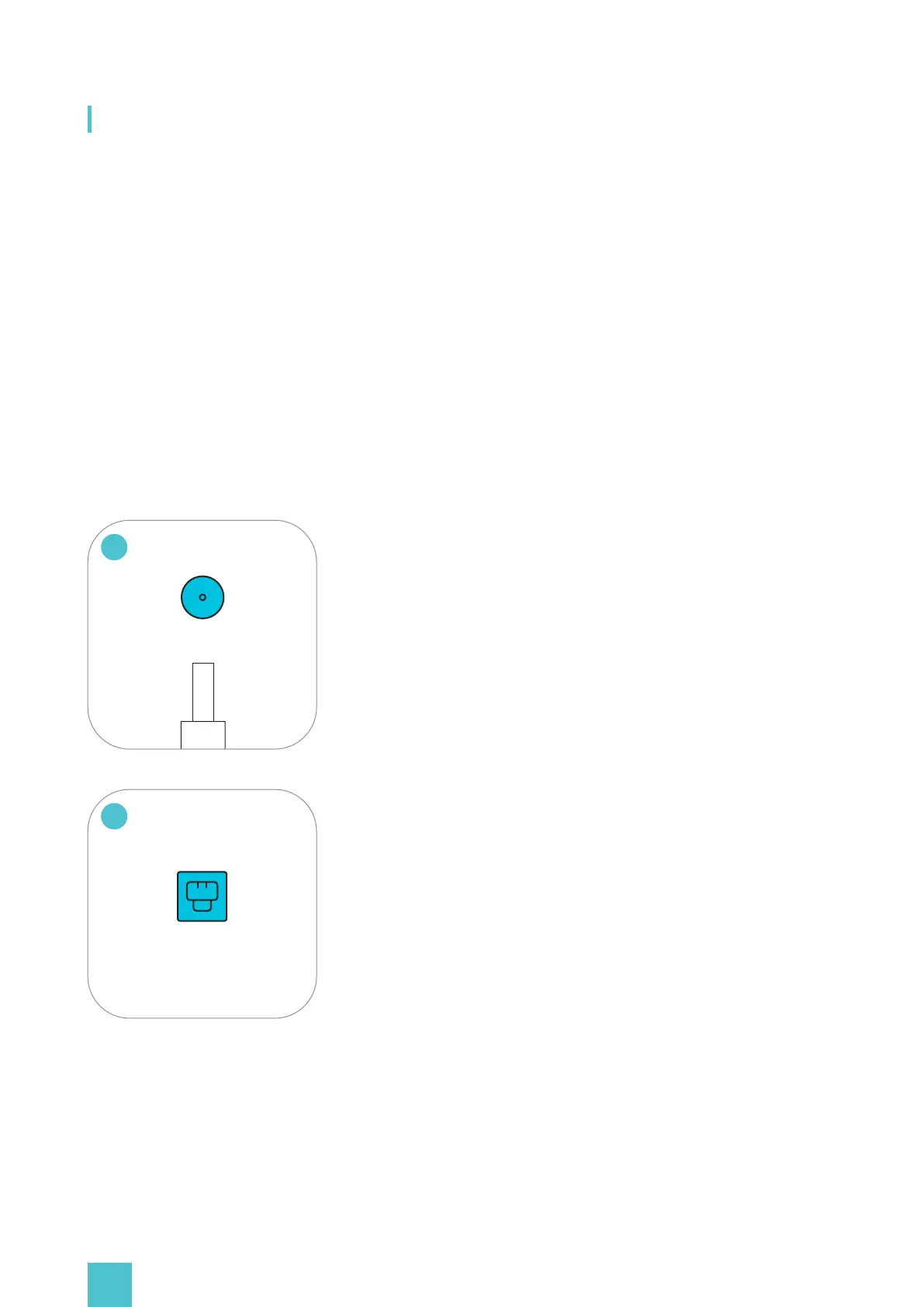
Connect the power cord to the DC port of Nexus, then plug it
into a power socket. Wait for the blue power light to turn on
(approximately 1 minute).
01
Network Connection
Plug one end of the network cable into the Lan port of Nexus,
and another end into the Lan port of your internet router (Use
the same router to which you have your PC and Headset con-
nected. Once connected to the internet, please wait for the
device to update to the latest version of firmware, approxi-
mately 10 min).
02
Software Set-Up
KAT Gateway is the dedicated software for running KAT VR devices. It is currently available in PC,
VR-Integrated and Nexus version.
The Nexus version allows you to access all the settings and other features directly from your VR
headset.


 To Next Page