2 3
Installing Your iPad®
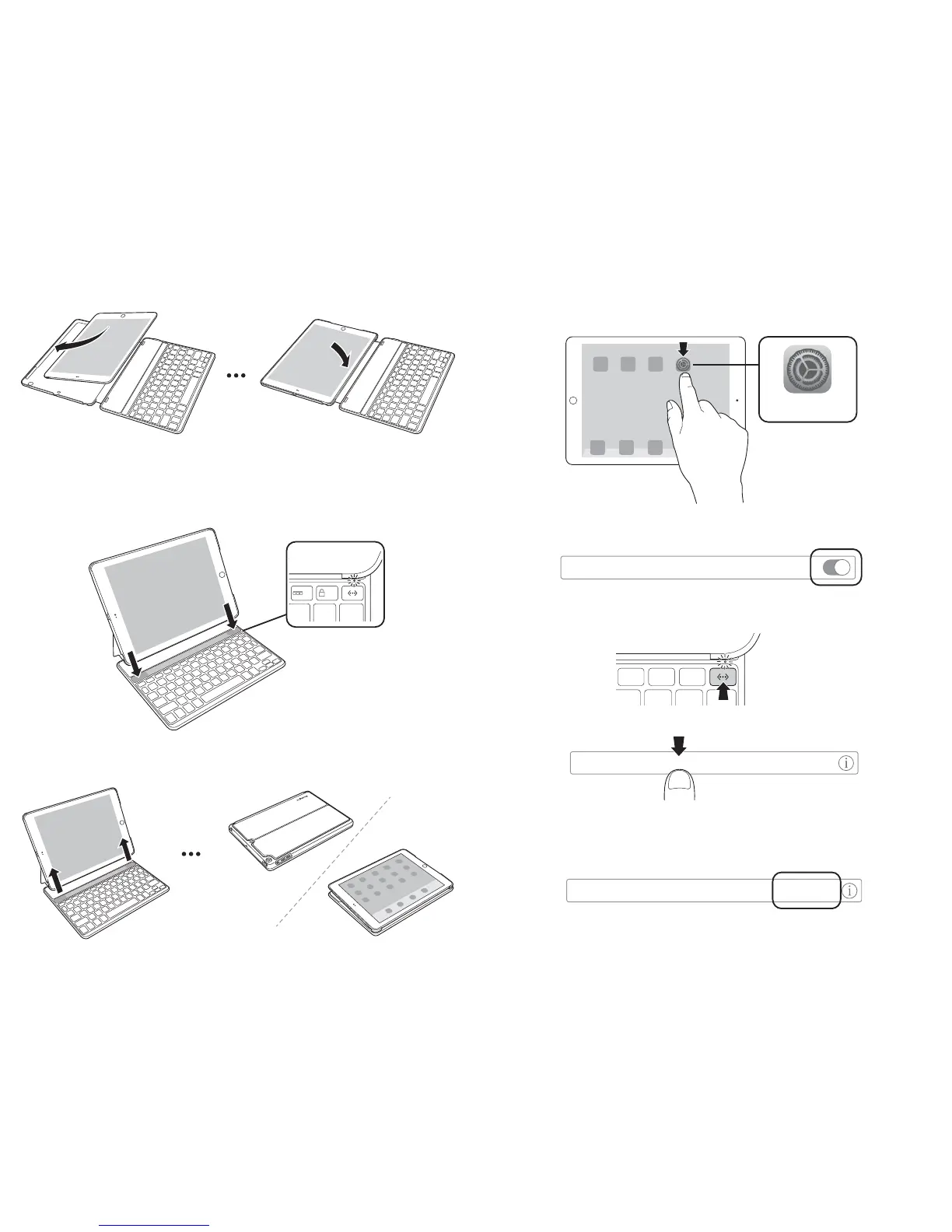
Turning the Keyboard On and Off
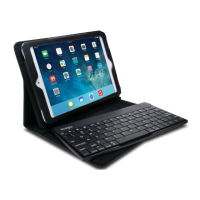
When the iPad is placed in the groove, the magnetic sensor automatically turns on the
keyboard. The Status Indicator Light will glow blue for 3 seconds to indicate the power
is on.
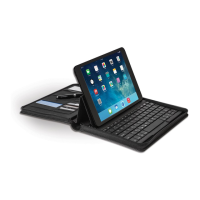
The keyboard automatically turns off when the iPad is removed from the groove, when
the Folio is closed or folded in viewing mode.
Pairing
1 On your iPad, tap Settings.
Settings
2 Open Bluetooth and make sure Bluetooth is on.
Bluetooth
3 On the Keyboard, press the Pairing Key for 3 seconds. The Status Indicator Light starts
blinking.
3 seconds
4 The Keyboard now appears on your iPad screen. Tap Bluetooth Wireless Keyboard.
Bluetooth Wireless Keyboard
5 Your iPad screen displays a passkey. Enter the passkey on the Keyboard, and press Enter.
6 Your iPad screen shows the Keyboard as Connected. On the Keyboard, the Status
Indicator Light turns off. You can now use your Keyboard to type in any app.
Bluetooth Wireless Keyboard
Connected




 To Next Page