Troubleshooting
• Ensure that the computer’s Bluetooth® technology is working.
If a Bluetooth® USB adapter is being used, make sure it is plugged in
properly. Try un-plugging and re-plugging the USB adapter. On some
Systems, a restart may be required.
• On the Mac, click on the Bluetooth® icon within the system preferences
pane. Refer to the Apple Bluetooth® help file to ensure Bluetooth® is
working properly.
• On the PC, refer to the Bluetooth® software help guide to ensure that
Bluetooth® is working properly. The PC must be running a version
of Bluetooth® for Windows XP that supports input devices (mice and
keyboards).
• Ensure your batteries are fully charged and inserted correctly.
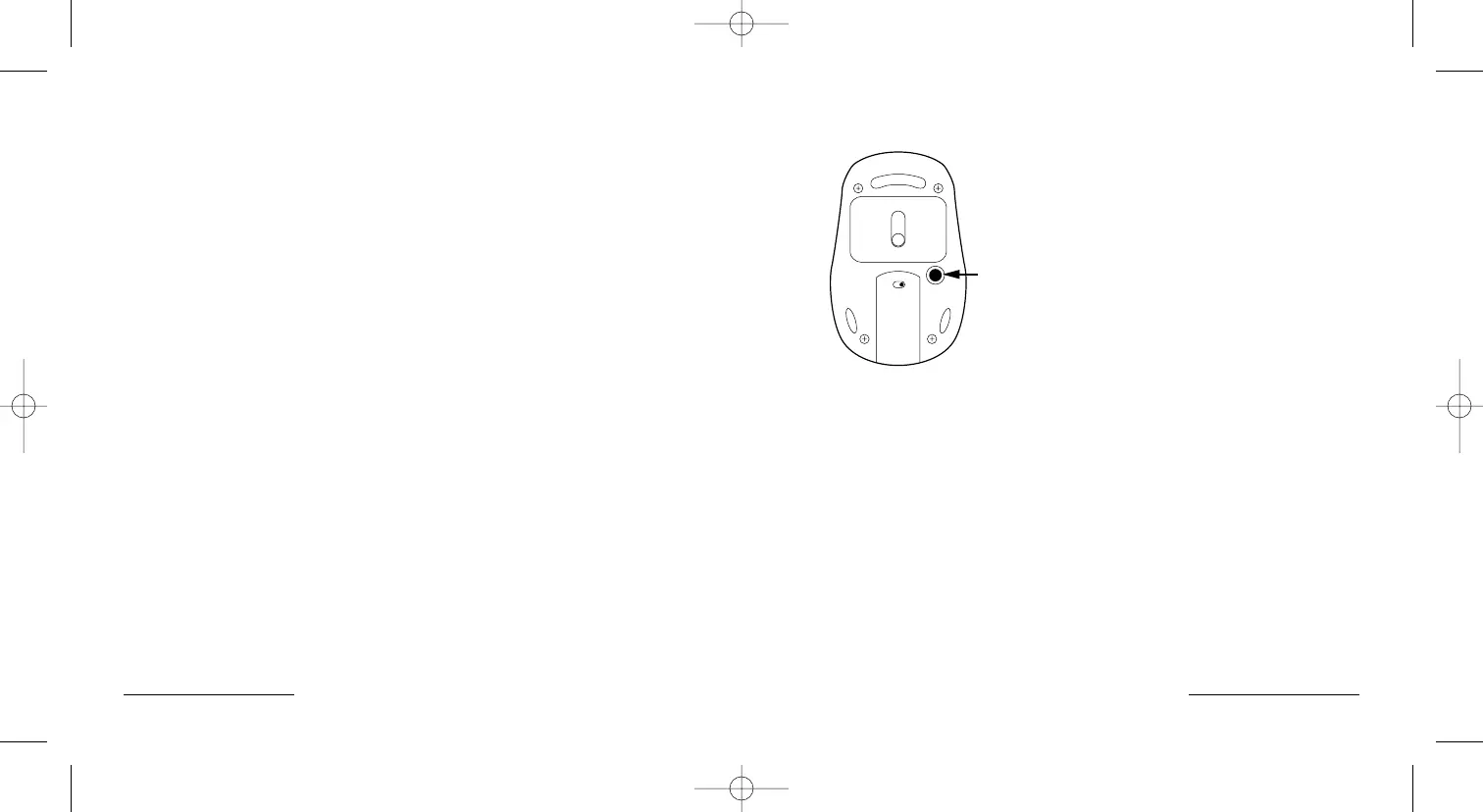
• If the connect button on the mouse bottom is pressed but the mouse still
is not discovered, ensure the correct versions of the software is installed.
Mac OS10.2.8 or higher and Apple Bluetooth® software 1.5 or higher.
• Try moving the mouse closer to the computer or to the adapter.
• Ensure that there are no other Bluetooth® devices in discover mode.
14 • PilotMouse Bluetooth® Mini


 To Next Page