Pairing and Connecting your Device—
in Mac OS X (10.2.6 and later) cont’d
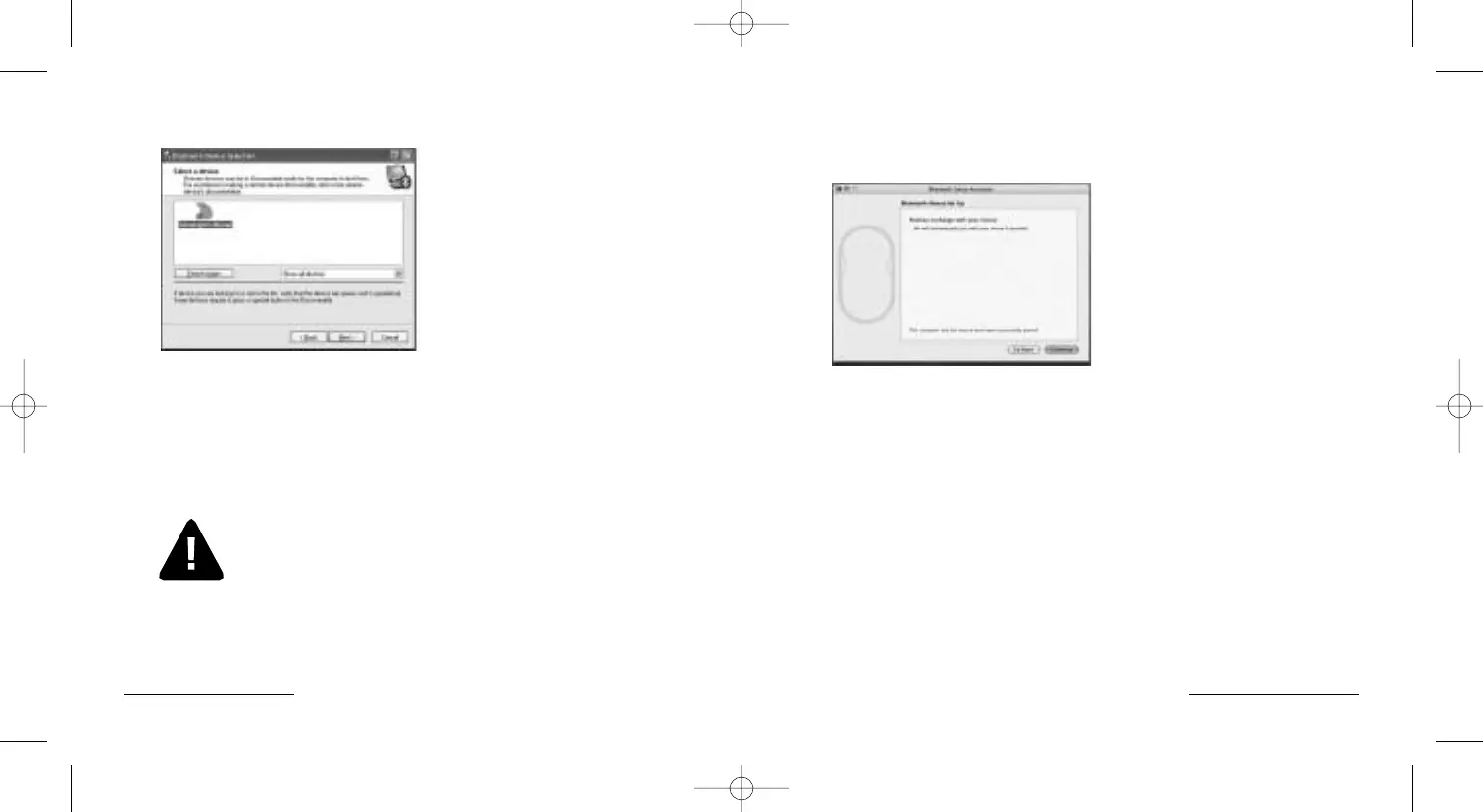
7. After a few seconds the computer will have paired up the mouse. Click
continue to finish the wizard. The PilotMouse Bluetooth® Mini is ready to use.
If the pairing fails repeat steps 1 through 6 and ensure the mouse is in
discover mode.
If the software prompts for a pass key ensure you’re using at least OS10.2.8
with Bluetooth® software version 1.5
The PilotMouse Bluetooth
® Mini should begin working immediately.
If not, read the Troubleshooting section on the next page.
PilotMouse Bluetooth® Mini • 13
Bluetooth® Device Selection
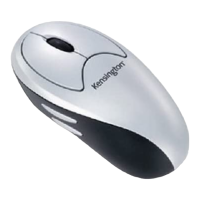
Select the mouse icon labeled Kensington Mouse.
If this icon is not shown, make sure that the mouse is in discover mode,
and click on Search Again. Place the mouse close to the Bluetooth® adapter,
or if using built-in Bluetooth,® close to the computer. You may also want to
select Show Mice and Keyboards instead of Show all devices, from the drop
down menu.
Click Next.
If your mouse still isn’t recognized, ensure your batteries are inserted
correctly. Try removing the batteries and re-inserting them to reset
the mouse.
8 • PilotMouse Bluetooth® Mini


 To Next Page