EasyManua.ls Logo

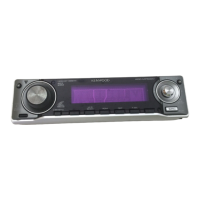
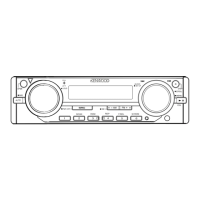
Kenwood EZ500 - User Manual

Kenwood EZ500
112 pages
Print Icon
To Next Page IconTo Next Page
Loading...
Ez500
CD-RECEIVER
INSTRUCTION MANUAL
AMPLI-TUNER-LECTEUR DE CD
MODE D’EMPLOI
REPRODUCTOR DE DISCOS COMPACTOS RECEPTOR DE FM/AM
MANUAL DE INSTRUCCIONES
© B64-2854-00/00 (KN/KW)
Take the time to read through this instruction manual.
Familiarity with installation and operation procedures will help
you obtain the best performance from your new CD-receiver.
For your records
Record the serial number, found on the back of the unit, in the spaces
designated on the warranty card, and in the space provided below.
Refer to the model and serial numbers whenever you call upon your
KENWOOD dealer for information or service on the product.
Model Ez500
Serial number
B64-2854-00U.S(K).Indd1 04.6.25,9:10:13AM

Table of Contents

Other manuals for Kenwood EZ500

Question and Answer IconNeed help?

Do you have a question about the Kenwood EZ500 and is the answer not in the manual?

Summary

Warning and Safety Precautions

CAUTION

Use of controls or adjustments other than specified may result in hazardous radiation exposure. Follow Federal Regulations for laser product safety labels.

NOTE

This equipment complies with FCC Rules Part 15 for Class B digital devices, designed for reasonable protection against harmful interference in residential installations.

Safety Precautions

WARNING

To prevent injury or fire, take precautions like inserting the unit fully, using proper gauge wires, and avoiding metallic objects inside the unit.

CAUTION

To prevent machine damage, ground the unit to a negative 12V DC supply, do not open covers, and avoid direct sunlight, heat, or humidity.

CD Players and Disc Changers

LX-Bus Connection

The LX AMP and the sensor unit cannot be connected simultaneously. You must connect only one at a time.

Do Not Load 3-inch CDs

If you try to load a 3-inch CD with its adapter, the adapter might separate and damage the unit.

Installation Notes

Consult your Kenwood dealer for installation problems. Press the Reset button if the unit fails to operate properly.

Lens Fogging

Condensation may form on the CD player lens in cold weather, making CDs impossible to play.

Notes

Cleaning the Unit

Wipe the faceplate with a dry soft cloth. For bad stains, use a cloth moistened with neutral cleaner.

Cleaning the Faceplate Terminals

If the terminals get dirty, wipe them with a dry, soft cloth.

Cleaning the CD Slot

Clean the CD slot periodically. CDs can get scratched if put into a dusty slot.

About SIRIUS Satellite Radio Tuner

Refer to the SIRIUS Satellite radio tuner manual for operation methods.

Category and Channel Search

Select the category and channel you wish to listen to using the unit's controls.

About CDs

Handling CDs

Don't touch the recording surface of the CD. CD-R and CD-RW are easier to damage than normal music CDs.

Using a New CD

If the CD center hole or outside rim has burrs, use it after removing them with a ball pen etc.

CD Accessories

Don't use disc type accessories.

CD Cleaning

Clean from the center of the disc and move outward.

Removing CDs

When removing CDs from this unit pull them out horizontally.

CDs That Cant Be Used

CDs that aren't round can't be used. CDs with coloring or dirt can't be used.

CD Storage

Don't place them in direct sunlight or high temperatures. Store CDs in their cases.

Notes on Playing MP3;WMA

Acceptable Media

The MP3/WMA recording media acceptable to this unit are CD-ROM, CD-R, and CD-RW.

Acceptable Medium Formats

Formats like ISO 9660 Level 1/2, Joliet, Romeo, and Long file name are supported for file and folder names.

MP3;WMA Encoder and CD Writer Settings

Set transfer bit rate and sampling frequency for MP3/WMA data compression.

Entering ID3 Tag and Contents Description

The displayable ID3 tag is ID3 version 1.x. Refer to the List of Codes for character codes.

Entering File and Folder Names

Use code list characters for file/folder names. Incorrect characters may not display correctly.

Writing Files into a Medium

Loading media with many folders or non-MP3/WMA files can take a long time to start playing.

MP3;WMA Playing Order

General Features

Power

Instructions on turning the unit ON and OFF using the [SRC] button.

Selecting the Source

Press the [SRC] button to choose between various sources like SIRIUS tuner, HD Radio, CD, External disc, and Auxiliary input.

Volume

Adjust volume using the [VOL] knob. Turn clockwise to increase, counterclockwise to decrease.

Attenuator

Press the [ATT] knob to quickly turn the volume down. Press again to return to the previous level.

Loudness

Press the [LOUD] knob for at least 1 second to compensate for low and high tones during low volume.

Audio Control

Select Source for Adjustment

Press the [SRC] button to select the audio source you want to adjust.

Enter Audio Control Mode

Press the [AUDIO] knob to enter Audio Control mode for Bass, Middle, and Treble adjustments.

Adjust Audio; Sub Item

Use the [] / [►►I] knob to adjust Bass, Middle, Treble levels and their center frequencies.

Audio Setup

Select Source for Adjustment

Press the [SRC] button to select the source for audio setup.

Enter Audio Setup Mode

Press the [AUDIO] knob for at least 1 second to enter Audio Setup mode.

Select Setup Item

Press the [AUDIO] knob to cycle through setup items like System Q, High Pass Filter, and Subwoofer Low Pass Filter.

Adjust Audio Setup Item

Use the [◀] / [►►I] knob to adjust the selected audio setup item.

Speaker Setting

Enter Standby

Press the [SRC] button and select the 'STANDBY' display.

Enter Speaker Setting Mode

Press the [AUDIO] knob to enter Speaker Setting mode.

Select Speaker Type

Turn the [◀] / [►►I] knob to select speaker type: OFF, 5 & 4 inch, 6 & 6x9 inch, or OEM speaker.

Exit Speaker Setting Mode

Press the [AUDIO] knob to exit Speaker Setting mode.

Switching Display

In Tuner Source

Press the [DISP] button to switch display between Station name/Frequency or Frequency.

In CD & External Disc Source

Press the [DISP] button to switch display between Disc title, Track title, Track number & Play time, or Disc name.

In MP3;WMA Source

Press the [DISP] button to switch display between Song title, Album name, Folder name, File name, or Track number & Play time.

In SIRIUS Tuner Source

Press the [DISP] button to switch display between Channel Name, Song Title, Artist Name, Composer Name, Category Name, or Band & Channel Number.

In HD Radio Source

Press the [DISP] button to switch display between Station name, Song title/Artist name/Album name/Genre, or Frequency.

In Auxiliary Input Source

Press the [DISP] button to display Auxiliary input name.

Station;Disc Naming (SNPS;DNPS)

Receive;Play Station;Disc

Select the station or CD you want to attach a title to.

Enter Name Set Mode

Press the [DISP] button for at least 2 seconds to enter name set mode.

Move Cursor to Enter Character

Press the [AUDIO] knob or [FM]/[AM] button to move the cursor to the enter character position.

Select Character Type

Press the [MENU] button to switch between alphabet upper/lower case, numbers, symbols, and special characters.

Select Characters

Turn the [◀] / [►►I] knob to select characters. Use remote buttons for entry.

Repeat Steps and Enter Name

Repeat steps 3 through 5 to enter the name.

Exit Name Set Mode

Press the [DISP] button to exit name set mode.

Auxiliary Input Display Setting

Select Auxiliary Input Source

Press the [SRC] button and select 'AUX' or 'AUX EXT' display.

Enter Auxiliary Input Display Setting Mode

Press the [DISP] button for at least 2 seconds.

Select Auxiliary Input Display

Turn the [◀] / [►►I] knob to switch through displays like AUX, TV, VIDEO, GAME, PORTABLE, DVD.

Exit Auxiliary Input Display Setting Mode

Press the [DISP] button to exit the setting mode.

Subwoofer Output

Turn Subwoofer Output ON;OFF

Press the [SW] button for at least 1 second to toggle Subwoofer output ON or OFF.

TEL Mute

When a Call Comes In

The audio system automatically mutes when a call comes in, displaying 'CALL'.

Listening to Audio During a Call

Press the [SRC] button to resume audio playback. The 'CALL' display disappears.

When the Call Ends

Hang up the phone. The 'CALL' display disappears and the audio system comes back ON.

Theft Deterrent Faceplate

Removing the Faceplate

Press the [OPEN] button, drop open the faceplate, and pull it forward to remove it.

Reattaching the Faceplate

Align the shaft with the depression on the faceplate and push until it clicks to lock it in place.

Tuner Features

Tuning Mode

Press the [AUTO] button to switch between Auto seek ('Auto 1'), Preset station seek ('Auto 2'), and Manual tuning.

Tuning

Select the station by selecting the tuner source and band, then tune up or down band using the [] / [I] knob.

Direct Access Tuning

Select Band

Press the [FM] / [AM] button to select the band.

Enter Direct Access Tuning Mode

Press the [DIRECT] button on the remote. Enter frequency using number buttons.

Canceling Direct Access Tuning

Press the [DIRECT] button on the remote to cancel.

Preset Tuning

Select Band

Press the [FM] / [AM] button to select the band.

Call Up Station

Press the desired [1] — [6] button to recall preset stations.

Station Preset Memory

Select Band

Press the [FM] / [AM] button to select the band.

Select Frequency to Put in Memory

Turn the [] / [I] knob to select the frequency.

Put Frequency in Memory

Press the desired [1] — [6] button for at least 2 seconds to store the station.

Auto Memory Entry

Select Band for Auto Memory Entry

Press the [FM] / [AM] button.

Open Auto Memory Entry

Press the [AME] button for at least 2 seconds to automatically store stations.

HD Radio Control Features

Tuning

Select HD Radio source, then select HF or HA band and tune up or down band using the [] / [I] knob.

CD;MP3;WMA;External Disc Control Features

Playing External Disc

Press [SRC] button and select the disc player display like 'CD2', 'CD CH', or 'MD CH'.

Pause and Play

Press the [II] button. Each time pressed, it pauses and plays.

Playing CD & MP3;WMA

Insert a disc by dropping open the faceplate, inserting the disc, and returning the faceplate.

Disc Operations

Eject the Disc

Drop open the faceplate, press the [▲] button, and return the faceplate to its former position.

Track;File Search

Search for a song on the disc or in the MP3/WMA folder by turning the [] / ►] knob.

Fast Forwarding and Reversing

Hold the [1] knob for fast forwarding or [] knob for reversing.

Direct Track;File Search

Enter the track/file number using remote buttons and press [] / [I] button to search.

Direct Disc Search

Enter the disc number using remote buttons and press [DISC-] / [DISC+] button to search.

Track;File;Disc;Folder Repeat

Repeat Play

Press the [REP] button to switch between Track Repeat, Disc Repeat, or OFF.

Magazine Random Play

Play Songs in Random Order

Press the [M.RDM] button to turn Magazine Random Play ON or OFF.

Folder Select

Enter Folder Select Mode

Press the [F.SEL] button to enter Folder Select mode.

Select Folder Level

Press [FM]/[AM] to move down/up levels. Turn []/[] knob to select folder in the same level.

Decide Folder to Play

Press the [AUDIO] knob to release Folder Select mode and play the selected folder's MP3/WMA.

Text;Title Scroll

Scrolling Displayed Text

Press the [SCROLL] button for at least 1 second to scroll CD text, MP3/WMA text, or MD title.

DNPP (Disc Name Preset Play)

Enter DNPP Mode

Press the [DNPP] button on the remote to enter DNPP mode.

Forward;Reverse Display

Press the [DISC+] / [DISC–] button to display the desired disc.

Select Disc to Play

When the desired disc is displayed, press the [OK] button on the remote to play it.

Canceling the DNPP Mode

Press the [DNPP] button on the remote to cancel.

Menu System

Enter Menu Mode

Press the [MENU] button for at least 1 second to enter Menu mode.

Select Menu Item

Press the [AUDIO] knob to select the menu item you want to set.

Set Menu Item

Turn the [] / [I] knob to set the selected menu item, e.g., 'Beep ON' or 'Beep OFF'.

Exit Menu Mode

Press the [MENU] button for at least 1 second to exit Menu mode.

Security Code

Enter Standby

Press the [SRC] button and select the 'STANDBY' display.

Enter Menu Mode

Press the [MENU] button for at least 1 second.

Enter Security Code Mode

Press the [MENU] button to display 'ENTER' and 'CODE'.

Select Digits to Enter

Press the [AUDIO] knob or [FM]/[AM] button to select digits.

Select Security Code Numbers

Turn the [] / [I] knob to select the security code numbers.

Repeat Steps and Complete Code

Repeat steps 4 and 5 to complete the Security Code.

Confirm Security Code

Press the [AUDIO] knob for at least 3 seconds to confirm the Security Code.

Reenter Security Code

Perform steps 4 through 7 to reenter the Security Code. 'APPROVED' will be displayed.

Touch Sensor Tone

Setting Operation Check Sound

Set the operation check sound (beep sound) ON or OFF.

Manual Clock Adjustment

Select Clock Adjustment Mode

Press the [AUDIO] knob and select 'Clock Adjust'.

Enter Clock Adjust Mode

Press the [MENU] button. The time indicator (hours) blinks.

Select Item (Hours or Minutes)

Press the [AUDIO] knob to select hours or minutes.

Adjust Hours or Minutes

Turn the [] / [I] knob to adjust the hours or minutes.

Exit Clock Adjustment Mode

Press the [MENU] button to exit.

Clock Display

Setting Clock Display ON or OFF

Set whether the clock display is ON or OFF.

DSI (Disabled System Indicator)

Setting DSI Indicator

Set the indicator to 'DSI ON' (LED flashes) or 'DSI OFF' (LED OFF) when the faceplate is removed.

Selectable Illumination

Setting Button Illumination Color

Select button illumination color as 'Button Red' or 'Button Green'.

Contrast Adjustment

Adjusting Display Contrast

Adjust the display contrast from 'Contrast 0' to 'Contrast 10'.

Dimmer

Setting Dimmer Function

Set 'Dimmer ON' to dim the display when the vehicle light switch is turned ON, or 'Dimmer OFF' to disable dimming.

System Q Setting

Displaying System Q Factors

Set whether to display System Q factors like Bass center frequency, Bass Q factor, etc. ('SystemQ ON' or 'SystemQ OFF').

Switching Preout

Setting Preout Between Rear and Subwoofer

Switch preout between rear ('SWPRE Rear') and subwoofer ('SWPRE Sub-W').

Built-in Amp Mute Setting

Toggling Mute Control ON or OFF

Toggle the mute control for the built-in amplifier ON ('AMP Mute OFF') or OFF ('AMP Mute ON').

Dual Zone System

Setting Front and Rear Channels

Set the Dual Zone system to 'Zone 2 OFF' (same source) or 'Zone 2 ON' (different sources).

Dual Zone System Setting

Setting Front and Rear Channel Sound

Set 'Zone 2 Rear' or 'Zone 2 Front' to define which channel's source is excluded.

B.M.S. (Bass Management System)

Adjusting Bass Boost Level

Adjust the bass boost level of the external amplifier using 'AMP Bass FLT', '+6', '+12', or '+18'.

B.M.S. Frequency Offset

Setting Central Frequency Boosted by B.M.S.

Set the central frequency using 'AMP Freq NML' or 'AMP Freq Low'.

CRSC (Clean Reception System Circuit)

Temporarily Switching Reception Stereo to Mono

Set CRSC to 'CRSC ON' to switch stereo to mono for FM reception, or 'CRSC OFF' to disable.

SIRIUS ID (ESN) Display

Displaying SIRIUS ID (ESN)

Display the SIRIUS ID (Electronic Serial Number). It is important to retain for service activation.

Text Scroll

Setting Displayed Text Scroll

Set text scrolling to 'Scroll Auto' (repeats scroll) or 'Scroll MANU' (scrolls on display change).

Receive Mode Setting

Sets Receive Mode

Select 'Auto mode', 'Digital', or 'Analog' for HD Radio reception.

Built-in Auxiliary Input Setting

Set Built-in Auxiliary Input Function

Set 'AUX OFF' (no input) or 'AUX ON' (input available) for Auxiliary input.

AMP Control

Control LX AMP

Select 'AMP Control' mode to adjust LX AMP settings. For details, see LX AMP instruction manual.

Basic Operations of Remote

Loading and Replacing the Battery

Use two 'AA'-size batteries. Slide cover, insert batteries with correct polarity, and close cover.

Basic Operations

Covers [VOL.] buttons for volume, [SRC] button for source switching, and [ATT] button for quick volume reduction.

Remote Control Functions

FM;AM Buttons

Select the band (FM1, FM2, FM3) or preset band.

Tune Up or Down Band

Use [] / [I] buttons to tune up or down the band or search channels.

[0] - [9] Buttons

Press buttons [1]-[6] to recall preset stations or channels.

[DIRECT];[OK] Button

Enter/cancel 'Direct Access Tuning' mode or select items.

[DISC+];[DISC-] Buttons

Do disc/folder forward and backward.

[►II] Button

Pause and play songs.

[DNPP] Button

Enter/cancel 'DNPP (Disc Name Preset Play)' mode.

Accessories and Installation Procedure

Accessories

Lists various accessories included with the unit.

Installation Procedure

Steps for preventing short circuits, making wire connections, and installing the unit in the car.

Connecting Wires to Terminals

Ez500 Terminal Connections

Diagram showing Aux input, Front output, Rear output/Subwoofer output, and FM/AM antenna input.

Wiring Harness Connections

Details connections for Power control, Mute, External amplifier control, Dimmer control, and speaker wires.

Vehicle Power Connections

Shows connections for Ignition key switch, Car fuse box (Main fuse), Battery, and Ground wire.

Installation

Non-Japanese Cars Installation

Instructions for installing the unit using a metal mounting strap and self-tapping screws.

Japanese Cars Installation

Steps for aligning holes with the vehicle mounting bracket and securing with accessory screws for Toyota and Nissan cars.

Screwing the Faceplate on the Unit

Refer to Removing Hard Rubber Frame

Remove the hard rubber frame before proceeding with faceplate attachment.

Drop Open Faceplate and Tighten Screws

Press Release button, then tighten accessory screws (⑤, ⑥, ⑦) into specified holes.

Removing the Unit

Removing the Hard Rubber Frame

Engage catch pins on removal tool, remove locks, and pull frame forward.

Removing the Main Unit

Remove screw, insert removal tools, lower tool, and pull unit halfway out, then pull completely.

Troubleshooting Guide

General Problems

Covers issues like power not turning ON, inability to switch sources, memory erasure, loudness effect, and TEL mute function.

No Sound or Low Volume

Addresses issues with fader/balance, input/output wires, Volume offset, or Built-in Amp Mute Setting.

Poor or Distorted Sound Quality

Troubleshoots pinched speaker wires, incorrect speaker wiring, or sound quality issues.

Touch Sensor Tone Not Sounding

Check if the preout jack is being used; Touch Sensor Tone cannot output from it.

Dimmer Function Not Working

Check Dimmer wire connection or ensure 'Dimmer' setting is ON.

Tuner Reception Poor

Check antenna extension, antenna control wire connection, and ensure desired frequency is entered correctly.

Disc Source Troubleshooting

External Disc Control Issues

Check for unsupported disc changers or discs not playing.

Disc Removal Problems

Address issues with disc removal after ACC switch OFF or discs not inserting.

Search Function Problems

Troubleshoot Direct Search and Track Search functions.

MP3;WMA Source Troubleshooting

Cannot Play MP3;WMA

Clean media or check recording condition. Ensure correct format is used.

MP3;WMA Sound Skipping

Clean media or check recording condition. Record media again or use another media.

Incorrect MP3;WMA Track Time

Track time may not display correctly due to MP3/WMA recording conditions.

HD Radio Source Troubleshooting

No Sound or Low Volume

Check 'Receive mode Setting', broadcast station transmission, and tuner connection.

Troubleshooting Guide: System Messages

EJECT Message

No disc magazine loaded, or disc magazine not completely loaded. Load magazine properly.

No Disc Message

No disc loaded in the unit or disc magazine. Load disc properly.

TOC Error Message

No disc loaded, CD is dirty, upside-down, or scratched. Clean CD and load correctly.

E-05 Message

The CD is upside-down. Load the CD correctly.

Blank Disc Message

Nothing has been recorded on the MD.

No Track Message

No tracks recorded on MD, though it has a title.

No Panel Message

Faceplate of slave unit removed. Replace it.

E-77 Message

Unit malfunctioning. Press reset button. Consult service center if code persists.

Mecha Error Message

Disc magazine issue or unit malfunctioning. Check magazine, press reset button. Consult service center if code persists.

Hold Error Message

Protective circuit activated due to high temperature. Cool down the unit for operation to resume.

NO NAME Message

Attempted to display DNPS during CD play without disc names preset.

Load Message

Discs are being exchanged in the Disc changer.

Reading Message

Unit is reading data on the disc.

NO ACCESS Message

DNPP done without playback at least once.

Unsupported Message

MP3/WMA played with unsupported format.

Protected Message

A copy-protected file is played.

Specifications

FM Tuner Section

Details frequency range, sensitivity, frequency response, signal to noise ratio, selectivity, and stereo separation.

AM Tuner Section

Details frequency range and usable sensitivity.

CD Player Section

Details laser diode, digital filter, D/A converter, spindle speed, wow & flutter, frequency response, THD, S/N, dynamic range, channel separation, MP3/WMA decode.

Audio Section

Details maximum output power, full bandwidth power, tone action, preout level/load, and preout impedance.

Auxiliary Input

Details frequency response, input maximum voltage, and input impedance.

General

Details operating voltage, current consumption, installation size, and weight.

Summary

Warning and Safety Precautions

CAUTION

Use of controls or adjustments other than specified may result in hazardous radiation exposure. Follow Federal Regulations for laser product safety labels.

NOTE

This equipment complies with FCC Rules Part 15 for Class B digital devices, designed for reasonable protection against harmful interference in residential installations.

Safety Precautions

WARNING

To prevent injury or fire, take precautions like inserting the unit fully, using proper gauge wires, and avoiding metallic objects inside the unit.

CAUTION

To prevent machine damage, ground the unit to a negative 12V DC supply, do not open covers, and avoid direct sunlight, heat, or humidity.

CD Players and Disc Changers

LX-Bus Connection

The LX AMP and the sensor unit cannot be connected simultaneously. You must connect only one at a time.

Do Not Load 3-inch CDs

If you try to load a 3-inch CD with its adapter, the adapter might separate and damage the unit.

Installation Notes

Consult your Kenwood dealer for installation problems. Press the Reset button if the unit fails to operate properly.

Lens Fogging

Condensation may form on the CD player lens in cold weather, making CDs impossible to play.

Notes

Cleaning the Unit

Wipe the faceplate with a dry soft cloth. For bad stains, use a cloth moistened with neutral cleaner.

Cleaning the Faceplate Terminals

If the terminals get dirty, wipe them with a dry, soft cloth.

Cleaning the CD Slot

Clean the CD slot periodically. CDs can get scratched if put into a dusty slot.

About SIRIUS Satellite Radio Tuner

Refer to the SIRIUS Satellite radio tuner manual for operation methods.

Category and Channel Search

Select the category and channel you wish to listen to using the unit's controls.

About CDs

Handling CDs

Don't touch the recording surface of the CD. CD-R and CD-RW are easier to damage than normal music CDs.

Using a New CD

If the CD center hole or outside rim has burrs, use it after removing them with a ball pen etc.

CD Accessories

Don't use disc type accessories.

CD Cleaning

Clean from the center of the disc and move outward.

Removing CDs

When removing CDs from this unit pull them out horizontally.

CDs That Cant Be Used

CDs that aren't round can't be used. CDs with coloring or dirt can't be used.

CD Storage

Don't place them in direct sunlight or high temperatures. Store CDs in their cases.

Notes on Playing MP3;WMA

Acceptable Media

The MP3/WMA recording media acceptable to this unit are CD-ROM, CD-R, and CD-RW.

Acceptable Medium Formats

Formats like ISO 9660 Level 1/2, Joliet, Romeo, and Long file name are supported for file and folder names.

MP3;WMA Encoder and CD Writer Settings

Set transfer bit rate and sampling frequency for MP3/WMA data compression.

Entering ID3 Tag and Contents Description

The displayable ID3 tag is ID3 version 1.x. Refer to the List of Codes for character codes.

Entering File and Folder Names

Use code list characters for file/folder names. Incorrect characters may not display correctly.

Writing Files into a Medium

Loading media with many folders or non-MP3/WMA files can take a long time to start playing.

MP3;WMA Playing Order

General Features

Power

Instructions on turning the unit ON and OFF using the [SRC] button.

Selecting the Source

Press the [SRC] button to choose between various sources like SIRIUS tuner, HD Radio, CD, External disc, and Auxiliary input.

Volume

Adjust volume using the [VOL] knob. Turn clockwise to increase, counterclockwise to decrease.

Attenuator

Press the [ATT] knob to quickly turn the volume down. Press again to return to the previous level.

Loudness

Press the [LOUD] knob for at least 1 second to compensate for low and high tones during low volume.

Audio Control

Select Source for Adjustment

Press the [SRC] button to select the audio source you want to adjust.

Enter Audio Control Mode

Press the [AUDIO] knob to enter Audio Control mode for Bass, Middle, and Treble adjustments.

Adjust Audio; Sub Item

Use the [] / [►►I] knob to adjust Bass, Middle, Treble levels and their center frequencies.

Audio Setup

Select Source for Adjustment

Press the [SRC] button to select the source for audio setup.

Enter Audio Setup Mode

Press the [AUDIO] knob for at least 1 second to enter Audio Setup mode.

Select Setup Item

Press the [AUDIO] knob to cycle through setup items like System Q, High Pass Filter, and Subwoofer Low Pass Filter.

Adjust Audio Setup Item

Use the [◀] / [►►I] knob to adjust the selected audio setup item.

Speaker Setting

Enter Standby

Press the [SRC] button and select the 'STANDBY' display.

Enter Speaker Setting Mode

Press the [AUDIO] knob to enter Speaker Setting mode.

Select Speaker Type

Turn the [◀] / [►►I] knob to select speaker type: OFF, 5 & 4 inch, 6 & 6x9 inch, or OEM speaker.

Exit Speaker Setting Mode

Press the [AUDIO] knob to exit Speaker Setting mode.

Switching Display

In Tuner Source

Press the [DISP] button to switch display between Station name/Frequency or Frequency.

In CD & External Disc Source

Press the [DISP] button to switch display between Disc title, Track title, Track number & Play time, or Disc name.

In MP3;WMA Source

Press the [DISP] button to switch display between Song title, Album name, Folder name, File name, or Track number & Play time.

In SIRIUS Tuner Source

Press the [DISP] button to switch display between Channel Name, Song Title, Artist Name, Composer Name, Category Name, or Band & Channel Number.

In HD Radio Source

Press the [DISP] button to switch display between Station name, Song title/Artist name/Album name/Genre, or Frequency.

In Auxiliary Input Source

Press the [DISP] button to display Auxiliary input name.

Station;Disc Naming (SNPS;DNPS)

Receive;Play Station;Disc

Select the station or CD you want to attach a title to.

Enter Name Set Mode

Press the [DISP] button for at least 2 seconds to enter name set mode.

Move Cursor to Enter Character

Press the [AUDIO] knob or [FM]/[AM] button to move the cursor to the enter character position.

Select Character Type

Press the [MENU] button to switch between alphabet upper/lower case, numbers, symbols, and special characters.

Select Characters

Turn the [◀] / [►►I] knob to select characters. Use remote buttons for entry.

Repeat Steps and Enter Name

Repeat steps 3 through 5 to enter the name.

Exit Name Set Mode

Press the [DISP] button to exit name set mode.

Auxiliary Input Display Setting

Select Auxiliary Input Source

Press the [SRC] button and select 'AUX' or 'AUX EXT' display.

Enter Auxiliary Input Display Setting Mode

Press the [DISP] button for at least 2 seconds.

Select Auxiliary Input Display

Turn the [◀] / [►►I] knob to switch through displays like AUX, TV, VIDEO, GAME, PORTABLE, DVD.

Exit Auxiliary Input Display Setting Mode

Press the [DISP] button to exit the setting mode.

Subwoofer Output

Turn Subwoofer Output ON;OFF

Press the [SW] button for at least 1 second to toggle Subwoofer output ON or OFF.

TEL Mute

When a Call Comes In

The audio system automatically mutes when a call comes in, displaying 'CALL'.

Listening to Audio During a Call

Press the [SRC] button to resume audio playback. The 'CALL' display disappears.

When the Call Ends

Hang up the phone. The 'CALL' display disappears and the audio system comes back ON.

Theft Deterrent Faceplate

Removing the Faceplate

Press the [OPEN] button, drop open the faceplate, and pull it forward to remove it.

Reattaching the Faceplate

Align the shaft with the depression on the faceplate and push until it clicks to lock it in place.

Tuner Features

Tuning Mode

Press the [AUTO] button to switch between Auto seek ('Auto 1'), Preset station seek ('Auto 2'), and Manual tuning.

Tuning

Select the station by selecting the tuner source and band, then tune up or down band using the [] / [I] knob.

Direct Access Tuning

Select Band

Press the [FM] / [AM] button to select the band.

Enter Direct Access Tuning Mode

Press the [DIRECT] button on the remote. Enter frequency using number buttons.

Canceling Direct Access Tuning

Press the [DIRECT] button on the remote to cancel.

Preset Tuning

Select Band

Press the [FM] / [AM] button to select the band.

Call Up Station

Press the desired [1] — [6] button to recall preset stations.

Station Preset Memory

Select Band

Press the [FM] / [AM] button to select the band.

Select Frequency to Put in Memory

Turn the [] / [I] knob to select the frequency.

Put Frequency in Memory

Press the desired [1] — [6] button for at least 2 seconds to store the station.

Auto Memory Entry

Select Band for Auto Memory Entry

Press the [FM] / [AM] button.

Open Auto Memory Entry

Press the [AME] button for at least 2 seconds to automatically store stations.

HD Radio Control Features

Tuning

Select HD Radio source, then select HF or HA band and tune up or down band using the [] / [I] knob.

CD;MP3;WMA;External Disc Control Features

Playing External Disc

Press [SRC] button and select the disc player display like 'CD2', 'CD CH', or 'MD CH'.

Pause and Play

Press the [II] button. Each time pressed, it pauses and plays.

Playing CD & MP3;WMA

Insert a disc by dropping open the faceplate, inserting the disc, and returning the faceplate.

Disc Operations

Eject the Disc

Drop open the faceplate, press the [▲] button, and return the faceplate to its former position.

Track;File Search

Search for a song on the disc or in the MP3/WMA folder by turning the [] / ►] knob.

Fast Forwarding and Reversing

Hold the [1] knob for fast forwarding or [] knob for reversing.

Direct Track;File Search

Enter the track/file number using remote buttons and press [] / [I] button to search.

Direct Disc Search

Enter the disc number using remote buttons and press [DISC-] / [DISC+] button to search.

Track;File;Disc;Folder Repeat

Repeat Play

Press the [REP] button to switch between Track Repeat, Disc Repeat, or OFF.

Magazine Random Play

Play Songs in Random Order

Press the [M.RDM] button to turn Magazine Random Play ON or OFF.

Folder Select

Enter Folder Select Mode

Press the [F.SEL] button to enter Folder Select mode.

Select Folder Level

Press [FM]/[AM] to move down/up levels. Turn []/[] knob to select folder in the same level.

Decide Folder to Play

Press the [AUDIO] knob to release Folder Select mode and play the selected folder's MP3/WMA.

Text;Title Scroll

Scrolling Displayed Text

Press the [SCROLL] button for at least 1 second to scroll CD text, MP3/WMA text, or MD title.

DNPP (Disc Name Preset Play)

Enter DNPP Mode

Press the [DNPP] button on the remote to enter DNPP mode.

Forward;Reverse Display

Press the [DISC+] / [DISC–] button to display the desired disc.

Select Disc to Play

When the desired disc is displayed, press the [OK] button on the remote to play it.

Canceling the DNPP Mode

Press the [DNPP] button on the remote to cancel.

Menu System

Enter Menu Mode

Press the [MENU] button for at least 1 second to enter Menu mode.

Select Menu Item

Press the [AUDIO] knob to select the menu item you want to set.

Set Menu Item

Turn the [] / [I] knob to set the selected menu item, e.g., 'Beep ON' or 'Beep OFF'.

Exit Menu Mode

Press the [MENU] button for at least 1 second to exit Menu mode.

Security Code

Enter Standby

Press the [SRC] button and select the 'STANDBY' display.

Enter Menu Mode

Press the [MENU] button for at least 1 second.

Enter Security Code Mode

Press the [MENU] button to display 'ENTER' and 'CODE'.

Select Digits to Enter

Press the [AUDIO] knob or [FM]/[AM] button to select digits.

Select Security Code Numbers

Turn the [] / [I] knob to select the security code numbers.

Repeat Steps and Complete Code

Repeat steps 4 and 5 to complete the Security Code.

Confirm Security Code

Press the [AUDIO] knob for at least 3 seconds to confirm the Security Code.

Reenter Security Code

Perform steps 4 through 7 to reenter the Security Code. 'APPROVED' will be displayed.

Touch Sensor Tone

Setting Operation Check Sound

Set the operation check sound (beep sound) ON or OFF.

Manual Clock Adjustment

Select Clock Adjustment Mode

Press the [AUDIO] knob and select 'Clock Adjust'.

Enter Clock Adjust Mode

Press the [MENU] button. The time indicator (hours) blinks.

Select Item (Hours or Minutes)

Press the [AUDIO] knob to select hours or minutes.

Adjust Hours or Minutes

Turn the [] / [I] knob to adjust the hours or minutes.

Exit Clock Adjustment Mode

Press the [MENU] button to exit.

Clock Display

Setting Clock Display ON or OFF

Set whether the clock display is ON or OFF.

DSI (Disabled System Indicator)

Setting DSI Indicator

Set the indicator to 'DSI ON' (LED flashes) or 'DSI OFF' (LED OFF) when the faceplate is removed.

Selectable Illumination

Setting Button Illumination Color

Select button illumination color as 'Button Red' or 'Button Green'.

Contrast Adjustment

Adjusting Display Contrast

Adjust the display contrast from 'Contrast 0' to 'Contrast 10'.

Dimmer

Setting Dimmer Function

Set 'Dimmer ON' to dim the display when the vehicle light switch is turned ON, or 'Dimmer OFF' to disable dimming.

System Q Setting

Displaying System Q Factors

Set whether to display System Q factors like Bass center frequency, Bass Q factor, etc. ('SystemQ ON' or 'SystemQ OFF').

Switching Preout

Setting Preout Between Rear and Subwoofer

Switch preout between rear ('SWPRE Rear') and subwoofer ('SWPRE Sub-W').

Built-in Amp Mute Setting

Toggling Mute Control ON or OFF

Toggle the mute control for the built-in amplifier ON ('AMP Mute OFF') or OFF ('AMP Mute ON').

Dual Zone System

Setting Front and Rear Channels

Set the Dual Zone system to 'Zone 2 OFF' (same source) or 'Zone 2 ON' (different sources).

Dual Zone System Setting

Setting Front and Rear Channel Sound

Set 'Zone 2 Rear' or 'Zone 2 Front' to define which channel's source is excluded.

B.M.S. (Bass Management System)

Adjusting Bass Boost Level

Adjust the bass boost level of the external amplifier using 'AMP Bass FLT', '+6', '+12', or '+18'.

B.M.S. Frequency Offset

Setting Central Frequency Boosted by B.M.S.

Set the central frequency using 'AMP Freq NML' or 'AMP Freq Low'.

CRSC (Clean Reception System Circuit)

Temporarily Switching Reception Stereo to Mono

Set CRSC to 'CRSC ON' to switch stereo to mono for FM reception, or 'CRSC OFF' to disable.

SIRIUS ID (ESN) Display

Displaying SIRIUS ID (ESN)

Display the SIRIUS ID (Electronic Serial Number). It is important to retain for service activation.

Text Scroll

Setting Displayed Text Scroll

Set text scrolling to 'Scroll Auto' (repeats scroll) or 'Scroll MANU' (scrolls on display change).

Receive Mode Setting

Sets Receive Mode

Select 'Auto mode', 'Digital', or 'Analog' for HD Radio reception.

Built-in Auxiliary Input Setting

Set Built-in Auxiliary Input Function

Set 'AUX OFF' (no input) or 'AUX ON' (input available) for Auxiliary input.

AMP Control

Control LX AMP

Select 'AMP Control' mode to adjust LX AMP settings. For details, see LX AMP instruction manual.

Basic Operations of Remote

Loading and Replacing the Battery

Use two 'AA'-size batteries. Slide cover, insert batteries with correct polarity, and close cover.

Basic Operations

Covers [VOL.] buttons for volume, [SRC] button for source switching, and [ATT] button for quick volume reduction.

Remote Control Functions

FM;AM Buttons

Select the band (FM1, FM2, FM3) or preset band.

Tune Up or Down Band

Use [] / [I] buttons to tune up or down the band or search channels.

[0] - [9] Buttons

Press buttons [1]-[6] to recall preset stations or channels.

[DIRECT];[OK] Button

Enter/cancel 'Direct Access Tuning' mode or select items.

[DISC+];[DISC-] Buttons

Do disc/folder forward and backward.

[►II] Button

Pause and play songs.

[DNPP] Button

Enter/cancel 'DNPP (Disc Name Preset Play)' mode.

Accessories and Installation Procedure

Accessories

Lists various accessories included with the unit.

Installation Procedure

Steps for preventing short circuits, making wire connections, and installing the unit in the car.

Connecting Wires to Terminals

Ez500 Terminal Connections

Diagram showing Aux input, Front output, Rear output/Subwoofer output, and FM/AM antenna input.

Wiring Harness Connections

Details connections for Power control, Mute, External amplifier control, Dimmer control, and speaker wires.

Vehicle Power Connections

Shows connections for Ignition key switch, Car fuse box (Main fuse), Battery, and Ground wire.

Installation

Non-Japanese Cars Installation

Instructions for installing the unit using a metal mounting strap and self-tapping screws.

Japanese Cars Installation

Steps for aligning holes with the vehicle mounting bracket and securing with accessory screws for Toyota and Nissan cars.

Screwing the Faceplate on the Unit

Refer to Removing Hard Rubber Frame

Remove the hard rubber frame before proceeding with faceplate attachment.

Drop Open Faceplate and Tighten Screws

Press Release button, then tighten accessory screws (⑤, ⑥, ⑦) into specified holes.

Removing the Unit

Removing the Hard Rubber Frame

Engage catch pins on removal tool, remove locks, and pull frame forward.

Removing the Main Unit

Remove screw, insert removal tools, lower tool, and pull unit halfway out, then pull completely.

Troubleshooting Guide

General Problems

Covers issues like power not turning ON, inability to switch sources, memory erasure, loudness effect, and TEL mute function.

No Sound or Low Volume

Addresses issues with fader/balance, input/output wires, Volume offset, or Built-in Amp Mute Setting.

Poor or Distorted Sound Quality

Troubleshoots pinched speaker wires, incorrect speaker wiring, or sound quality issues.

Touch Sensor Tone Not Sounding

Check if the preout jack is being used; Touch Sensor Tone cannot output from it.

Dimmer Function Not Working

Check Dimmer wire connection or ensure 'Dimmer' setting is ON.

Tuner Reception Poor

Check antenna extension, antenna control wire connection, and ensure desired frequency is entered correctly.

Disc Source Troubleshooting

External Disc Control Issues

Check for unsupported disc changers or discs not playing.

Disc Removal Problems

Address issues with disc removal after ACC switch OFF or discs not inserting.

Search Function Problems

Troubleshoot Direct Search and Track Search functions.

MP3;WMA Source Troubleshooting

Cannot Play MP3;WMA

Clean media or check recording condition. Ensure correct format is used.

MP3;WMA Sound Skipping

Clean media or check recording condition. Record media again or use another media.

Incorrect MP3;WMA Track Time

Track time may not display correctly due to MP3/WMA recording conditions.

HD Radio Source Troubleshooting

No Sound or Low Volume

Check 'Receive mode Setting', broadcast station transmission, and tuner connection.

Troubleshooting Guide: System Messages

EJECT Message

No disc magazine loaded, or disc magazine not completely loaded. Load magazine properly.

No Disc Message

No disc loaded in the unit or disc magazine. Load disc properly.

TOC Error Message

No disc loaded, CD is dirty, upside-down, or scratched. Clean CD and load correctly.

E-05 Message

The CD is upside-down. Load the CD correctly.

Blank Disc Message

Nothing has been recorded on the MD.

No Track Message

No tracks recorded on MD, though it has a title.

No Panel Message

Faceplate of slave unit removed. Replace it.

E-77 Message

Unit malfunctioning. Press reset button. Consult service center if code persists.

Mecha Error Message

Disc magazine issue or unit malfunctioning. Check magazine, press reset button. Consult service center if code persists.

Hold Error Message

Protective circuit activated due to high temperature. Cool down the unit for operation to resume.

NO NAME Message

Attempted to display DNPS during CD play without disc names preset.

Load Message

Discs are being exchanged in the Disc changer.

Reading Message

Unit is reading data on the disc.

NO ACCESS Message

DNPP done without playback at least once.

Unsupported Message

MP3/WMA played with unsupported format.

Protected Message

A copy-protected file is played.

Specifications

FM Tuner Section

Details frequency range, sensitivity, frequency response, signal to noise ratio, selectivity, and stereo separation.

AM Tuner Section

Details frequency range and usable sensitivity.

CD Player Section

Details laser diode, digital filter, D/A converter, spindle speed, wow & flutter, frequency response, THD, S/N, dynamic range, channel separation, MP3/WMA decode.

Audio Section

Details maximum output power, full bandwidth power, tone action, preout level/load, and preout impedance.

Auxiliary Input

Details frequency response, input maximum voltage, and input impedance.

General

Details operating voltage, current consumption, installation size, and weight.

Kenwood EZ500 Specifications

FM Tuner Section IconFM Tuner Section
frequency range87.9MHz~107.9MHz
usable sensitivity9.3dBf (0.8µV/75Ω)
quieting sensitivity15.2dBf (1.6µV/75Ω)
frequency response30Hz~15kHz
signal to noise ratio (MONO)70dB
selectivity≥80dB
stereo separation40dB
AM Tuner Section IconAM Tuner Section
maximum output power50W x 4
full bandwidth power22W x 4
frequency range530kHz~1700kHz
usable sensitivity28dBµ (25µV)
CD Player Section IconCD Player Section
preout level/load2000mV/10kΩ
preout impedance≤600Ω
spindle speed1000~400 rpm (CLV 2 times)
frequency response10Hz~20kHz
total harmonic distortion0.01%
General IconGeneral
operating voltage14.4V
current consumption10A
installation size178 x 50 x 160 mm
weight2.87 lbs (1.3 kg)

Related product manuals