EasyManua.ls Logo

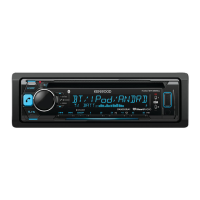
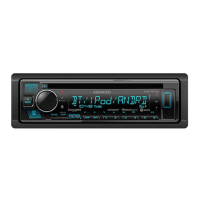
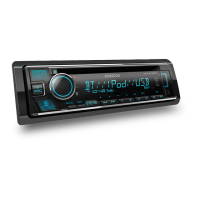
Kenwood KDC-BT660U - User Manual

Kenwood KDC-BT660U
76 pages
Print Icon
To Next Page IconTo Next Page
Loading...
Data Size: B6L (182 mm x 128 mm)
Book Size: B6L (182 mm x 128 mm)
B5A-3847-00 (MN)© 2021 JVCKENWOOD Corporation
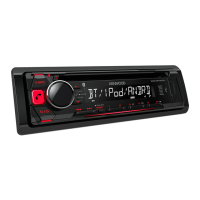
KDC-BT660U
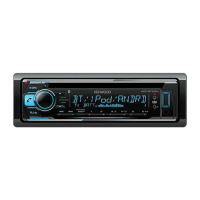
KDC-BT560U
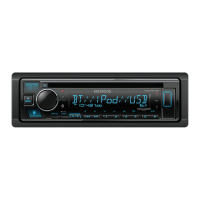
KDC-360UI
CD-RECEIVER
INSTRUCTION MANUAL
JS_KWD_KDC_BT660U_MN_C.indd 1JS_KWD_KDC_BT660U_MN_C.indd 1 5/2/2021 2:40:01 PM5/2/2021 2:40:01 PM

Questions and Answers

  • J
    Joel OrtegaAug 20, 2025
    How to fix Kenwood KDC-BT660U Bluetooth pairing issues?
    • S
      Stanley GibsonAug 20, 2025
      If you're having trouble pairing your Kenwood Car Receiver with a Bluetooth device, ensure you've entered the same PIN code on both devices. If that doesn't work, delete the pairing information from both the receiver and the Bluetooth device, and then try the pairing process again.
  • B
    Barry BarnesAug 22, 2025
    How to connect Bluetooth if Kenwood Car Receiver does not detect device?
    • S
      Sarah BennettAug 22, 2025
      If your Kenwood Car Receiver isn't detecting a Bluetooth device, try searching from the Bluetooth device again. If that doesn't work, reset the unit.
  • L
    Laura WilliamsAug 25, 2025
    What does “MEMORY FULL” mean on Kenwood Car Receiver?
    • L
      Lauren CampbellAug 25, 2025
      If your Kenwood Car Receiver displays “MEMORY FULL”, it means you have reached the maximum storage limit of your iPod/iPhone.
  • P
    plongAug 26, 2025
    What to do if Kenwood KDC-BT660U source does not change to USB?
    • C
      Christopher GibsonAug 26, 2025
      If the source does not change to USB when you connect a USB device while listening to another source on your Kenwood Car Receiver, it may be because the USB port is drawing more power than the design limit. Turn the power off, unplug the USB device, and then turn the power back on before reattaching the USB device. If the problem persists, turn the power off and on again, or reset the unit before trying another USB device.
  • C
    Crystal NormanAug 28, 2025
    What to do if my iPod/iPhone doesn't work with Kenwood Car Receiver?
    • N
      Nathan SchmittAug 28, 2025
      If your iPod/iPhone isn't turning on or working with your Kenwood Car Receiver, first check the connection between the unit and your iPod/iPhone. If the connection is good, try disconnecting and resetting your iPod/iPhone using a hard reset.
  • M
    Monica CrossAug 29, 2025
    Why does my Kenwood KDC-BT660U say “NO DEVICE”?
    • D
      Deborah BaileyAug 29, 2025
      If your Kenwood Car Receiver displays “NO DEVICE”, connect a device (USB/iPod/iPhone) and then change the source to USB or iPod USB again.
  • C
    Carol Silva DDSAug 31, 2025
    Why is the phone sound quality poor on my Kenwood KDC-BT660U Car Receiver?
    • D
      David SchwartzAug 31, 2025
      If the phone sound quality is poor on your Kenwood Car Receiver, try reducing the distance between the unit and the Bluetooth device. Additionally, move the car to a location with better signal reception.
  • M
    Michael LewisSep 2, 2025
    What does “UNSUPPORTED DEVICE” mean on my Kenwood KDC-BT660U Car Receiver?
    • D
      David OwensSep 2, 2025
      If your Kenwood Car Receiver displays “UNSUPPORTED DEVICE”, check whether the connected USB device is compatible with this unit and ensure the file systems are in supported formats. Also, try reattaching the USB device.
  • L
    Lisa AndersonSep 4, 2025
    What does “iPod ERROR” mean on my Kenwood KDC-BT660U Car Receiver and how to fix it?
    • N
      Nancy WrightSep 4, 2025
      If your Kenwood Car Receiver displays “iPod ERROR”, try reconnecting the iPod. If the error persists, reset the iPod.
  • J
    John MarquezSep 6, 2025
    How to stop echo during phone calls on Kenwood KDC-BT660U?
    • M
      Meghan CobbSep 6, 2025
      If you hear echo or noise during a phone conversation on your Kenwood Car Receiver, adjust the microphone unit’s position. You may also check the [ECHO CANCEL] setting.

Summary

Before Use

Basics

Faceplate Overview

Details the main unit's controls and components for basic operation.

Getting Started

Initial Setup: Language, Crossover, and Demo

Guides initial setup of display language, crossover type, and demonstration mode.

Set Clock and Date

Instructions for setting the unit's clock and date.

Set Other Optional Settings

Explains how to configure additional optional settings for the unit.

Change Crossover Type

Radio Operation

Search for a Station

Instructions for finding radio stations using manual or automatic search functions.

Direct Access Tuning

How to tune to stations directly using the remote control.

Other Radio Settings

CD;USB;iPod

Basic Operations

Explains fundamental playback controls for CD, USB, and iPod sources.

Playback Modes and File Selection

AUX Input

Prepare and Listen

Instructions for connecting and listening to audio devices via the auxiliary input.

Set External Device Name

How to assign a custom name to the connected auxiliary device.

KENWOOD Remote Application

Settings for KENWOOD Remote App

Configuration steps to use the KENWOOD Remote application with your device.

Bluetooth

Bluetooth Connection

Details supported profiles, codecs, and microphone connection for Bluetooth.

Pair and Connect Bluetooth Device

Step-by-step guide to pair and connect a Bluetooth device for the first time.

Bluetooth Mobile Phone Functions

Covers call handling, auto-pairing, and receiving incoming calls.

Manage Calls and Voice Quality

How to answer, reject, end calls, and improve voice quality settings.

Call Settings and Making Calls

Configuring auto-answer and making calls via history or phonebook.

Voice Recognition and Contact Management

How to make calls using voice recognition, store contacts, and manage registered numbers.

Bluetooth Mode Settings

Options for selecting devices, deleting pairs, editing PIN, and auto-reconnect.

Bluetooth Test Mode

Procedure to check Bluetooth profile connectivity between device and unit.

Bluetooth Audio Playback

Controls for repeat, random play, file selection, and switching audio sources.

Listen to iPod;iPhone via Bluetooth

How to play music from iPod/iPhone wirelessly via Bluetooth.

Audio Settings

Audio Control Settings

Adjustments for subwoofer level, bass, mid, treble, and EQ modes.

Equalizer Settings

Manual and preset equalizer adjustments for sound tuning.

Sound Customization Options

Options for bass boost, loudness, fader, balance, sound effects, and speaker settings.

Crossover Settings

Configuration of frequency and slope settings for 2-way and 3-way crossovers.

2-Way Crossover Configuration

Detailed settings for 2-way crossover frequency, slope, and gain for each speaker.

3-Way Crossover Configuration

Detailed settings for 3-way crossover frequency, slope, and gain for each speaker.

Digital Time Alignment Setup

Adjusting speaker delay times for optimal sound staging.

Automatic Delay Time Calculation

Guide to automatically calculating speaker delay times based on listener position.

Display Settings

Zone Identification for Display

Explains zone identification for color and brightness settings on the display.

Dimmer and Illumination Color

How to adjust display brightness and select illumination colors.

Change Display Settings

Options for adjusting brightness, text scroll, level meter, and demo mode.

Installation;Connection

Parts for Installation

Lists all components included for installing the unit.

Basic Installation Procedure

Step-by-step guide for the initial installation process.

Installing and Removing the Unit

Instructions for installing the unit with or without a mounting sleeve, and how to remove it.

Wiring Connection

Detailed diagram and explanation of wiring connections for power, speakers, and accessories.

Connect External Components

How to connect optional components like microphones and amplifiers.

References

Maintenance and Handling

Guidance on cleaning the unit, connectors, and handling discs.

Playable Files and Devices

Lists supported audio file formats and compatible media/devices.

Change Display Information

How to cycle through and view different information on the main display.

Troubleshooting

General and Radio Troubleshooting

Solutions for common issues related to general operation and radio reception.

CD;USB;iPod Troubleshooting

Addresses problems encountered with CD, USB, and iPod/iPhone playback.

Bluetooth Troubleshooting

Solutions for Bluetooth connection, audio playback, and call issues.

Specifications

Tuner Specifications

Technical details for FM, AM, and SW radio reception.

CD Player Specifications

Technical details for CD playback, including MP3, WMA, AAC support.

USB and Auxiliary Specifications

Technical details for USB and auxiliary input performance.

Bluetooth Specifications

Technical details for Bluetooth version, range, profiles, and power output.

General and Physical Specifications

Details on operating voltage, physical dimensions, and weight.

Software License Agreement

General Provisions and License Terms

Outlines license grant, usage terms, and user obligations.

Conditions for Grant and Rights

Details conditions for license grant, rights, and indemnification.

Liability and Termination

Covers liability to third parties, confidentiality, and termination clauses.

Important Software Notices

Kenwood KDC-BT660U Specifications

General IconGeneral
CD PlaybackYes
Display TypeLCD
MP3 PlaybackYes
WMA PlaybackYes
WAV PlaybackYes
FLAC PlaybackYes
Remote ControlYes
Subwoofer ControlYes
Built-in MicrophoneYes
Maximum Output Power50W x 4
BluetoothYes
USB InputYes
Radio TunerFM/AM
Preamp Outputs3 (Front, Rear, Subwoofer)
Equalizer13-band
AUX InputYes
Steering Wheel ControlYes

Related product manuals