To Next Page
E
Erica AndersonSep 23, 2025
What does “NO SKIPS” mean on my Kenwood Car Receiver?
- SShannon SanchezSep 23, 2025
The “NO SKIPS” message on your Kenwood Car Receiver indicates that the skip limit has been reached.

What does “NO SKIPS” mean on my Kenwood Car Receiver?
The “NO SKIPS” message on your Kenwood Car Receiver indicates that the skip limit has been reached.
What to do if my Kenwood Car Receiver says “MISWIRING CHECK WIRING THEN PWR ON”?
If your Kenwood Car Receiver displays “MISWIRING CHECK WIRING THEN PWR ON”, turn the power off. Check to ensure the terminals of the speaker wires are properly insulated, then turn the power back on.
What to do if there is no sound from my Kenwood Car Receiver?
If you cannot hear sound from your Kenwood Car Receiver: * Adjust the volume to the optimum level. * Check the cords and connections.
Why is sound being interrupted during playback of a Bluetooth audio player on my Kenwood Car Receiver?
If the sound is interrupted or skipped during playback of a Bluetooth audio player on your Kenwood Car Receiver: * Reduce the distance between the unit and the Bluetooth audio player. * Turn off, then turn on the unit and try to connect again. * Consider that other Bluetooth devices might be trying to connect to the unit.
What to do if my Kenwood Car Receiver is showing “PLEASE EJECT”?
If your Kenwood Car Receiver displays “PLEASE EJECT”, reset the unit. If the problem persists, consult your nearest service center.
Why is my Bluetooth device not being detected by my Kenwood Car Receiver?
If no Bluetooth device is detected by your Kenwood Car Receiver: * Search from the Bluetooth device again. * Reset the unit.
What does “CODE ERROR” mean on my Kenwood Car Receiver?
If your Kenwood Car Receiver displays “CODE ERROR”, make sure you have entered the correct pass code.
What does “NO INFO”/“NO DATA” mean on my Kenwood Car Receiver?
If your Kenwood Car Receiver displays “NO INFO”/“NO DATA”, it means that the Bluetooth device cannot get the contact information.
What does “USB HUB IS NOT SUPPORTED” mean on Kenwood Car Receiver?
If your Kenwood Car Receiver displays “USB HUB IS NOT SUPPORTED”, it means that the unit cannot support a USB device connected via a USB hub.
How to fix voice calling issues on Kenwood Car Receiver?
If voice calling method is not successful on your Kenwood Car Receiver: * Use voice calling method in a quieter environment. * Reduce the distance from the microphone when you speak the name. * Make sure the same voice as the registered voice tag is used.
Explains how to interpret symbols and references used in the manual for better understanding.
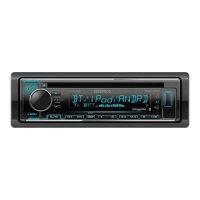
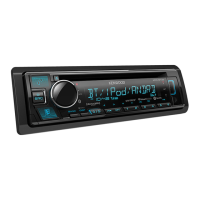
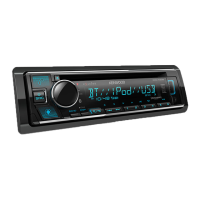
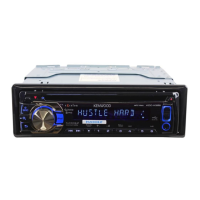
Describes the physical layout and functions of the unit's front panel.
Explains the functions and usage of the included remote control.
Provides instructions for resetting the unit and replacing the remote control battery.
Guides on setting initial display language and disabling the demonstration mode.
Instructions for configuring the unit's clock and date settings.
Covers the process of configuring various initial settings for the unit.
Instructions for registering the marine remote control ID for the KMR-D368BT model.
Steps to remove previously registered remote control IDs from the unit.
Explains methods to find and tune into radio stations using the unit.
Describes how to tune directly to a radio station using the remote control.
Method to search for radio stations by program type.
How to synchronize the unit's clock with broadcast data.
Setup, playback, and naming for auxiliary audio sources.
How to begin playing audio from CD, USB, iPod, or Android devices.
Managing iPod/Android devices, selecting music drives, and browsing files.
Utilizing Quick, Skip, and Alphabet searches for music files.
Listening to internet radio services like TuneIn via connected devices.
How to search for music tracks using the remote control functions.
Setup and usage of the KENWOOD Remote application for device control.
Detailed guide for connecting and using Pandora via USB.
Managing USB music drives and configuring skip search settings.
Creating, saving, searching, and deleting Pandora stations.
Saving current song information from Pandora.
Instructions for preparing and starting iHeartRadio audio playback.
Details basic playback controls and station management for iHeartRadio.
Connecting the tuner, checking ID, and activating the SiriusXM subscription.
Searching for and storing desired SiriusXM radio stations.
Details on starting SiriusXM and using channel/replay keymodes.
Methods for directly tuning into SiriusXM channels using the remote.
Managing favorite channels and song playback settings.
Using TuneScan to preview songs on selected channels.
Adjusting channel lock, pass codes, and other settings.
Configuring tune start, signal level, buffer usage, and reset options.
Initial steps for establishing Bluetooth connection and connecting the microphone.
Guide to pairing a new Bluetooth device with the car stereo.
How auto-pairing works when connecting phones via USB.
Handling incoming calls and operations during a call.
Handling incoming calls, multiple calls, and call modes.
Adjusting microphone settings for better call audio.
Configuring auto-answer and other call receiving preferences.
Making calls via call history, phonebook, or direct dialing.
Using voice commands and accessing the phonebook for calls.
Utilizing voice recognition for making calls and using personal assistants.
Saving and managing phone contacts in the unit's memory.
Selecting connected devices, deleting devices, and managing settings.
Verifying Bluetooth connection status and profile compatibility.
Connecting and playing audio from Bluetooth-enabled devices.
Configuring the unit to work with the KENWOOD Remote app.
Listening to iPhone/iPod music and internet radio over Bluetooth.
Controls for bass, loudness, subwoofer, fader, balance, and volume offset.
Settings for sound reconstruction, space enhancement, and sound realism.
Adjusting Q factor and selecting preset equalizer profiles.
Setting speaker sizes, types, and crossover frequencies for optimal sound.
Introduces DTA settings and vehicle-specific audio adjustments.
In-depth guide to setting speaker distances and gains for precise sound staging.
Adjusting audio based on car type and rear speaker placement for optimal sound.
Adjusting colors for display zones and overall illumination.
Configuring screen brightness and text display behavior.
Resolving common problems with the unit's operation and display.
Diagnosing and fixing issues with radio reception and disc playback.
Addressing playback errors and device recognition issues for CD, USB, and iPod.
Resolving problems with Android device connectivity and audio output.
Addressing issues with Pandora, iHeartRadio, and SiriusXM services.
Resolving subscription update, content, and TuneScan issues.
Troubleshooting Bluetooth pairing, voice calls, and audio playback interruptions.
Procedures for cleaning the unit, connectors, and handling discs.
Details on playable files, unplayable discs, and USB/iPod/iPhone compatibility.
Information on Android, Pandora, iHeartRadio, and Bluetooth device compatibility.
How to change the information shown on the unit's display.
Basic installation procedures and wiring for KDC-X301/KMR-D368BT.
Detailed steps for installing the unit into a dashboard mount.
How to detach the unit and install it without a mounting sleeve.
Specific wiring diagrams for KDC-X301 and KMR-D368BT models.
Specific wiring diagrams for KDC-BT21 and KDC-MP368BT models.
Technical details for radio reception and CD playback.
Technical data for USB connectivity and Bluetooth features.
Specifications for the auxiliary input and overall unit performance.
Technical details on maximum output, impedance, and tone settings.
Overall specifications including operating voltage, temperature, and physical dimensions.
 General
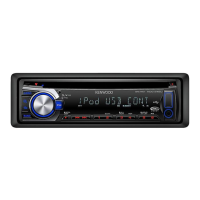
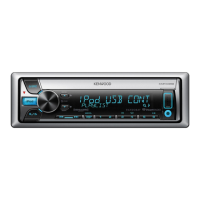
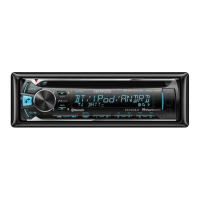
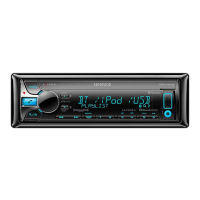
| Brand | Kenwood |
|---|---|
| Model | KDC-X301 |
| Category | Car Receiver |
| Language | English |