16
4. You can even use the Alpha Dial wheel to change the Tempo of both the Style and the MIDI File in real
time. Your real Drummer is locked in right there with you as you perform.
5. You can also toggle between the original Drum tracks of your MIDI File (Remix OFF) and those of MIDJAY
(Remix ON), buy repeatedly pressing the Remix button as you perform.
6. To save the Remix function, press the MIDI File key and, during the execution of the two sections, press Save.
Now a window opens which is used to name the MIDI File. If the same name is kept, the MIDI File will be
overwritten; if the name is changed, a new File will be created and the original File will remain unchanged.
As with other procedures, use the Enter key to conrm that the File has been saved.
MORE FUNCTIONS ASSOCIATED WITH MIDI FILES - MIDI FILE MENU
There are some functions that are associated only with MIDI Files. These functions can be accessed by
pressing the Edit button (so long as the MIDI File LED is on). Press the Edit button to access the “MIDI
File Menu” screen.
GM Part: This is used to access the “GM Part Edit” screen and edit the various parts of a MIDI File.
Marker: Imagine having the capability to now jump instantly from one part of a Song to another as you perform
live and not having any delay what so ever as you switch and play. You can now create your own ‘loops’ within
a Song or better still remix the entire Song so your performance really centralizes around you. You can now
set 16 Marker points within any given MIDI File / Song.
MARKERS
When Markers have been inserted in a MIDI File, they will appear in the display when the MIDI File is started.
If the MIDI File contains a text used to display the Markers, the Lyric/Txt key should be pressed or the Marker
function should be accessed from the Edit Menu. Once the Markers have been displayed, it is possible to
toggle between Markers using the 0-9 keys or using the Cursor keys; press then Enter to conrm.
When you go from one section to the next of a specic Song, the change can occur at the end of the beat or
at the end of the part. This option can be chosen with the Marker Jump Mode function which is found in the
Function Edit Menu.
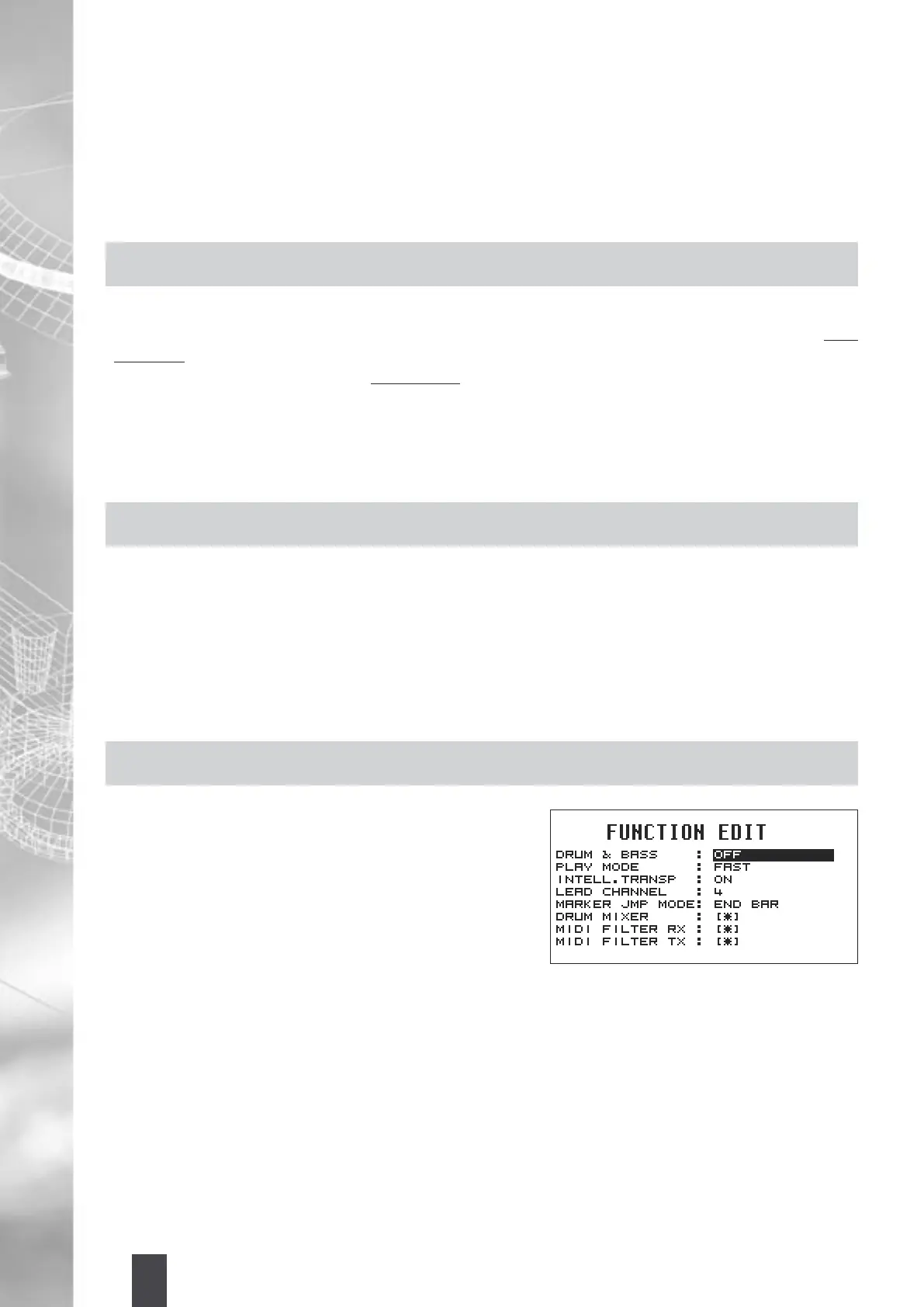
FUNCTION
This is used to control the following functions associated with
MIDI Files. Move inside this menu with the Alpha Dial and
with the Cursor keys.
1. Drum & Bass: When this function is active, all tracks in the
MIDI File are placed in Mute function, with the exception
of the Base and the Drum-Set. The function can be turned
ON or OFF through the Alpha Dial or the Enter key.
2. Play Mode: With this Mode it is possible to access the
MIDI Files. The Modes available are two: Fast and Normal.
Fast: When Fast is selected, the rst beats of the MIDI File (those which do not contain notes but only
controls) are read in a very quick way. Reading the MIDI File becomes normal again when the rst note is
reached. With this function, the time necessary to start the MIDI File after the pressure of the Enter key
(Start/Pause) is almost entirely eliminated.
Normal: When the Normal Mode is selected, the MIDI Files are read in a normal way, without speeding
up the reading of the initial beats. To toggle between one Mode and the next, select the function with the
Cursor keys and choose the selected Mode with the Alpha Dial or with the Enter key.
3. Intelligent Transposer: When the Intelligent Transposer function is active, the sounds contained within the
MIDI File are brought back to their natural Range. In this way, the MIDI Files do not lose their original natural
sound, even when transpositions with very high values are performed.


 To Next Page