iButton Series Programming Guide Section: Programming Guide Software Version
Steps to set up a new lock:
1. Connect the USB blue dot receptor to the computer USB port.
2. Log in to the software.
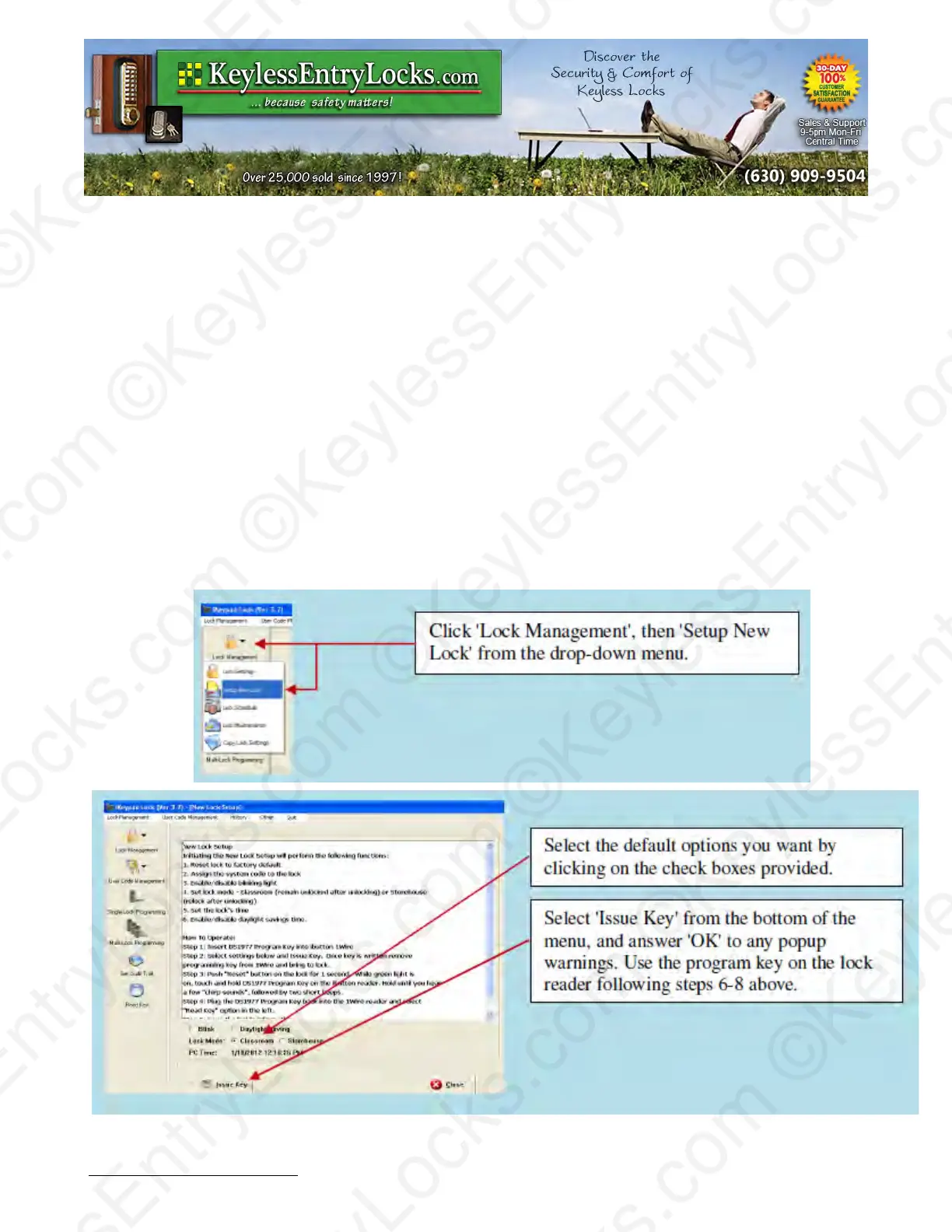
3. Snap the program key (DS1977) onto the USB blue dot receptor and Click 'Lock
Management'
4. Click on 'Setup New Lock' from the drop-down menu (see below). Select the default options
you want by clicking on the check boxes provided.
5. Select 'Issue Key' from the bottom of the menu and answer 'OK' to any pop-up warnings.
6. Hold the reset button on the lock until there are two beeps and a solid green light; when the
LED starts blinking green, release the reset button and immediately press the # key. When
the lock stops flashing and beeps 3 times, the lock has been reset to factory defaults.
7. Press the reset button once quickly and release it. The lock will light the LED green and
beep twice.
8. While the LED is still lit, touch the program key to the iButton reader on the lock. There will
be two more beeps to indicate that the lock confirmed the information upload from the
program key. The lock will now have been initialized and the lock will have recorded its lock
identification number on the program key.
Keyless Enty Locks For current prices, please visit our website. www.KeylessEntyLocks.com
46 Danada Sq West #4133 Phone: (630) 909-9504
Wheaton, IL 60189 Page 29 of 58 FAX: (630) 447-3635
LockO rders@KeylessEntryLocks.com Path: Z:\KEY\suppliers\Lockey\website-KEL-zc\_dev\pdfs Modified 08/12
©KeylessEntryLocks.com ©KeylessEntryLocks.com
©KeylessEntryLocks.com ©KeylessEntryLocks.com
©KeylessEntryLocks.com ©KeylessEntryLocks.com
©KeylessEntryLocks.com ©KeylessEntryLocks.com
©KeylessEntryLocks.com ©KeylessEntryLocks.com
©KeylessEntryLocks.com ©KeylessEntryLocks.com ©KeylessEntryLocks.com
©KeylessEntryLocks.com ©KeylessEntryLocks.com ©KeylessEntryLocks.com


 To Next Page