iButton Series Programming Guide Section: Programming Guide Software Version
User Setup
Setting User Access codes and/or iButtons
Overview:
•
Add/Edit user information
•
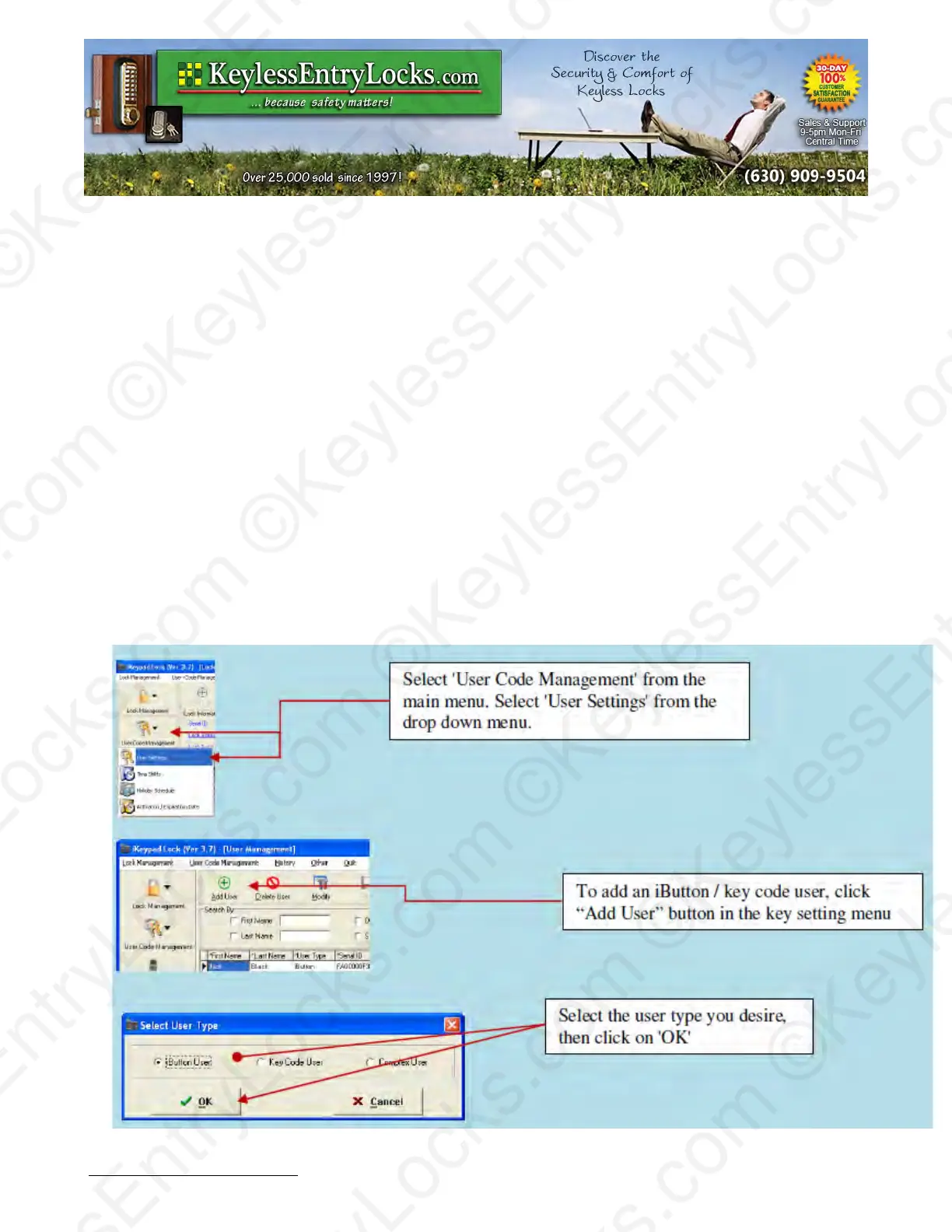
Select 'User Code Management' from the main menu. Then select 'User Settings' from the
drop down menu.
•
To add an iButton / key code user, click “Add User” button in the key setting menu (or
'Modify' if you wish to change an existing user)
•
For new users, enter the name information and, if desired, the 'Title', 'Department' and
'Address'. To add iButton user, click 'OK' and snap a user iButton key into the USB blue dot
receptor. Click on the empty field of 'Serial ID', the iButton key ID will be detected by the
system and automatically entered.
•
To add key pad code user, check the 'Key Code User' and click 'OK'. Type in user code
under Key Code field. If the either user key type or name already exists in the system, the
software will pop up a warning. To enter a 'Complex' user (Requires that the user use BOTH
an iButton AND a keypad code every time for extra security) click on 'Complex User', then
'OK'.
For any of the three user types, enter the user profile as follows:
Keyless Enty Locks For current prices, please visit our website. www.KeylessEntyLocks.com
46 Danada Sq West #4133 Phone: (630) 909-9504
Wheaton, IL 60189 Page 33 of 58 FAX: (630) 447-3635
LockO rders@KeylessEntryLocks.com Path: Z:\KEY\suppliers\Lockey\website-KEL-zc\_dev\pdfs Modified 08/12
©KeylessEntryLocks.com ©KeylessEntryLocks.com
©KeylessEntryLocks.com ©KeylessEntryLocks.com
©KeylessEntryLocks.com ©KeylessEntryLocks.com
©KeylessEntryLocks.com ©KeylessEntryLocks.com
©KeylessEntryLocks.com ©KeylessEntryLocks.com
©KeylessEntryLocks.com ©KeylessEntryLocks.com ©KeylessEntryLocks.com
©KeylessEntryLocks.com ©KeylessEntryLocks.com ©KeylessEntryLocks.com


 To Next Page