Need help?
Do you have a question about the Kia Seltos 2024 and is the answer not in the manual?
Tips for improving voice recognition performance by adjusting phone contacts and speaking clearly.
Guide to pair phones, accept requests for phonebook download, and troubleshoot auto-connection issues.
Advice on Bluetooth reception, carrier coverage, and streaming audio volume.
Connect your iPhone to infotainment for calls, texts, apps, music, and navigation with Siri.
Connect your Android phone to infotainment for music, dialer, navigation, and more.
Details on Kia Connect, remote start, climate control, and battery preservation.
Instructions to view feature videos via QR code or website link.
Explanation of AWD LOCK Mode for improved traction on various surfaces and its disengagement.
How ROA uses door latch inputs to alert drivers of rear passengers left behind.
Details on using power outlets, multimedia USB port, and USB-C charger ports for devices.
How the ISG system reduces fuel consumption by automatically shutting down the engine at standstill.
Explanation of LKA for lane departure warning/assist and LFA for lane centering.
Steps to enable/disable LKA/LFA and adjust warning volume and priority via settings.
How ISLA informs the driver of detected speed limits and its available modes (Assist, Warning, Off).
How FCA alerts the driver and applies emergency braking to prevent collisions.
How BCW detects vehicles in blind spots and warns the driver, potentially assisting with braking.
How BCW warns of collision risk when exiting parking or changing lanes with a turn signal.
Conditions under which RCCA operates, including gear selection and vehicle speed.
How SCC maintains speed and distance from vehicles ahead, adjusting automatically.
Instructions to set SCC speed, adjust vehicle-to-vehicle distance, and cancel operation.
How the Smart Liftgate automatically opens when the driver approaches the vehicle.
Information on how to update vehicle maps and software wirelessly via Kia Connect.
How to lock and unlock the vehicle using the Smart Key button or touch sensor.
Steps to set up and use your smartphone as a digital key for the vehicle.
How to operate the vehicle with Digital Key and share it with others.
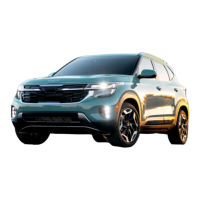
This document provides a comprehensive overview of the features and functionalities of the 2024 Kia Seltos, focusing on its advanced technological systems, driver-assistance features, and connectivity options.
The vehicle incorporates a robust Voice Recognition (VR) system, designed to enhance user interaction and safety. To optimize VR performance, users are advised to use full names (e.g., "John Smith" instead of "Dad"), avoid special characters, emojis, hyphenated names, acronyms, and all-caps words in phone contacts. Spelling words completely and speaking in a natural, moderate tone with clear pronunciation are crucial for accurate recognition. Environmental factors such as open windows, sunroof, or high-speed A/C fan operation can interfere with VR accuracy. The system may also struggle with certain accents or uncommon names. Users can access a list of available commands by pressing the talk button and saying "Help."
For Bluetooth® pairing, users can initiate the process via "Device Connections" on the infotainment system display or the "Call" button on the steering wheel. It is essential to accept all requests for phonebook download and future auto-connection during pairing. For subsequent phone pairings, users should refer to the vehicle's manuals. Troubleshooting auto-connection issues involves rebooting the phone, updating its operating system, deleting and re-pairing the device from both the infotainment system and the phone's Bluetooth® lists, and ensuring Bluetooth® is activated on the phone. The system may not download all contacts if they exceed the maximum allowed number or if they are stored under unsupported categories (e.g., MAIN, PAGER, OTHER). Only the "phone contact list" should be selected for download, not social media or email lists. Phone operating system changes can affect compatibility; for assistance, users can contact their Kia dealer or Kia Consumer Assistance. Bluetooth® reception is carrier-dependent, and for streaming audio, the device's volume should be turned up.
The Kia Seltos supports both Apple CarPlay® and Android Auto™. Apple CarPlay® allows iPhone® users to make calls, send hands-free texts, access apps and music, and use Siri® voice control for navigation. Connectivity is achieved by connecting the iPhone® to the infotainment system. Android Auto™ enables Android™ phone users to access music, the phone's dialer, and navigation via an intuitive interface and voice commands, with control also available through steering wheel controls. For select models, wireless Apple CarPlay and Android Auto are available. Both systems rely on the smartphone's cellular data service, and normal data rates apply.
The Kia Access App (formerly UVO link) requires a cellular network connection with good signal strength for remote commands to execute promptly. For features like Remote Start or Remote Start with Climate Control, all doors, the hood, and the trunk/liftgate must be closed and locked. These features operate for 10 minutes before automatically shutting off. Activating Remote Start a few minutes before entering the vehicle allows the interior to reach the desired temperature. To obtain an accurate vehicle status, users should press the refresh icon on the app or customer web portal. To preserve the vehicle battery, Kia Connect will not work seven days after the ignition was last turned on, requiring a key fob restart.
The AWD LOCK Mode, activated by a button near the gear shift, enhances drive power on wet pavement, snow-covered roads, unpaved roads, sharp grades, and sandy or muddy terrains to improve traction. A minor mechanical vibration may be felt when the AWD LOCK Mode disengages, which is not a mechanical failure.
The ROA with Door Monitoring system uses door latch inputs to alert the driver if a rear passenger may still be in the vehicle. An alert message "Check rear seats" appears on the Instrument Cluster, accompanied by a chime. The system is OFF by default and can be enabled/disabled via Vehicle Settings > Convenience > Rear Occupant Alert in the Instrument Cluster.
The vehicle is equipped with various charging and connectivity options. Power Outlets (12V, 180W max.) are available for mobile phones and other devices. A Multimedia USB Port connects USB audio devices and smartphones. USB-C Charger Ports recharge devices using a USB-C cable. The Engine Start/Stop button must be in the ACC/ON/START position for these ports to operate. Devices only charge when the vehicle is in ACC/ON/START. It is recommended to use manufacturer-certified USB charging cables, as aftermarket cables may impact functionality. The Multimedia USB Port charges slower than the USB-C Charger Ports.
The ISG system reduces fuel consumption by automatically shutting down the engine when the vehicle is at a standstill. When active and conditions are met, the engine stops, and the AUTO STOP indicator on the Instrument Cluster illuminates GREEN. The engine restarts when the brake pedal is released, the shift lever is moved to D, R, or P, or to Manual Shift mode. The ISG system is active by default at vehicle startup and reactivates when ignition is cycled. It can be deactivated by pressing the ISG OFF button, which illuminates RED when off. Under certain conditions, the engine may restart automatically even if the brake pedal is depressed. If the AUTO STOP indicator continuously blinks AMBER and the ISG button LED is on, an authorized Kia dealer should be contacted.
LKA detects lane markings and warns the driver if the vehicle deviates without a turn signal, providing steering assistance. LFA helps keep the vehicle centered in its lane by monitoring lane markings and vehicles ahead, providing steering inputs. To enable LKA/LFA, users can go to User Settings in the Instrument Cluster display, press the Mode button on the steering wheel, or press the SETUP key/button on the infotainment system, then select Vehicle Settings > Driver Assistance > Driving Safety. Once enabled, pressing and holding the Lane Safety Button turns LKA on/off. When ON, the Lane icon illuminates WHITE when no lane markers are detected, and GREEN when detected and assisting steering. Warning volume can be adjusted via Vehicle Settings or User Settings > Driver Assistance > Warning Methods. LKA operates when vehicle speed exceeds approximately 40 mph, recognizes the lane, and is between lane markers. LFA operates when both sides of lane markers are recognized, and the vehicle is traveling slower than 120 mph. LFA includes a Hands-Off Warning: if the driver removes hands from the steering wheel for several seconds, a warning message and audible warning appear. If hands are not replaced, LFA cancels.
ISLA uses navigation system data to inform the driver of the detected speed limit. When active, an alert on the Instrument Cluster LCD displays the detected speed limit. If the vehicle exceeds this limit, a warning sounds, and the current speed blinks on the LCD. ISLA settings can be accessed via User Settings in the Instrument Cluster (Mode button B, then OK button up/down to Driver Assistance, then Speed Limit) or Vehicle Settings in the Infotainment System (SETUP key/button, then VEHICLE, then Driver Assistance, then Speed Limit). Three modes are available:
FCA alerts the driver and, under certain conditions, applies emergency braking when rapidly approaching a vehicle, pedestrian, or cyclist. Initially, a Forward Collision Warning (FCW) provides an audible and visual alert on the Instrument Cluster. The Junction Turning function may apply emergency braking to avoid collisions with oncoming vehicles when turning left at a crossroad with the turn signal on. Alert settings (Standard, Late, Off) can be adjusted. FCA is ON by default and can be turned OFF via Vehicle Settings. FCA/FCW becomes active when the Engine Start/Stop button is ON, vehicle speed exceeds 5 mph, and Electronic Stability Control (ESC) is ON.
BCW detects approaching vehicles in the driver's blind spot, warning of potential collisions with an indicator and sound. If a collision risk exists when exiting a parallel space, BCW can assist by applying the brakes. To enable/disable, use User Settings in the Instrument Cluster (Mode button A, then OK button B to Driver Assistance > Driving Safety > Blind-spot Safety) or Vehicle Settings in the infotainment system (SETUP key/button, then VEHICLE > Driver Assistance > Driving Safety > Blind-spot Safety). Settings should only be adjusted when the vehicle is at a standstill, in PARK, and the ignition is ON. Vehicle detection: An indicator illuminates on the outside rearview mirrors when a vehicle is detected within the BCW warning boundary. Collision warning: If vehicle detection warning is on and the driver activates a turn signal, the indicator flashes, and a warning sounds. Collision-Avoidance Assist (while departing): If equipped, when a collision warning has occurred and BCW detects an increased collision risk, it can help avoid a collision by applying the brakes. This operates when the vehicle is traveling less than 2 mph, and the approaching vehicle is traveling less than 3 mph.
RCCA detects approaching vehicles from the rear-left or rear-right, sounding an audible warning, illuminating indicators on the outside rearview mirrors, and displaying a message on the LCD Instrument Cluster. RCCA may activate Electronic Stability Control and temporarily apply braking power to avoid imminent collisions. RCCA operates when the gear shift is in Reverse and the vehicle is moving slower than 6 mph.
SCC with Stop and Go maintains a set speed and predetermined distance from vehicles ahead by automatically adjusting driving speed. It can slow down to maintain distance without accelerator or brake pedal input. The system can bring the vehicle to a complete stop if the vehicle ahead slows or stops. If the vehicle ahead stops for more than 3 seconds, the accelerator pedal or RES+ button must be pressed to re-engage. To set/adjust SCC speed: Accelerate/decelerate to desired speed, press the CRUISE button A to turn ON (CRUISE indicator illuminates), then press (SET-) button B down to set speed (SET indicator illuminates, set speed and vehicle-to-vehicle distance display on LCD screen). Adjust speed with (RES+) up or (SET-) down. To set vehicle-to-vehicle distance: Press the SCC button D on the steering wheel to cycle through available distance settings on the LCD screen. To cancel SCC operation: Press the CANCEL button B or the brake pedal. To turn SCC system OFF: Press the CRUISE button A.
The Smart Liftgate with Auto Open can automatically open the liftgate when the driver approaches or leaves the vehicle, provided the Smart Key is within the detecting area (20-39 inches/50-100 cm). The feature is OFF by default. To enable, go to User Settings > Door > Smart Liftgate in the Instrument Cluster LCD modes, or press the SETUP key on the infotainment system, then Vehicle > Door > Smart Liftgate. Automatically open: When the Smart Key is present near the back of the vehicle, hazard lights blink, and a chime sounds for about 3 seconds as an alert before opening. The alert system blinks and chimes two additional times before opening.
 General
| Brand | Kia |
|---|---|
| Model | Seltos 2024 |
| Category | Automobile |
| Language | English |

 To Next Page