7
6. Installation, Activation, and Wi-Fi Enrollment
For best Wi-Fi enrollment results, follow these steps:
1. Scan QR code shown in STEP 1 on the front of the
Quick Start Guide. Install the Kidde app.
2. Open the Kidde app. Create and login to your account. Tap “Add a device.” Select “Water
Leak + Freeze Detector.” Follow in-app steps.
3.
Scan your unique QR code, shown in STEP 3 of the Quick Start Guide, or on back of your detector.
Setup and connect detector to the app. This will include the steps shown in sections 5 and 6.
4. Complete setup by following in-app steps.
IMPORTANT: These water leak detectors do not communicate between themselves or other
Wi-Fi devices. Wi-Fi functionality is only between water leak detectors and a mobile device.
NOTE: At any time during Wi-Fi enrollment, if you have a problem, you can reset the device to
factory settings and start over (See Section 6.2).
6.1 Setting Up Wi-Fi Enrollment
A. Install batteries
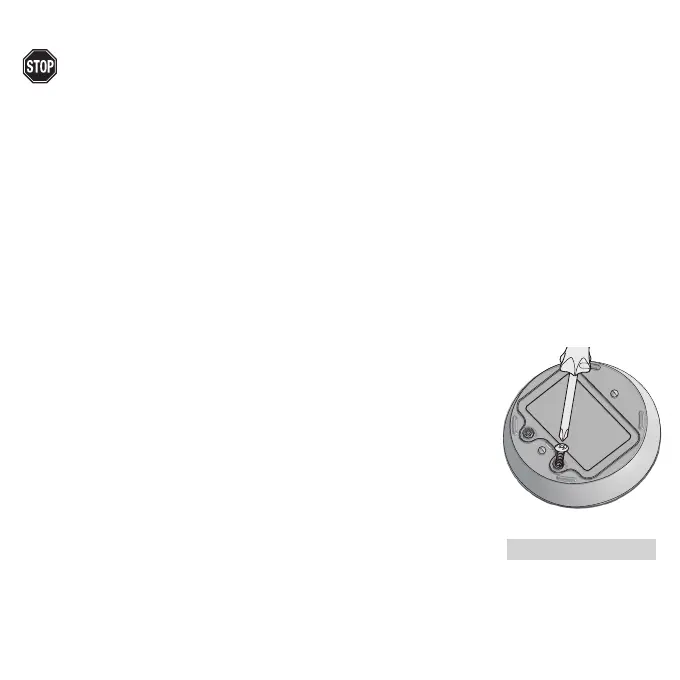
• Using a screwdriver, open the battery compartment and install
two AA batteries(See Figure 6.1). Note the polarity markings.
• When the batteries are installed, the detector will begin searching for a
Wi-Fi connection.
B. Open the Kidde App and follow instructions on the App to finish
Wi-Fi enrollment.
NOTE: If no further steps are taken within 5 minutes of initial power up the
Wi-Fi function will turn off. The detector will then perform as a standalone
device, and will alarm if water or freeze conditions are detected, but it will not
send notifications to your mobile device. See Section 6.2 for reactivating Wi-Fi
features.
C. Repeat steps A and B with each detector to be enrolled with Wi-Fi.
6.2 Resetting a Device’s Wireless Settings
If you encounter an issue at any point during the Wi-Fi enrollment
process, you may reset the device by following the directions of one
of the options below:
Figure 6.1



 To Next Page